Seedance 2.0: Image to Video, Multimodal References and Editing
FusionAI Content-Team · Updated 2026-11-20 · 5 min read
Learn how to turn a product still into a shot, give images, motion clips and audio different reference roles, and revise an existing clip with Seedance 2.0 in FusionAI.
Official capabilities and example scenes
From a still to visible fabric motion
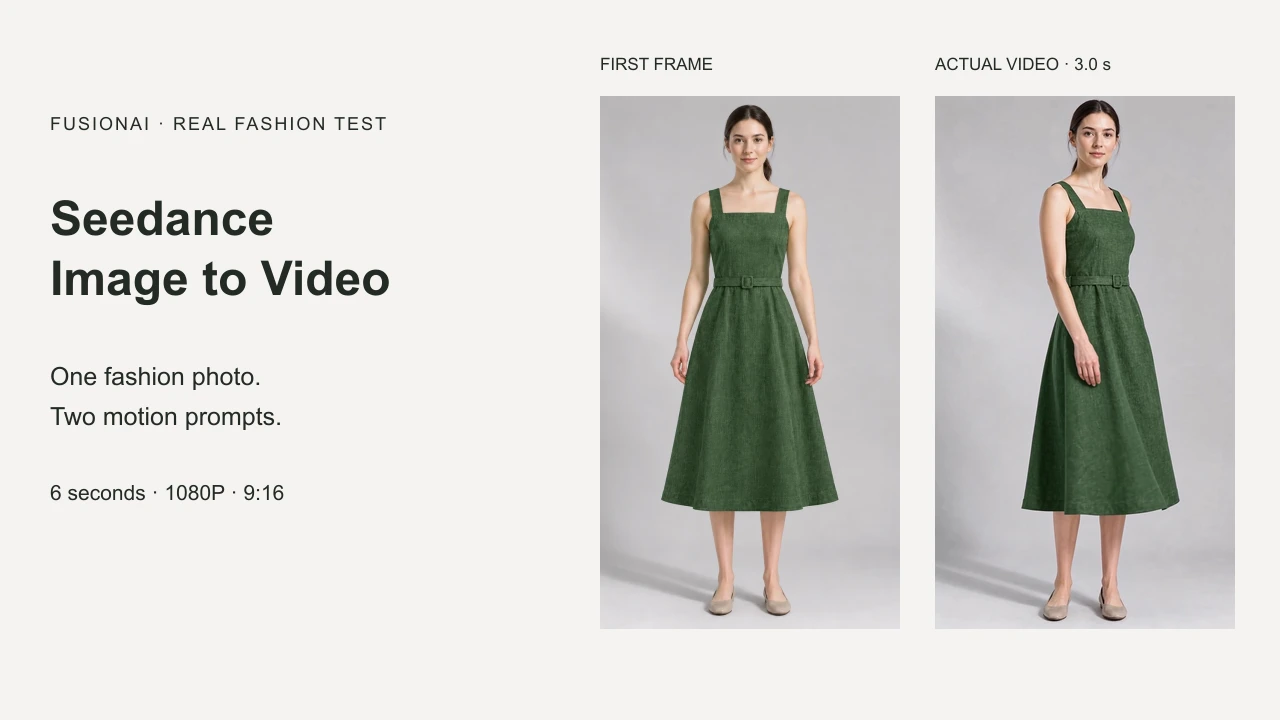
The launch’s laundry demo illustrates how an opening image can establish composition while a single action supplies the movement. For apparel, ask for one turn or sleeve movement before attempting a full outfit showcase.
Storyboard, person, scene and props as separate references
ByteDance uses separate materials to guide the shot plan, character, setting and objects. Apply the same split to product appearance, background and camera motion. Add sound direction separately; a visually good clip still needs an audio review.
See the original examples and model documentation
What FusionAI exposes for each entry
| Model in Video Studio | Available modes | Selectable duration and quality |
|---|---|---|
| Seedance 2.0 | Text to video · Image to video · First & last frame · Reference to video · Edit video · Extend video | 4–15 s · 480P / 720P / 1080P |
| Seedance 2.0 Fast | Text to video · Image to video · First & last frame · Reference to video · Edit video · Extend video | 4–15 s · 480P / 720P |
| Seedance 2.0 Mini | Text to video · Image to video · First & last frame · Reference to video · Edit video · Extend video | 4–15 s · 480P / 720P |
The standard, Fast and Mini entries expose the same six modes in the current catalog. Reference generation lists up to 9 images, 3 videos and 3 audio clips; the reference videos and reference audio each have a 15-second combined cap. For Seedance 2.0 edits, review the output duration and framing controls instead of assuming they follow the source as in Seedance 2.5.
Catalog and interface checked on 20 November 2026. The table shows configured choices; some are mode dependent. Use the live estimate and confirm the actual returned file.
1. Create a product shot from one opening still
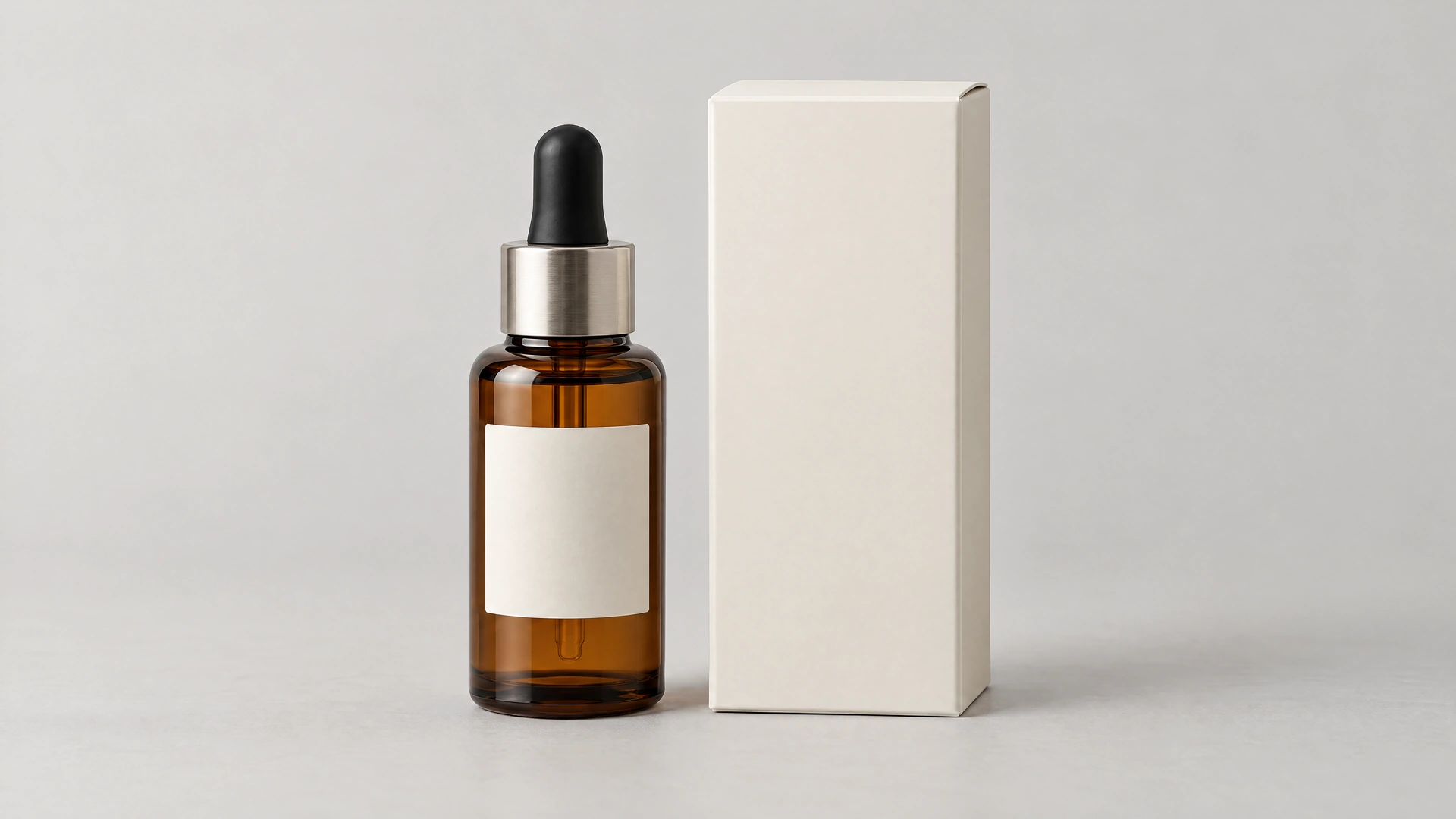
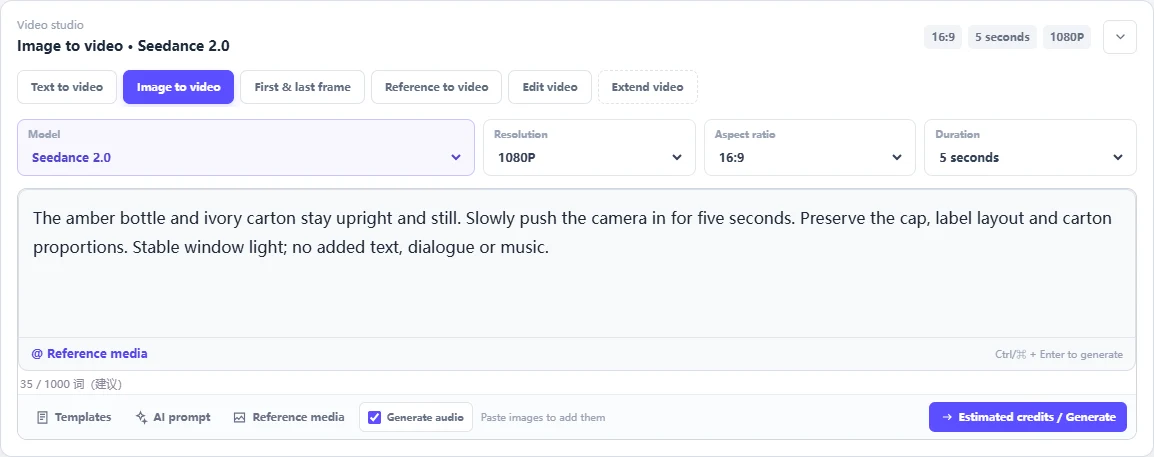
- Choose Seedance 2.0 and Image to video. Upload one clean opening image. Leave extra space above tall packaging if the camera will push in.
- Set 5 seconds and the intended framing. Describe one camera move and the exact product details to keep. Check the estimate before submitting, then play through the ending.
Prompt to adapt
The amber bottle and ivory carton stay upright and still. Slowly push the camera in for five seconds. Preserve the cap, label layout and carton proportions. Stable window light; no added text, dialogue or music.
Verified FusionAI output
The recorded Seedance 2.0 run returned a 1280 × 720 clip of about five seconds, with no audio. The carton comes close to the upper edge during the push-in. Leave more room when a full product must remain visible.
Read the full test, inputs and output review · Follow the first-frame walkthrough
2. Assign identity, motion and sound to separate inputs
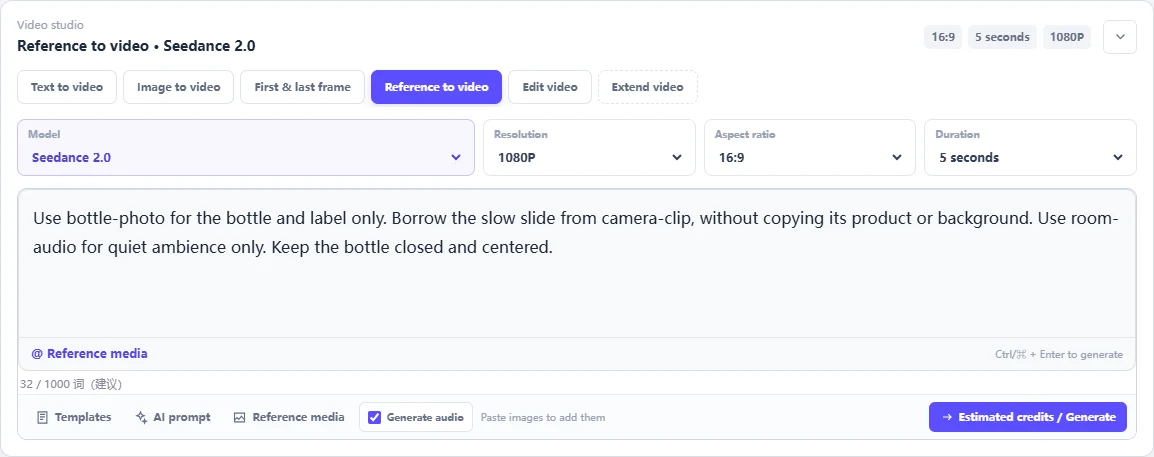
- Switch to Reference to video. Add the actual product image, a short camera reference and optional audio. Use @ to select each uploaded file.
- Say what each file provides and what to ignore. If motion makes the shape drift, retry with a slower camera move and fewer references.
Prompt to adapt
Use @bottle-photo for the bottle and label only. Borrow the slow slide from @camera-clip, without copying its product or background. Use @room-audio for quiet ambience only. Keep the bottle closed and centered.
3. Revise one element in an existing clip
- Select Edit video and attach a source clip you can edit. For one replacement, add a matching image only when identity matters.
- Use @ to name the source. Describe the replacement and preserve the subject, camera, light and sound where needed. Check output settings, then compare the old and new clip side by side.
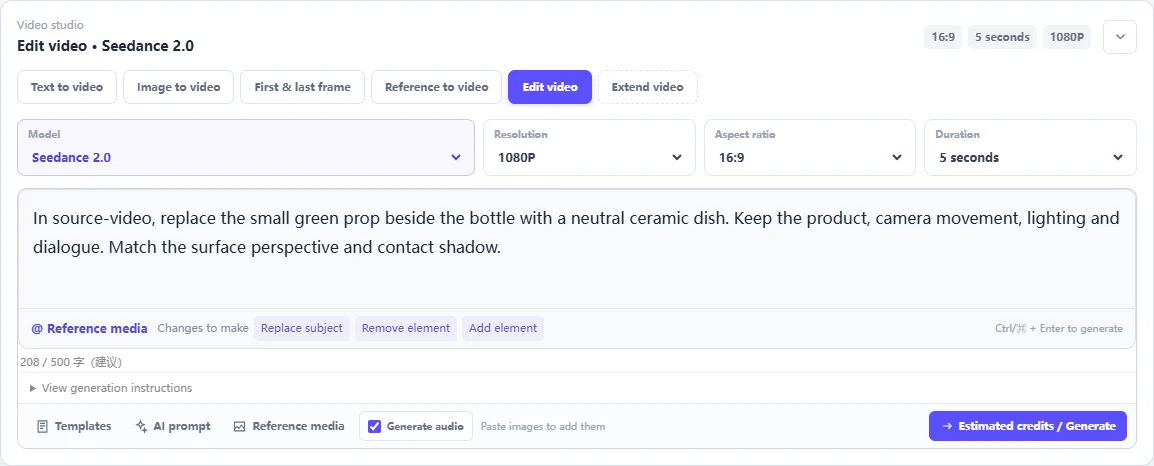
Prompt to adapt
In @source-video, replace the small green prop beside the bottle with a neutral ceramic dish. Keep the product, camera movement, lighting and dialogue. Match the surface perspective and contact shadow.
Choose a mode and review the result
Use a single opening still when the opening composition is the priority. Use reference generation when an image should guide identity without necessarily becoming the opening frame. If you need longer narration, compare the controls in the Seedance 2.5 guide.
For extension, start from a clean existing clip. Describe what happens before or after it, then verify the join and match the selected model’s duration field. Do not carry over another model’s duration rule.
- Check the first frame, the point of most movement, and the last frame for subject drift, unwanted crop or altered labels.
- Listen to the actual export for dialogue, ambience and timing. Change one input or instruction at a time when troubleshooting.
The embedded clip is a recorded FusionAI generation. Other workflows and prompts are guided practice, with screenshots of the actual settings.
Continue with another video workflow
- Wan 3.0 and Prime: AI Video, References and Editing
- Kling 3.0 and Omni: AI Image to Video and First & Last Frame
- Seedance 2.5 guide