Prepare your inputs
Select the matching template and upload the main reference.

Prepare three, four or five views of a subject for further creative work. Unseen views are inferred and are not measurable CAD or 3D assets.
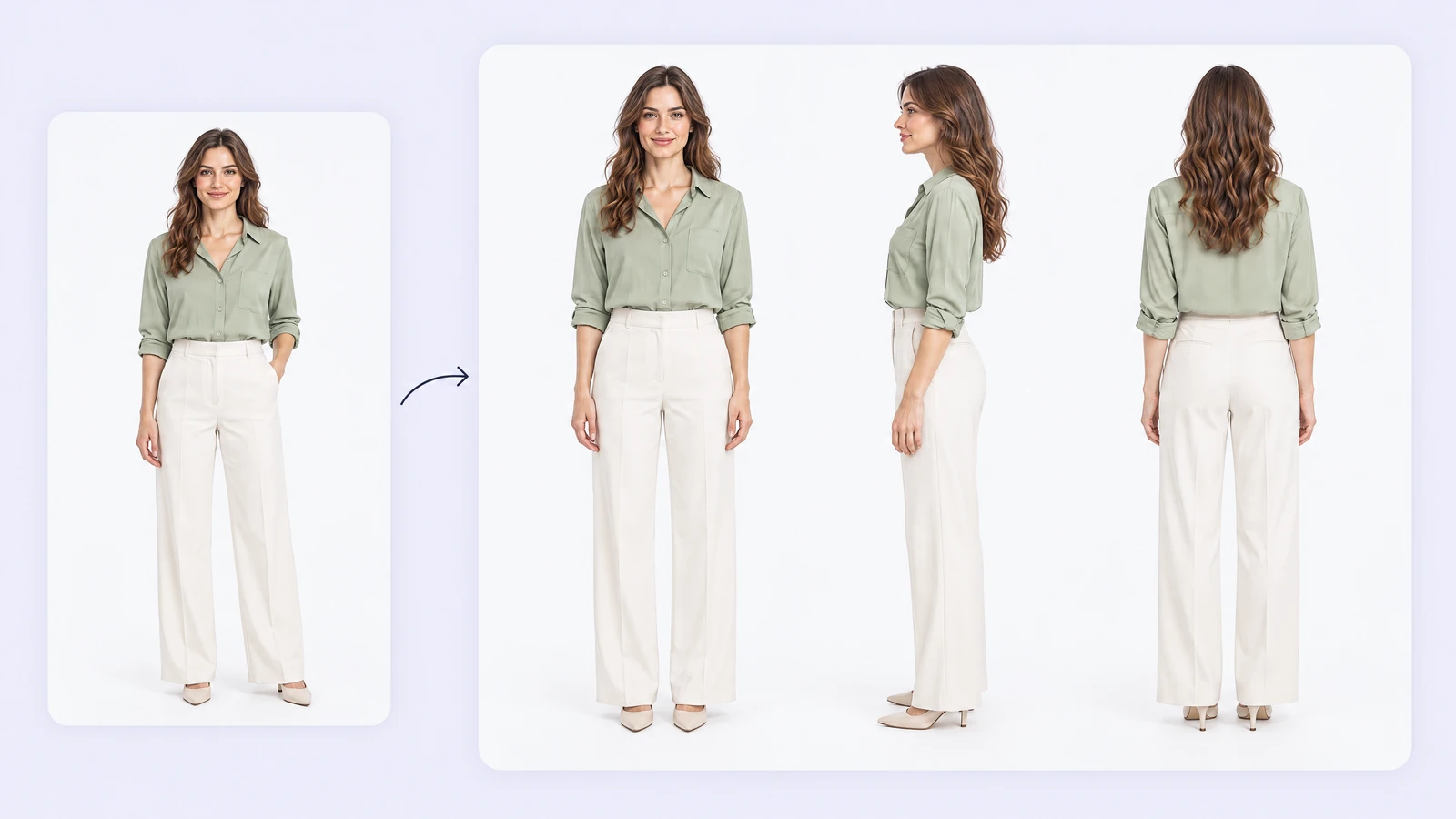
Explore the actual FusionAI interface before opening your workspace.
A clear character, prop or scene reference and the appropriate multi-view template.
Try this workflow Interface preview · no generation is started here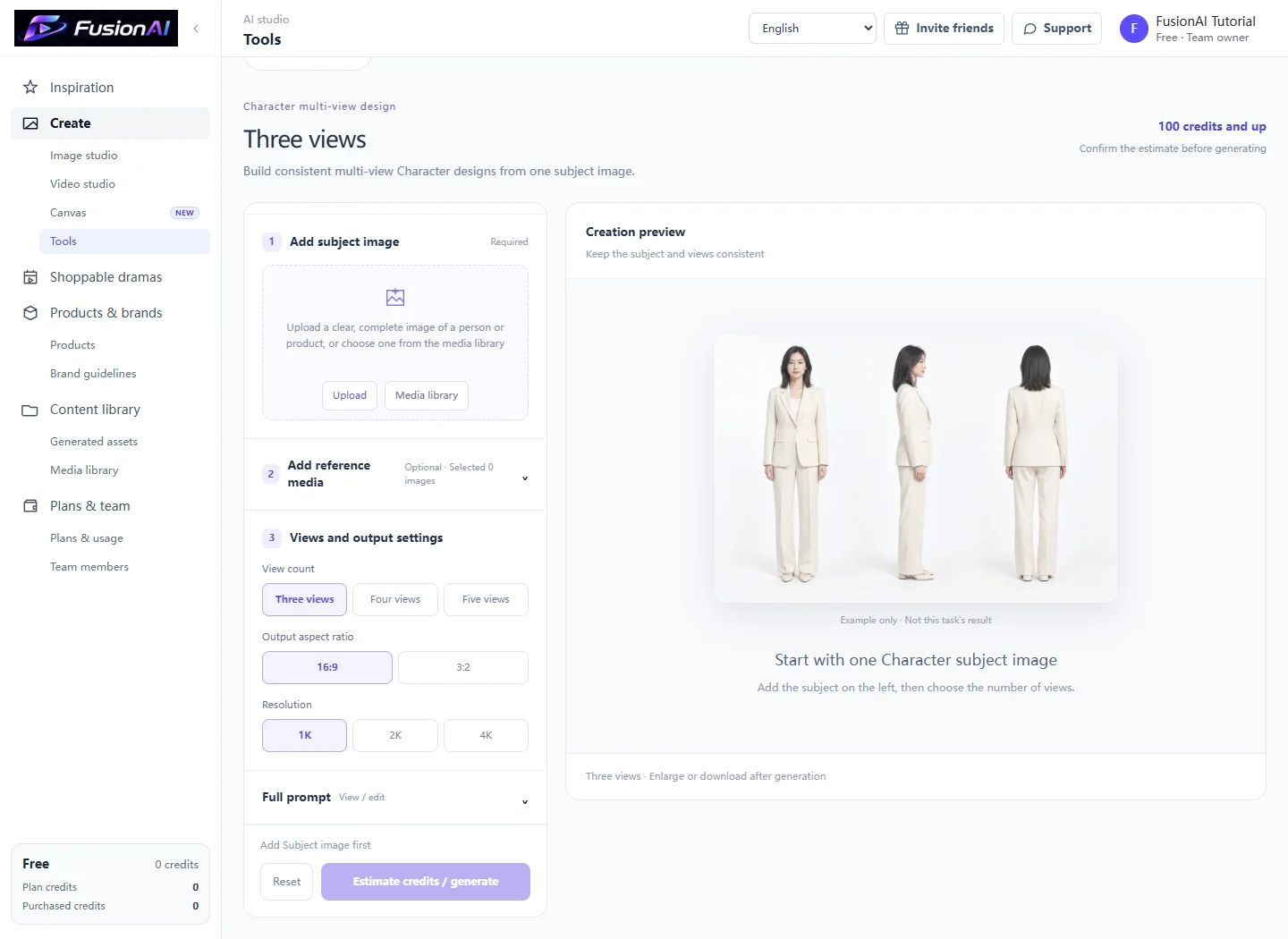
Describe the details that must remain consistent across front, side and rear or other requested views.
Try this workflow Interface preview · no generation is started hereCheck that views agree about clothing, face, props, openings and dimensions.
Try this workflow Interface preview · no generation is started hereA multi-view reference sheet for creative production, not a measured engineering drawing.
Try this workflow Interface preview · no generation is started herePrepare three, four or five views of a subject for further creative work. Unseen views are inferred and are not measurable CAD or 3D assets.
A clear character, prop or scene reference and the appropriate multi-view template.
Describe the details that must remain consistent across front, side and rear or other requested views.
Check that views agree about clothing, face, props, openings and dimensions.
Prepare your references, make intentional choices and inspect the result.
Select the matching template and upload the main reference.
Describe the details that must remain consistent across front, side and rear or other requested views. Review model, layout and estimate before generating. Keep view directions simple and unambiguous.
Compare all views for identity, proportions and structural agreement before using them in a drama asset workflow.
Continue with ai object removal. Keep your product references and review criteria close as you move into the next part of production.
Explore AI object removal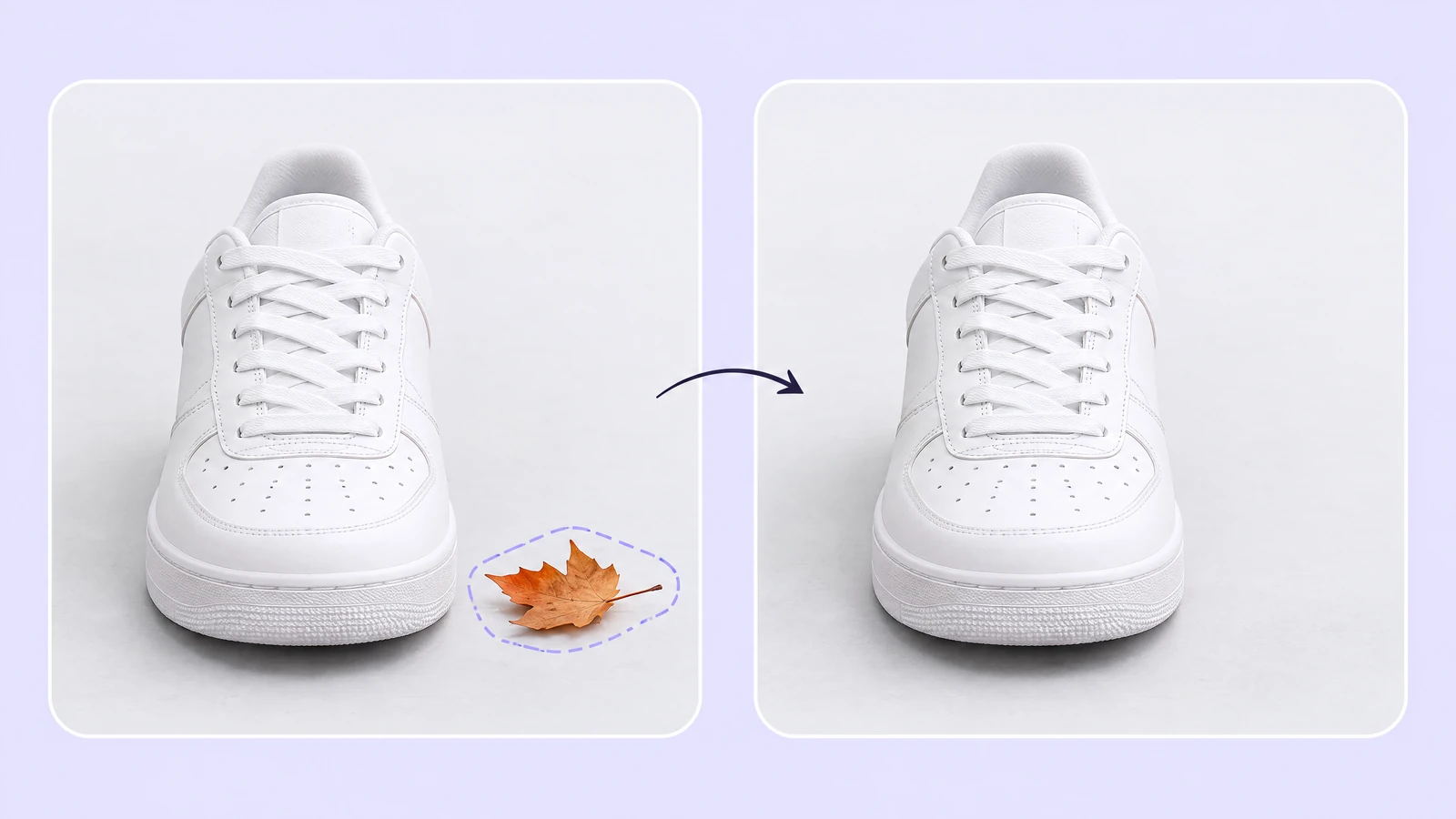
A clear character, prop or scene reference and the appropriate multi-view template.
Describe the details that must remain consistent across front, side and rear or other requested views.
Check that views agree about clothing, face, props, openings and dimensions.
Select unwanted objects, temporary labels or background distractions and review the generated fill. Removed details are inferred, not recovered.
Explore product ↗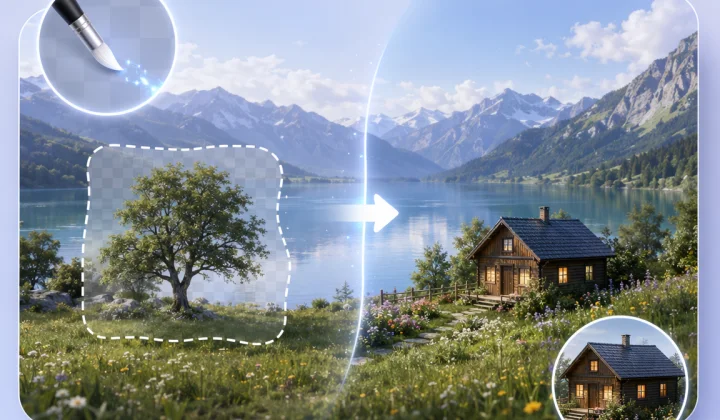
Mark a region and describe the local replacement, checking the boundary and its fit with the surrounding image.
Explore product ↗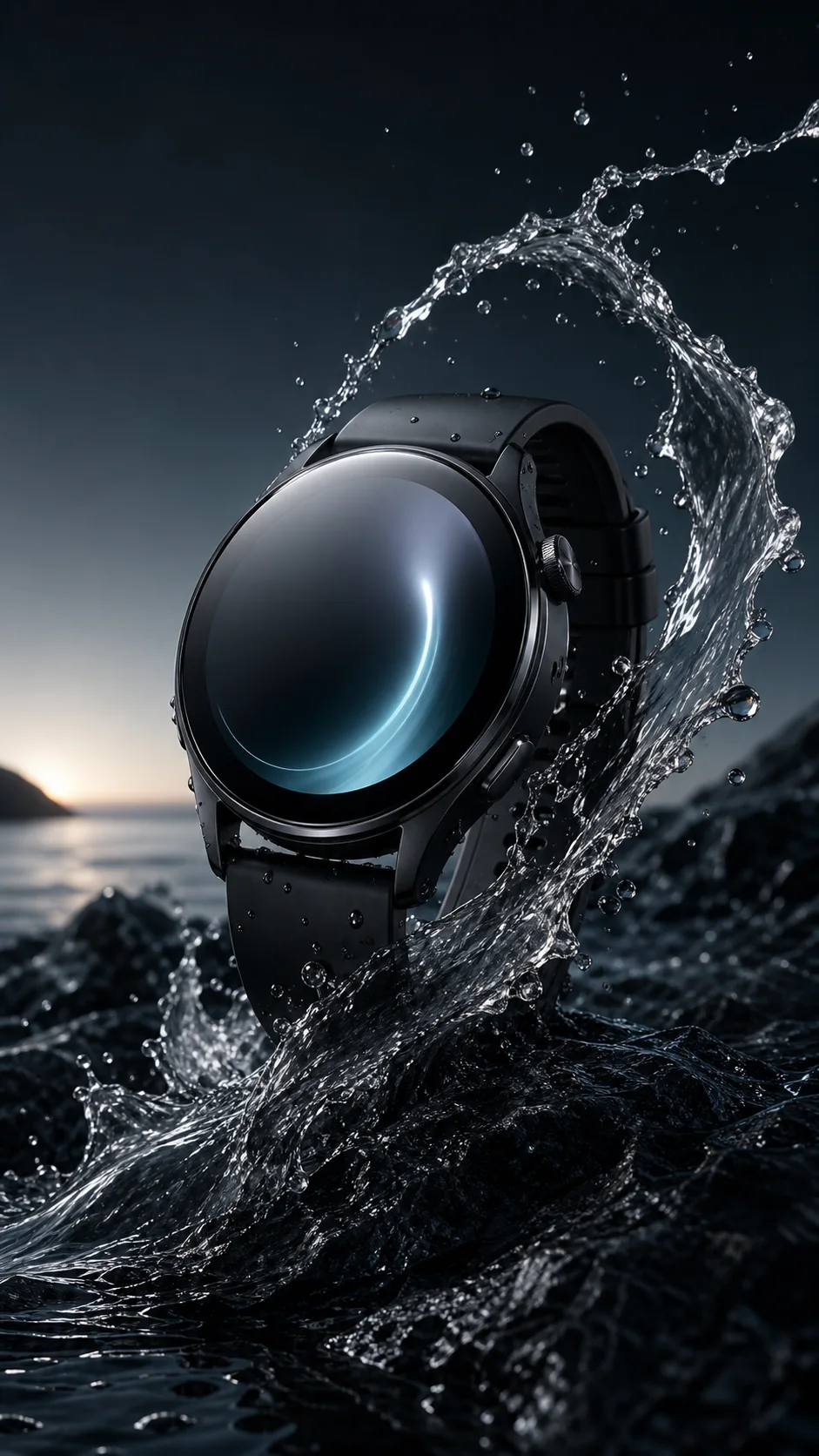
Use natural-language instructions for whole-image or selected-region edits. Keep factual product details under review.
Explore product ↗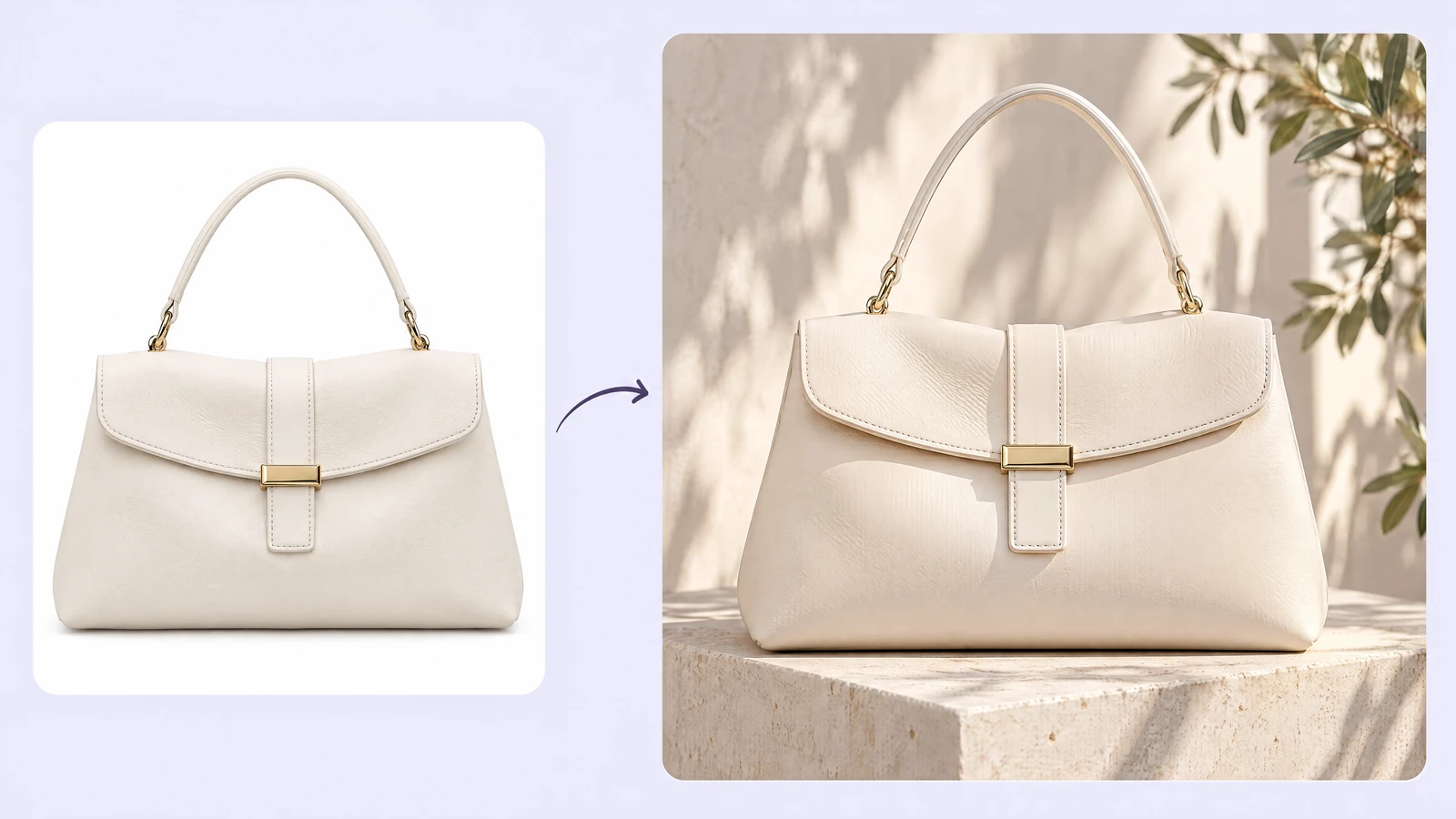
Create product scenes, campaign visuals and image variations from your brief and supported reference images.
Explore product ↗A clear character, prop or scene reference and the appropriate multi-view template.
A multi-view reference sheet for creative production, not a measured engineering drawing.
Check that views agree about clothing, face, props, openings and dimensions.
Open the workspace, choose the supported model and settings, and review the displayed credit estimate before confirming generation. Subscription plans and credit packs are listed on the pricing page.
Use references you are entitled to use and check the input requirements in the workspace. Available formats, reference counts and output settings depend on the tool and selected model.
Prepare three, four or five views of a subject for further creative work. Unseen views are inferred and are not measurable CAD or 3D assets.
A multi-view reference sheet for creative production, not a measured engineering drawing.
A clear character, prop or scene reference and the appropriate multi-view template.
Use source images with enough detail to inspect the real subject. Keep verified product facts separate from creative styling. If an important surface or construction detail is missing, add a real photograph rather than asking generation to establish an unknown fact.
Actual FusionAI Multi-view subject references workspace
Front, side and rear views of the same travel backpack on a neutral background, preserving pockets, straps, zipper locations and proportions.
Replace the example with your own product, references and intended output. Keep the first request focused so that you can tell whether the chosen workflow addresses the real task.
Set the intended placement and framing first. Inspect the controls available in this tool and selected model, then choose output size and count. Recheck the estimate whenever references, model or output settings change. Some tools have task-specific inputs rather than every option in the general image or video workspace.
Check that views agree about clothing, face, props, openings and dimensions.
Use generated visuals as reviewed creative assets. Retain real photographs, measurements and approved product facts wherever identity, condition, fit or compliance needs evidence.
You can prepare another candidate with a revised brief or supported settings. Review the new estimate before confirming; a revision is a separate generation task unless the interface explicitly says otherwise.
Open Multi-view subject references · Find a screenshot tutorial · Explore business scenarios
Prepare your inputs, explore the possibilities and choose what works for your brand.