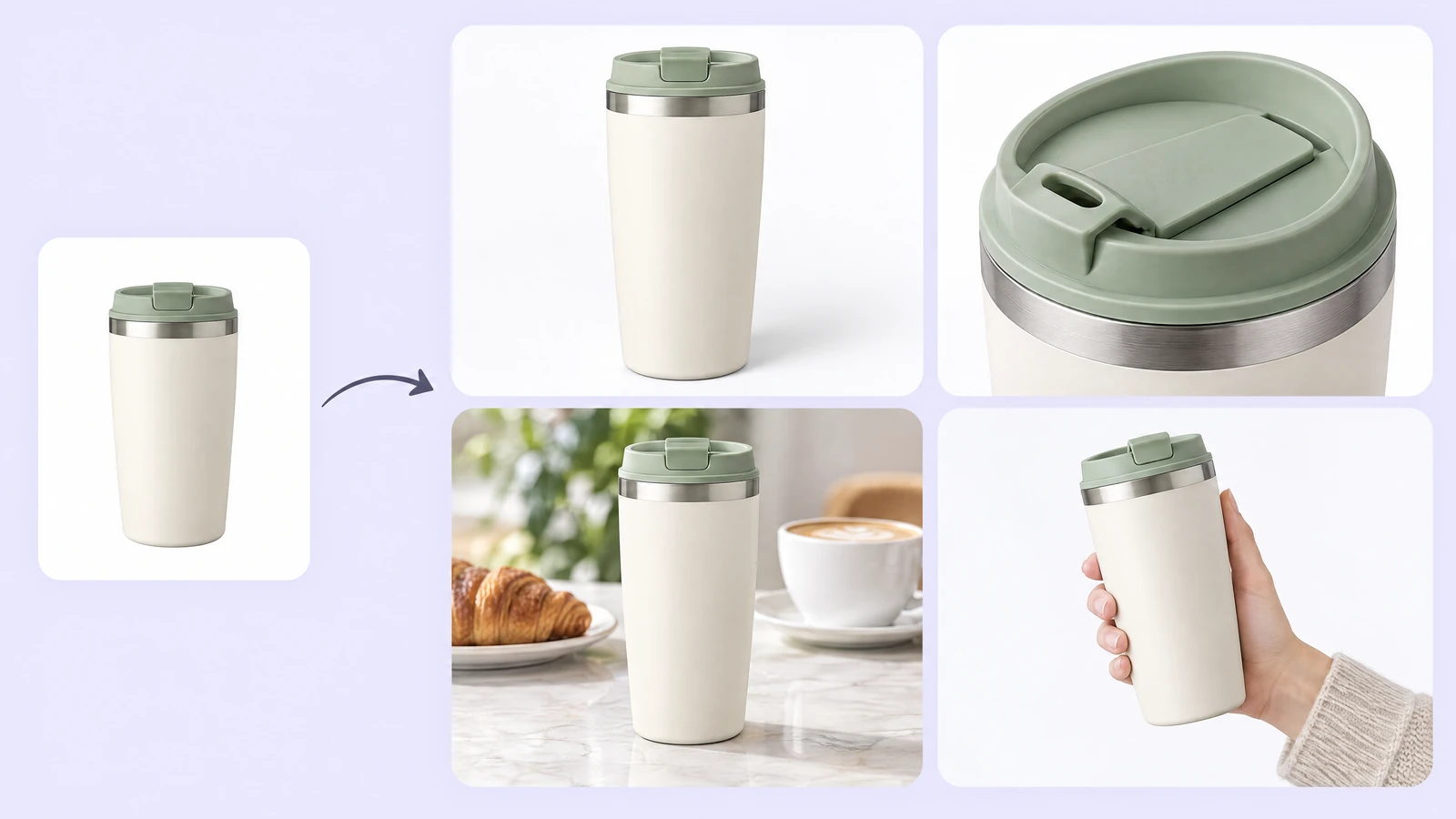
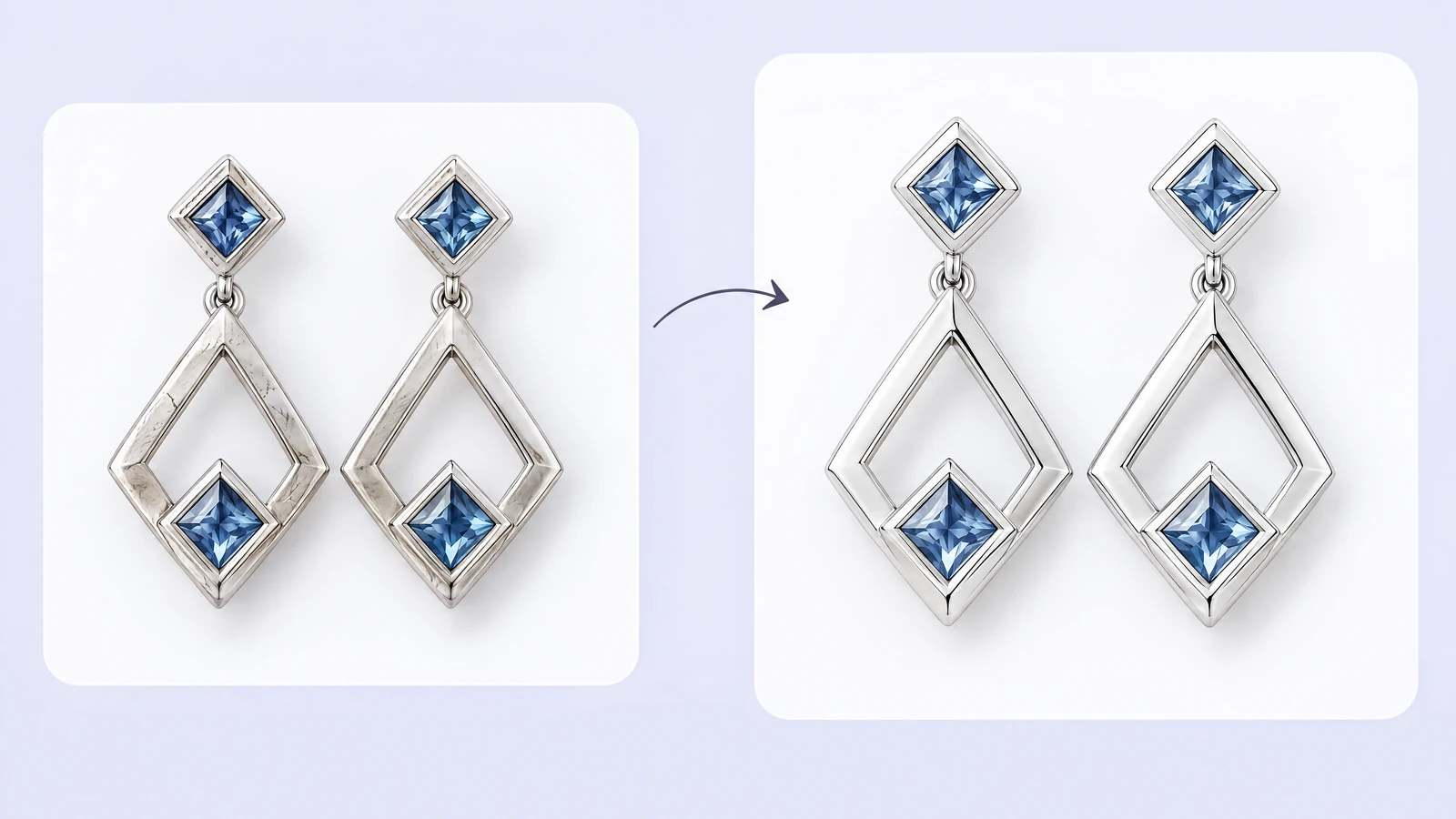
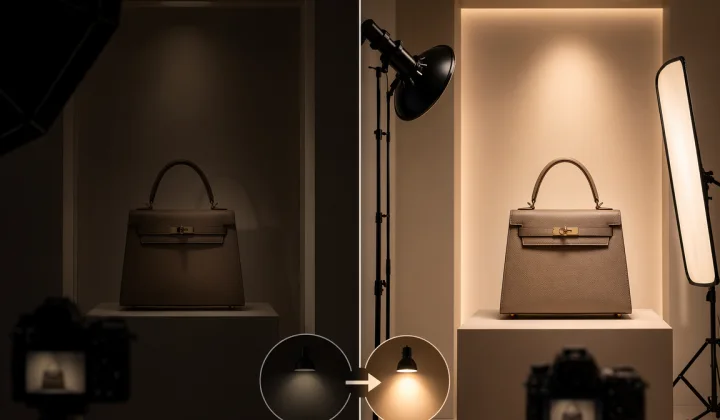
Generate a scene
Describe the surface, surroundings and light separately from the product’s fixed details.

Place an existing product in a new setting using a scene brief or a background reference. Check its edges, scale and lighting before choosing the final image.
Choose settings and review the credit estimate in the workspace.
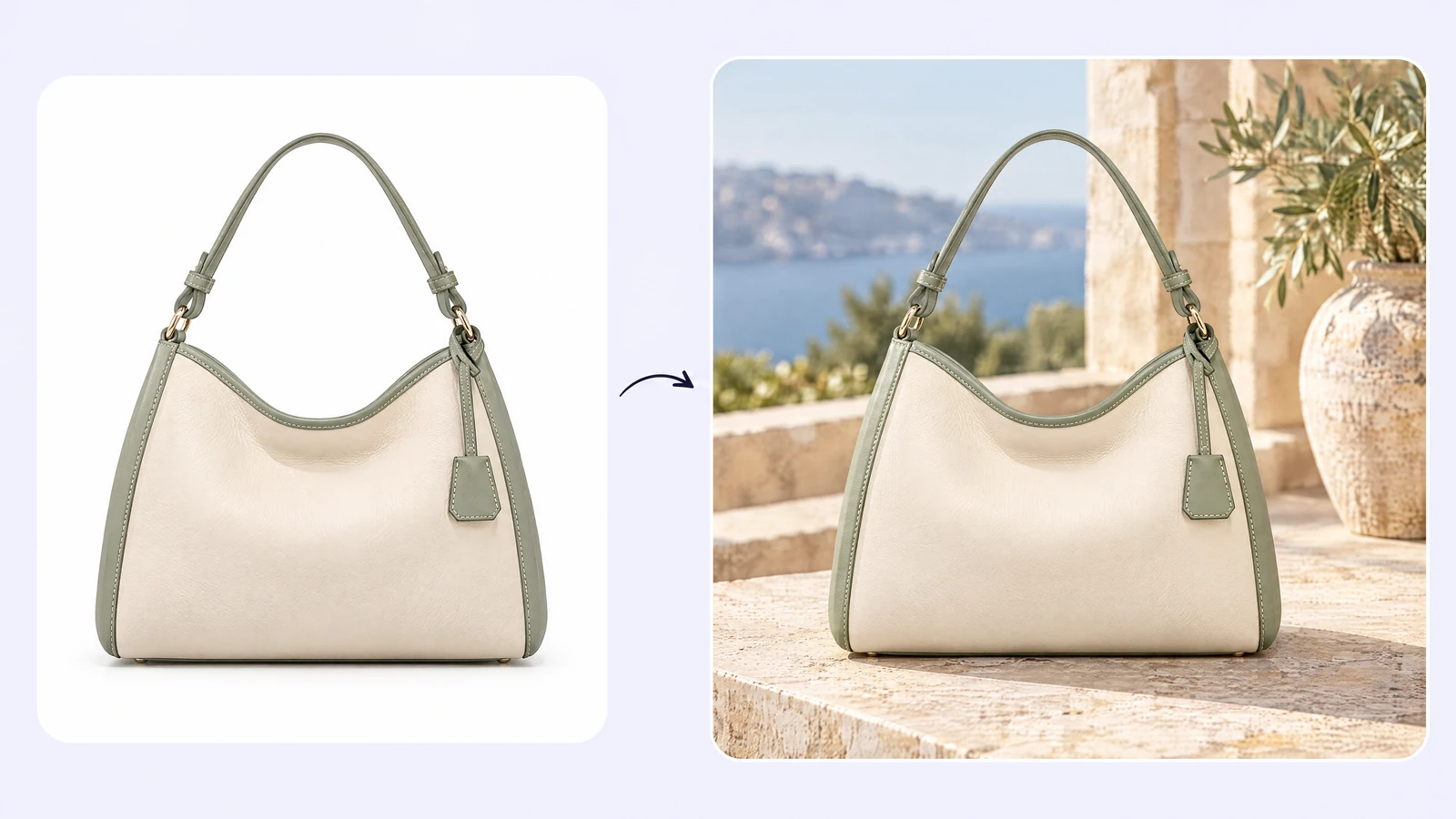
Describe the surface, surroundings and light separately from the product’s fixed details.
State that the reference provides the environment only. Exclude any reference product that should not appear.
Leave enough space for the intended crop or later layout. Keep scale and contact with the surface plausible.
Specify the intended background color and check corners at export size. Compare the silhouette, transparent edges and reflective highlights with the original. If the channel requires a pure white background, verify the exported pixels rather than trusting the prompt.
Explore: White or brand-color deliveryMatch the new light direction to the product. Check whether it looks grounded: contact shadow, scale, perspective and reflections should agree with the new surface.
Explore: Lifestyle placementUse the image that best establishes the silhouette, material, label and included components.
Choose the scene source, describe the light and surface and keep the product-preservation instruction explicit.
Zoom into edges and labels; inspect contact shadows, reflections and proportions before downloading.
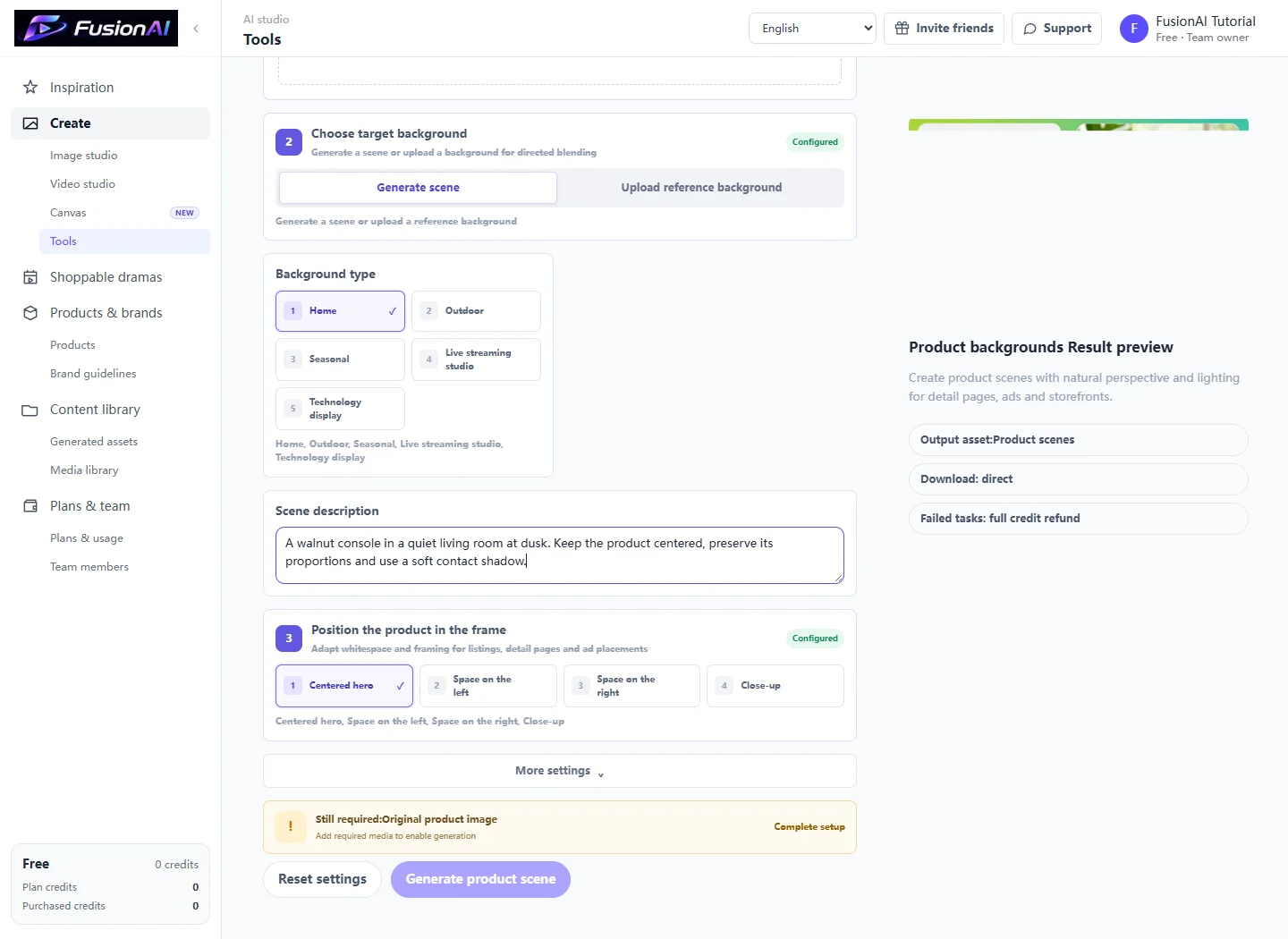
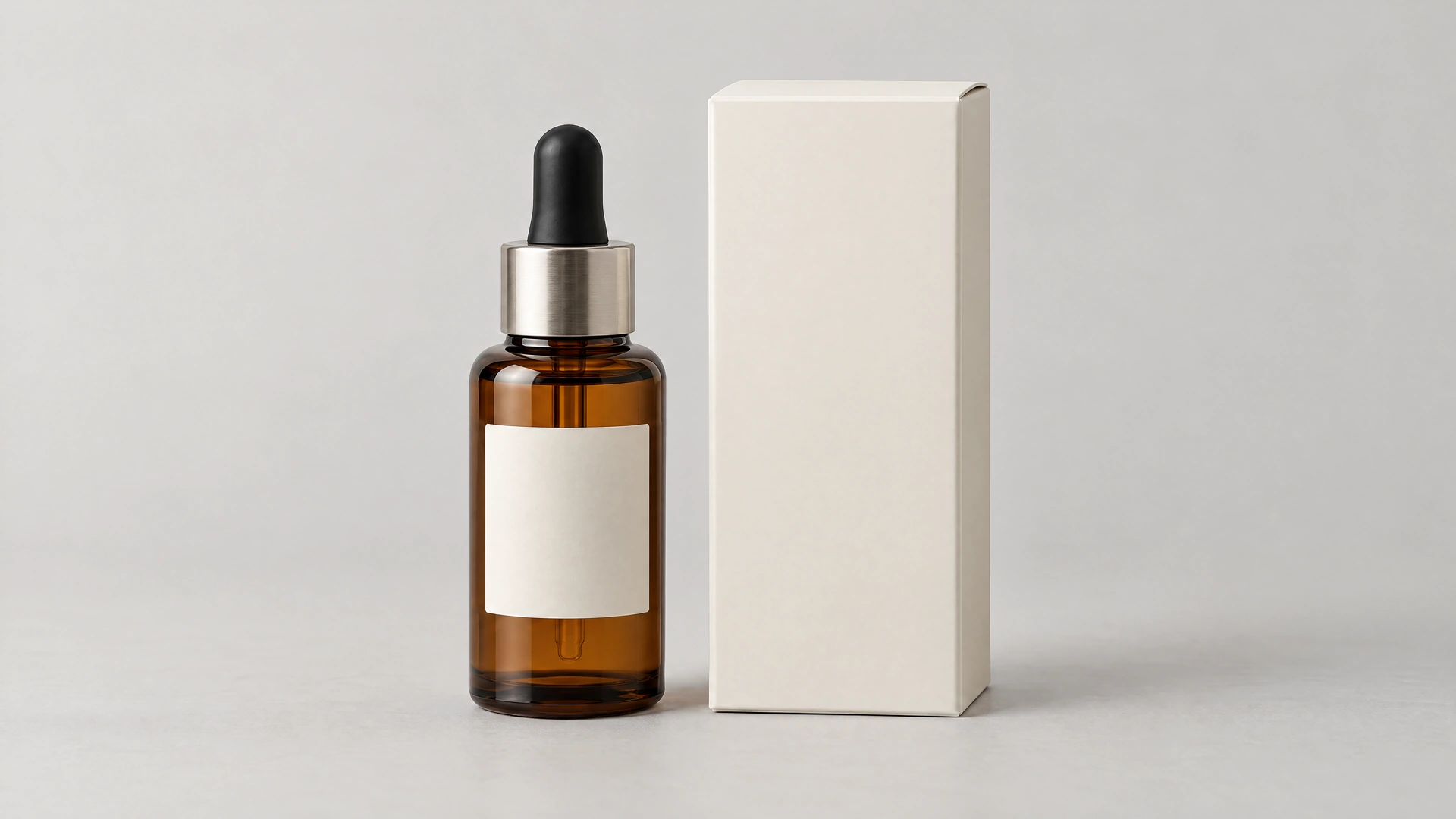
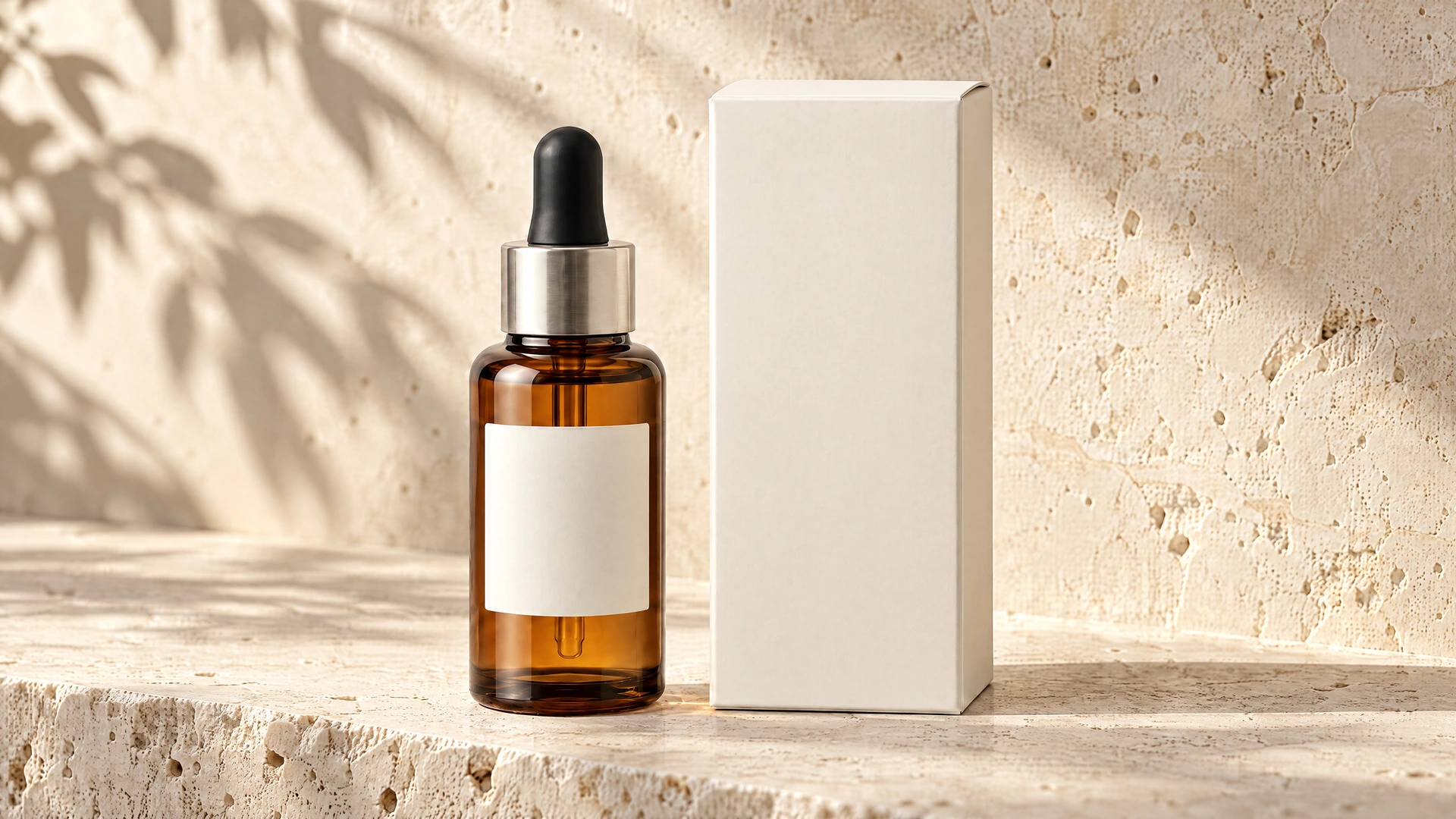
The image keeps the amber bottle, black dropper, silver collar and ivory carton while placing them on a stone ledge. The labels remain blank, so no ingredient or benefit claims are introduced.
This synthetic unbranded example does not test text fidelity or prove skincare performance. Add only verified brand copy through your normal publishing process and inspect the final packaging details.
The background must not redesign the product.
Review transparent edges, handles and fine openings.
A lifestyle setting is not automatically a marketplace main image.
Choose the reference-background option when available and upload an image that leaves plausible space for the product.
Return to the original, simplify the change and restate fixed geometry and labels. Do not keep refining an already distorted candidate.
Compare the full product and its smallest important details with the source; then check the intended crop and setting.
Move a synthetic skincare bottle from a studio reference to a limestone shelf. Follow the actual background tool, then check packaging, edges and contact shadows.
Read the step-by-step tutorial →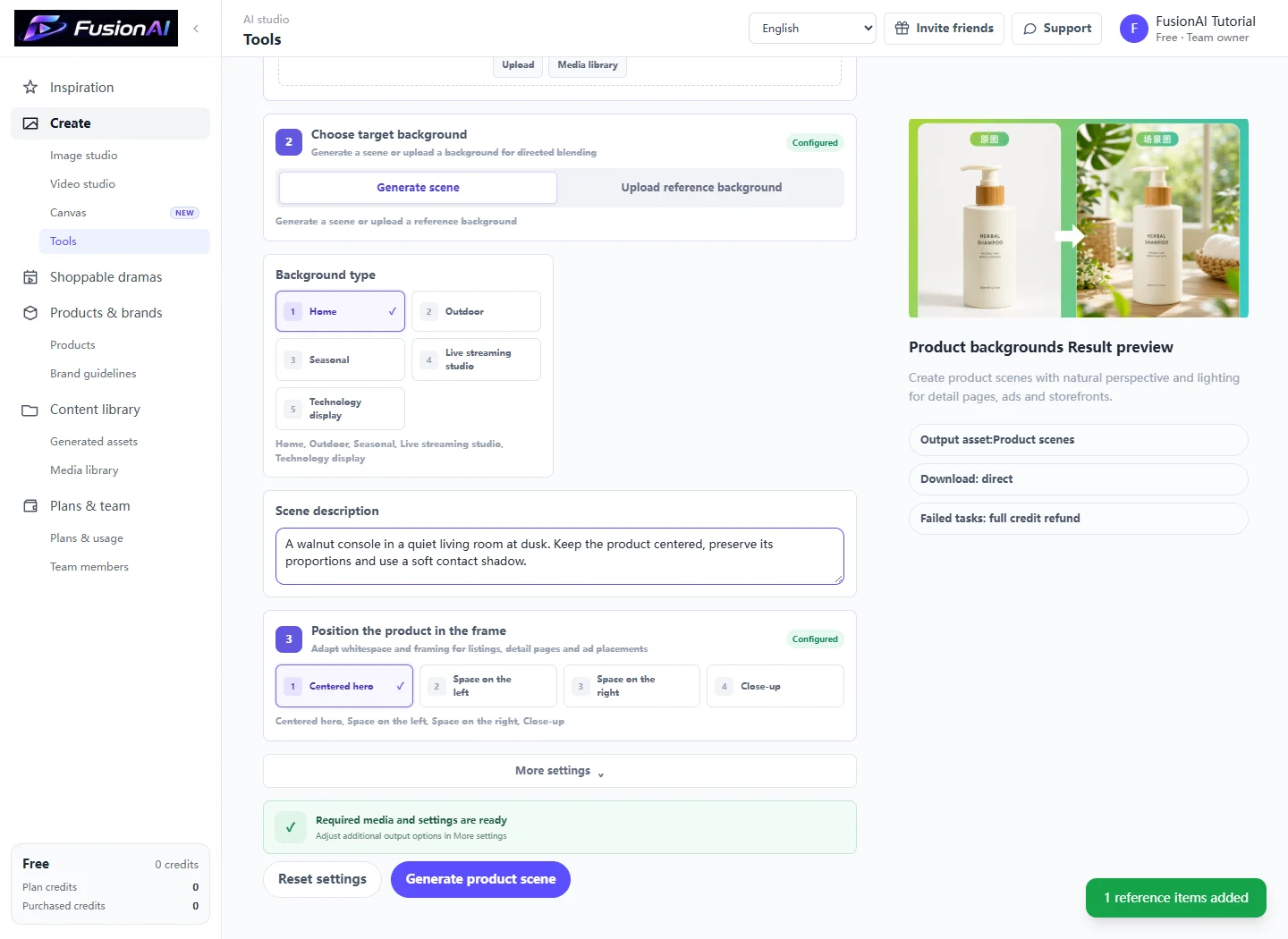
Bring the right inputs. Keep the result that works for your brief.