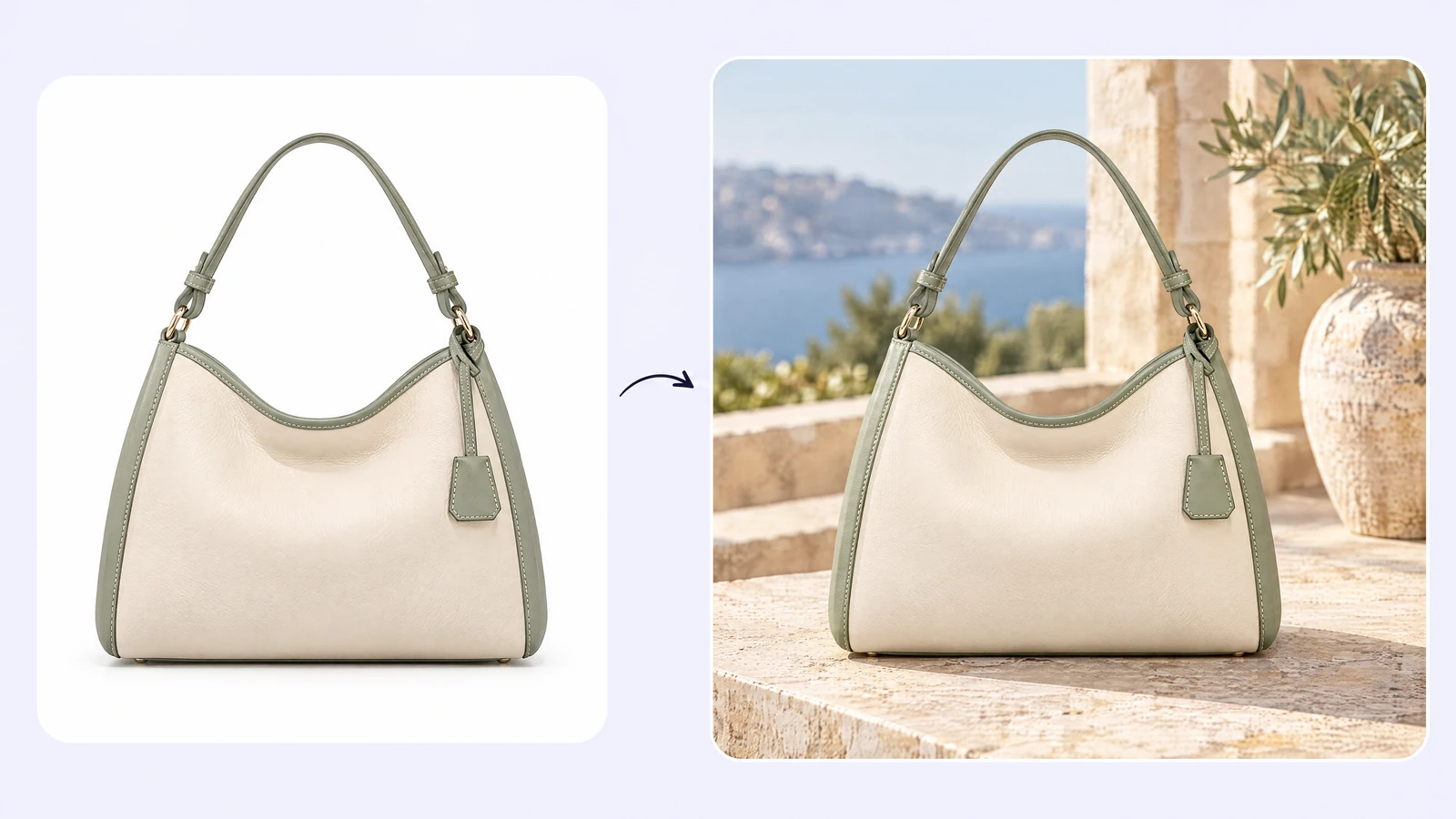
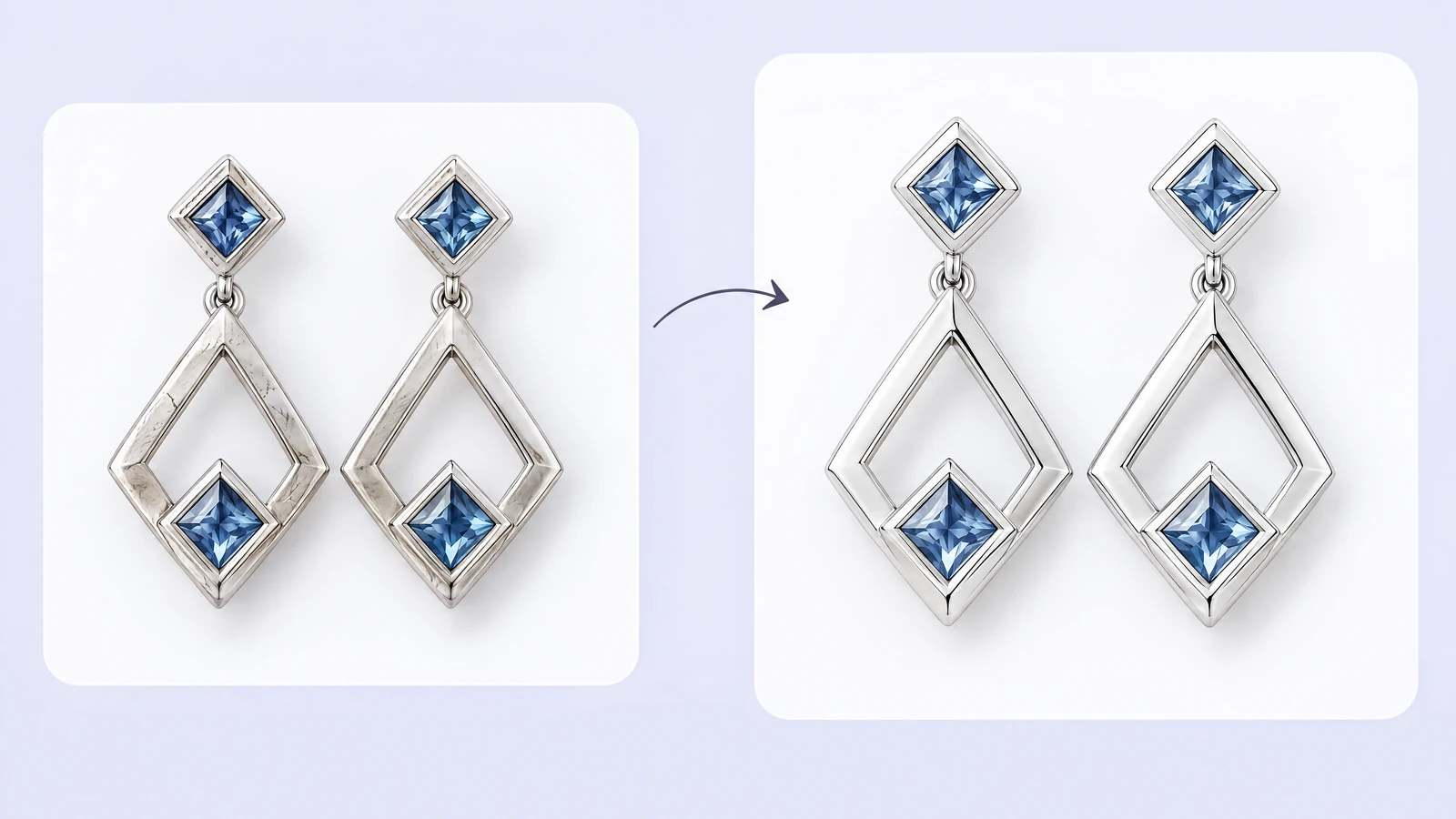
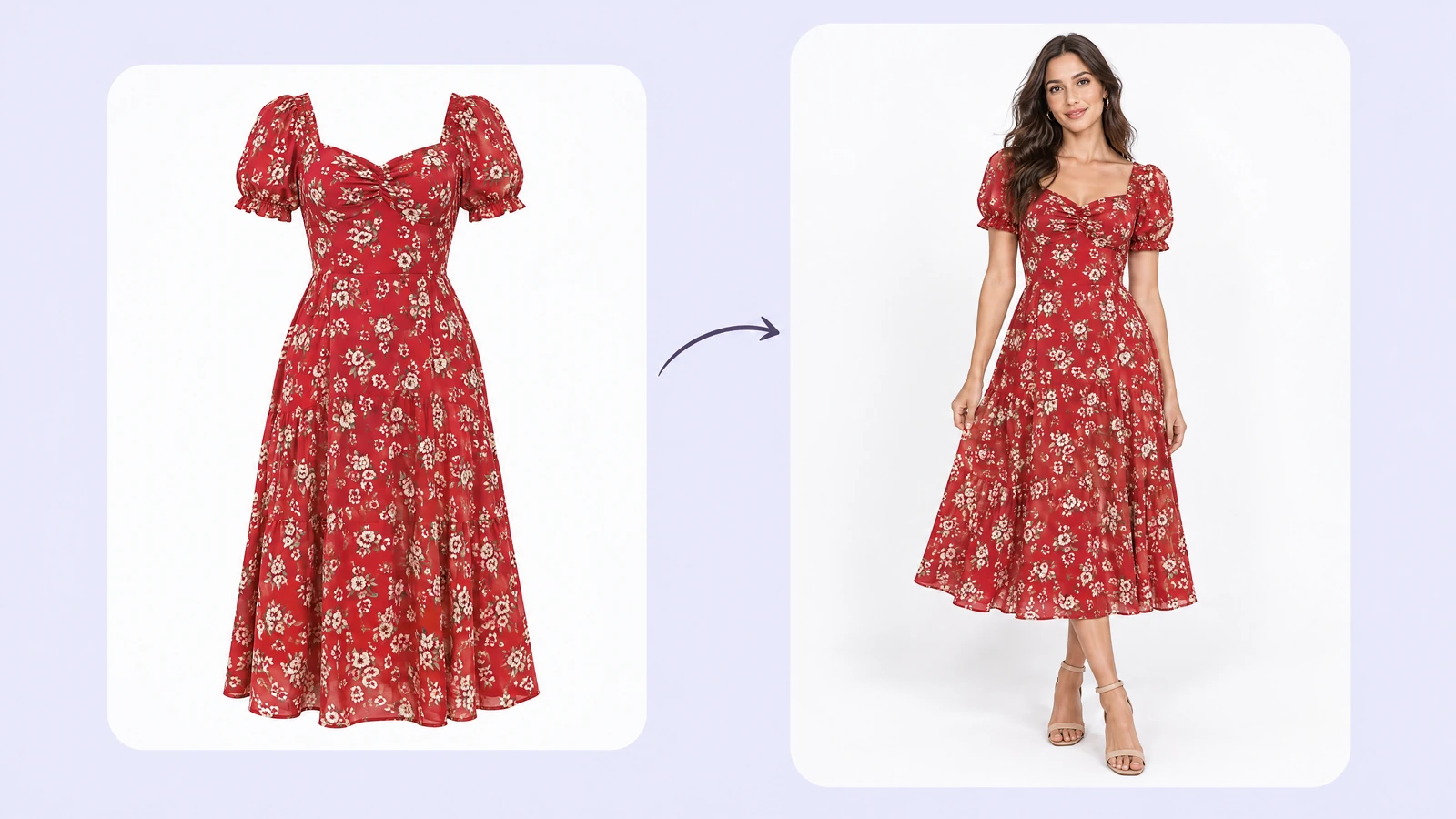
Hero and feature
Keep the main image product-first. Give feature images one verified message each instead of repeating the same composition.

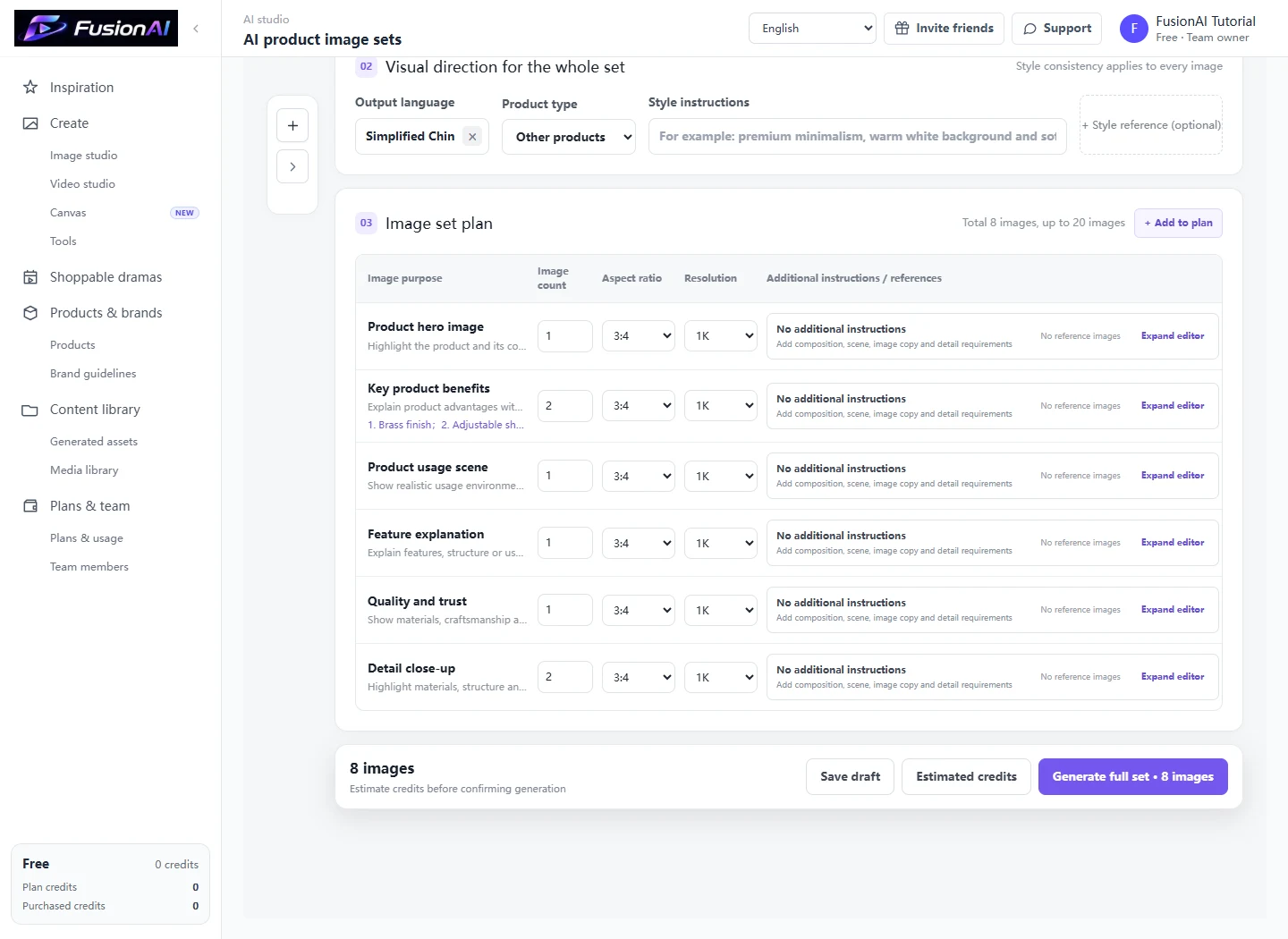
Give every image a job: identify the product, explain a feature, show its use or reveal a detail. Plan and edit each row before generating a coordinated set.
Choose settings and review the credit estimate in the workspace.
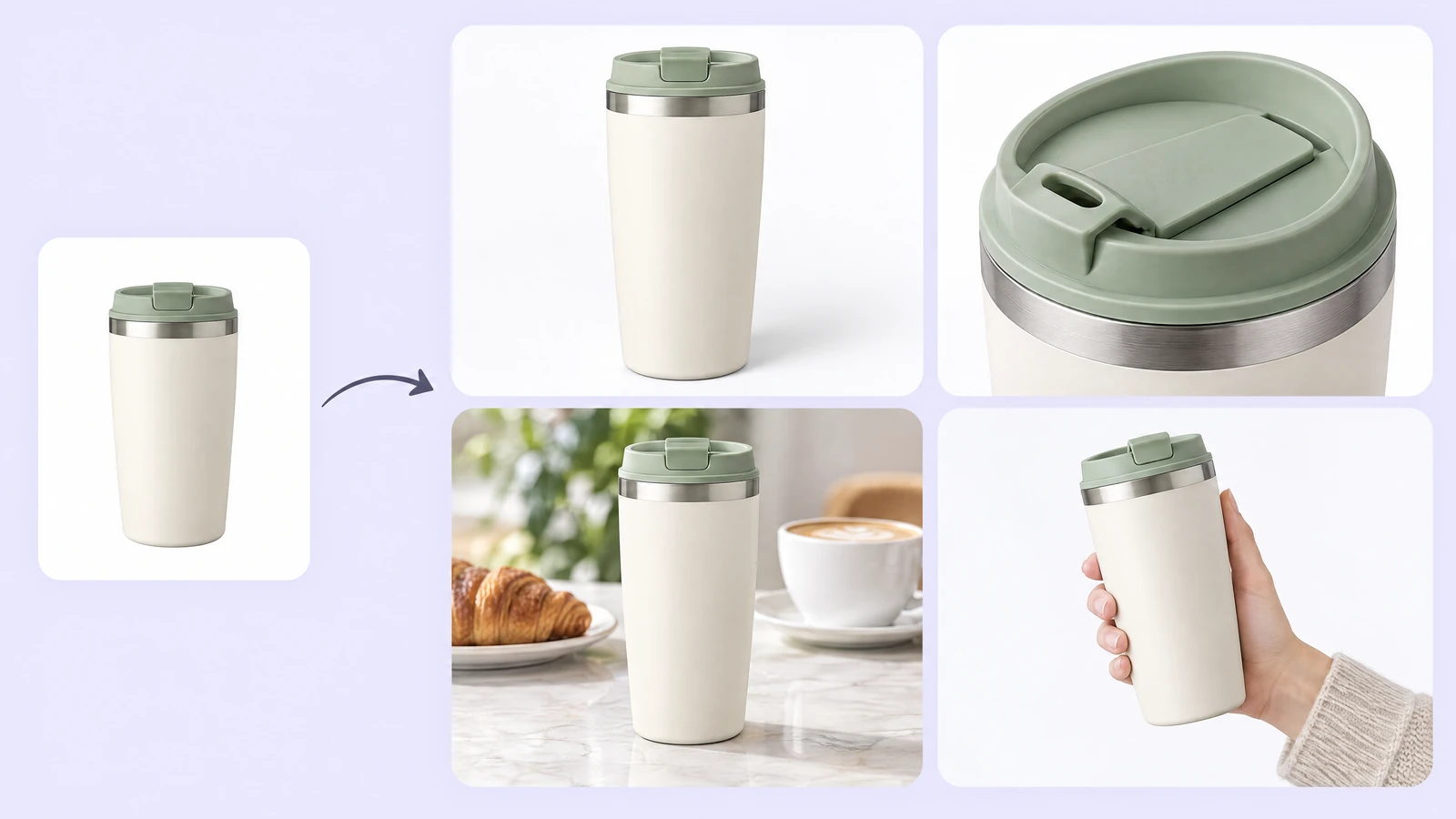
Keep the main image product-first. Give feature images one verified message each instead of repeating the same composition.
Use context to explain use and scale; use source detail photographs to verify construction. Generated details need comparison.
Set the intended language and review generated copy, line breaks and placement before publishing.
Create one row per image. Record its buyer question, source file, prompt and output language. Use verified measurements and label text rather than asking the model to invent them. Review a sample before running the rest.
Explore: Hero, size, material, feature and contextUpload references and choose the audience, language and visual direction. Use the product and brand record where relevant.
Inspect each image purpose, prompt, supplementary requirement and reference. Remove duplicated claims before submission.
Compare every image with the source and the plan. Keep selected versions and export files with clear placement names.
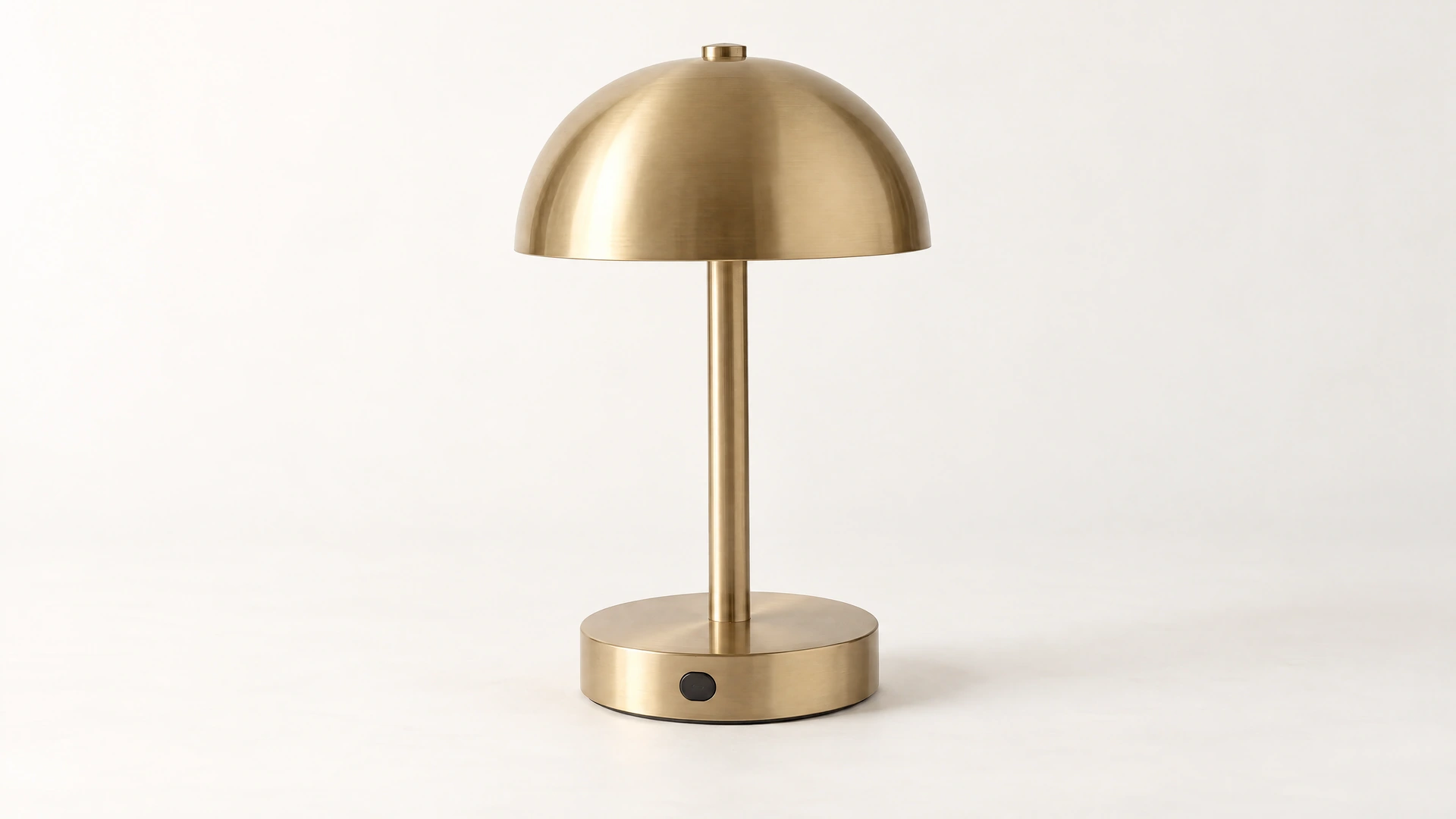
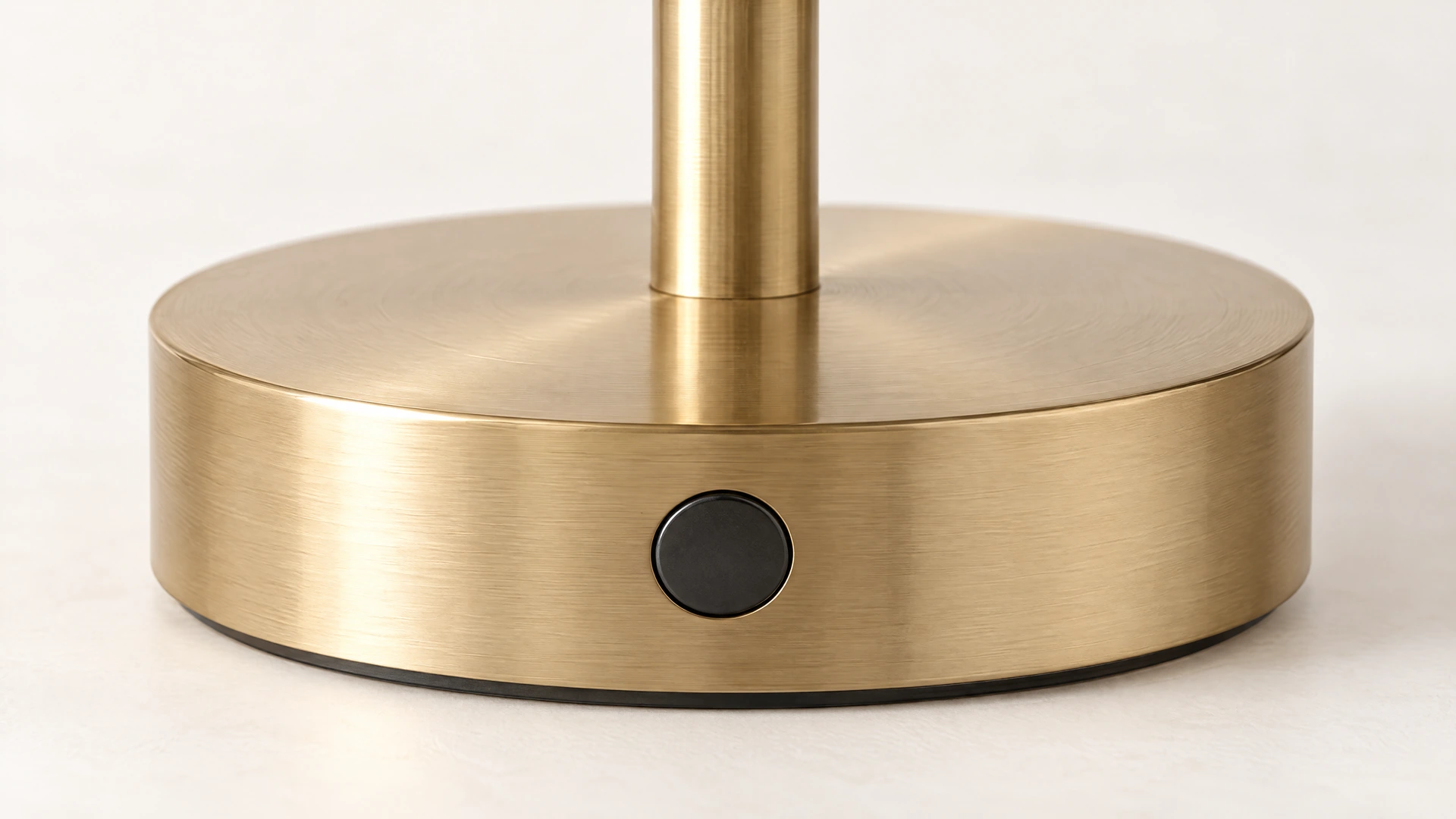
The crop concentrates on the dark button, lower stem and brushed circular base. It supplies a different image purpose from the room scene rather than repeating the same hero composition.
The close-up is model-generated, not a recovered macro photograph. Fine texture and apparent dimensions require comparison with the real product. These separate image-model edits do not demonstrate automatic execution of the product image-set tool.
Every frame should contribute a distinct buying answer.
Generated prices, measurements and labels need separate verification.
A set is complete when all intended placements have usable assets, not just a matching background.
The set tool plans the purpose and brief for each image around one product. Image count alone does not define a useful gallery sequence.
Review the plan row by row and use the available prompt, requirement and reference controls before generation.
No. Separate MAIN, secondary and A+ purposes and check the current rules for the marketplace and category before publishing.
Build a complete six-image set from one fictional backpack reference, assign a job to each image and review the returned set before export.
Read the step-by-step tutorial →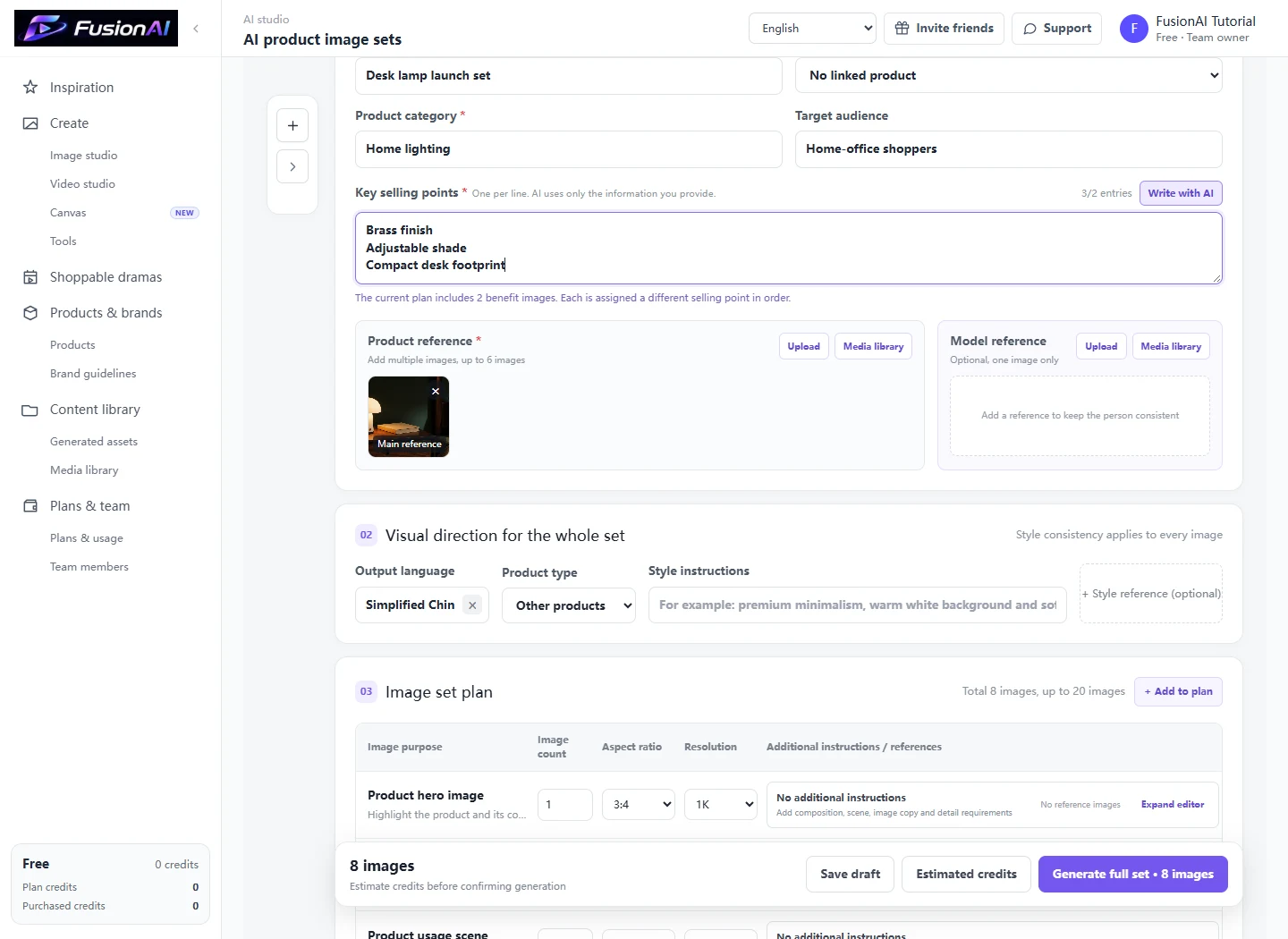
Bring the right inputs. Keep the result that works for your brief.