How to Create a Six-Image Ecommerce Product Set
FusionAI Content Team · Updated 2026-11-14 · 5 min read
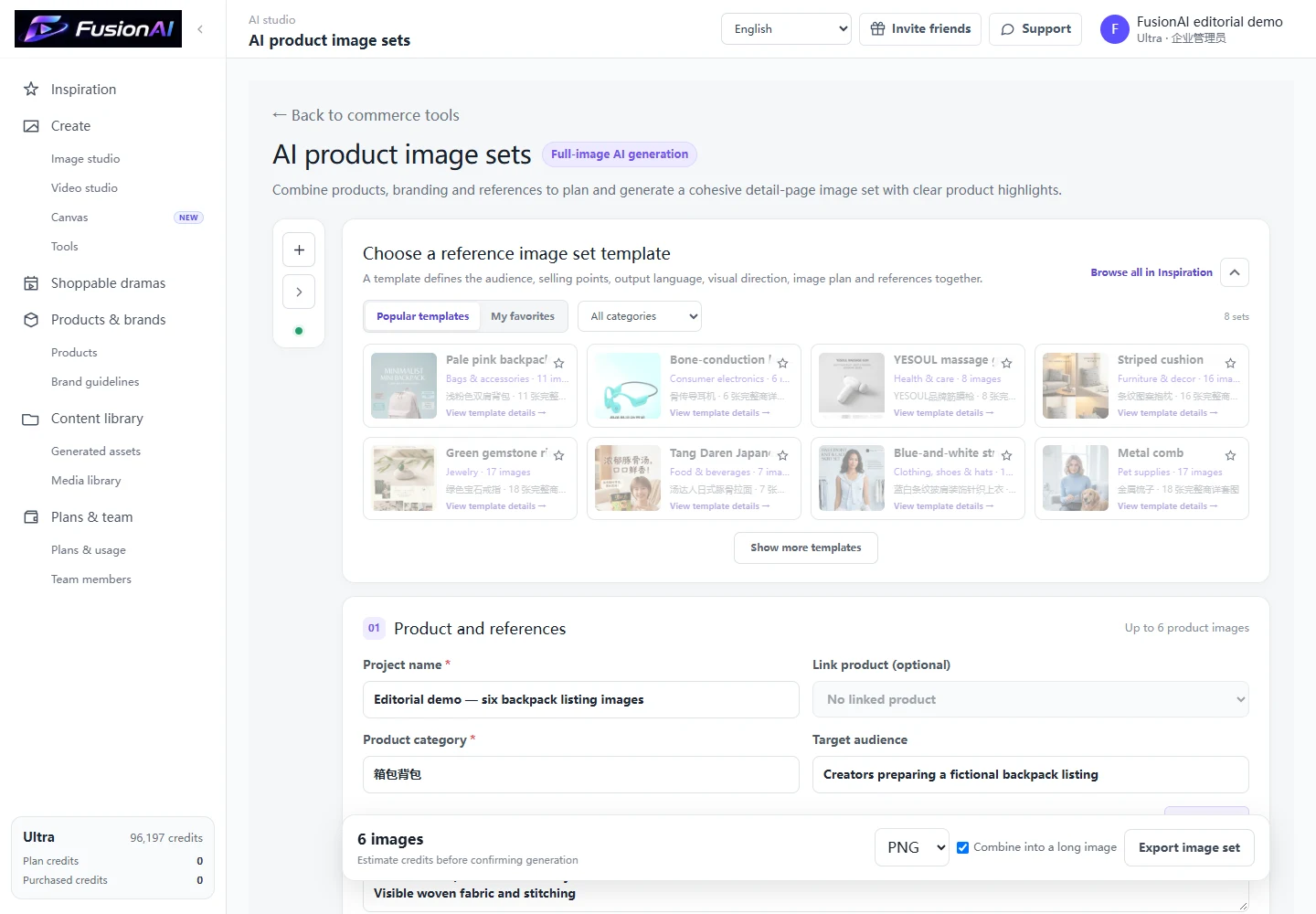
This walkthrough uses the current FusionAI interface and original synthetic teaching materials. Follow the steps, then inspect the saved result and dated task record. The workspace estimate governs a new request.
Before you start
Build a complete six-image set from one fictional backpack reference, assign a job to each image and review the returned set before export.
1. Separate visible facts from unverified claims
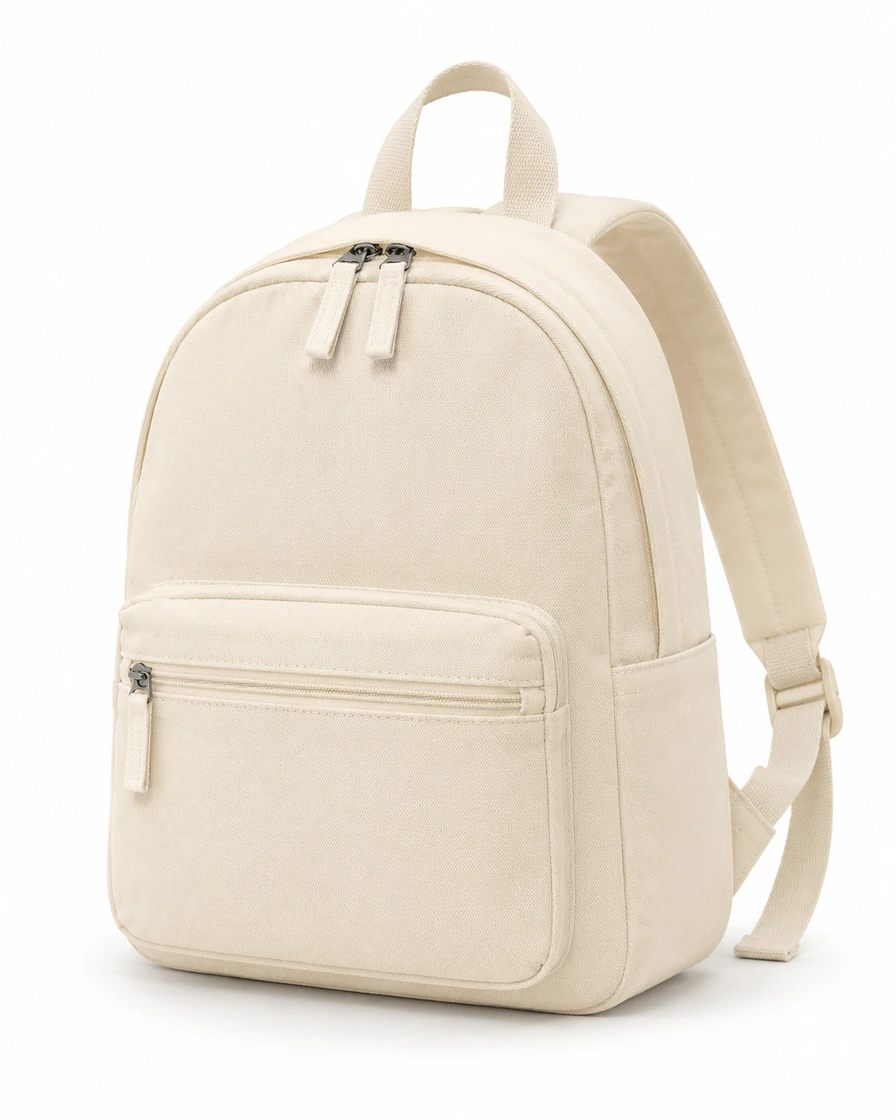
Start with the product photographs and a short factual brief. The synthetic backpack shows a rounded top, short handle, front zip pocket and woven surface. It provides no evidence for waterproofing, volume, fabric composition or certification. Do not infer those claims from an attractive reference image.
List only visible features and supplied facts; leave size, capacity and material claims out unless verified separately.
2. Create the project with the right category and language
Open AI product image sets, enter the product category and audience, and attach the product reference. Set the output-copy language before planning images. English is used in this demonstration; it controls newly rendered copy rather than changing the underlying product. Keep unsupported dimensions and service promises out of the selling points.
After selecting the output language, confirm the displayed selection and complete the product category and audience fields.
3. Give each of the six images a separate purpose
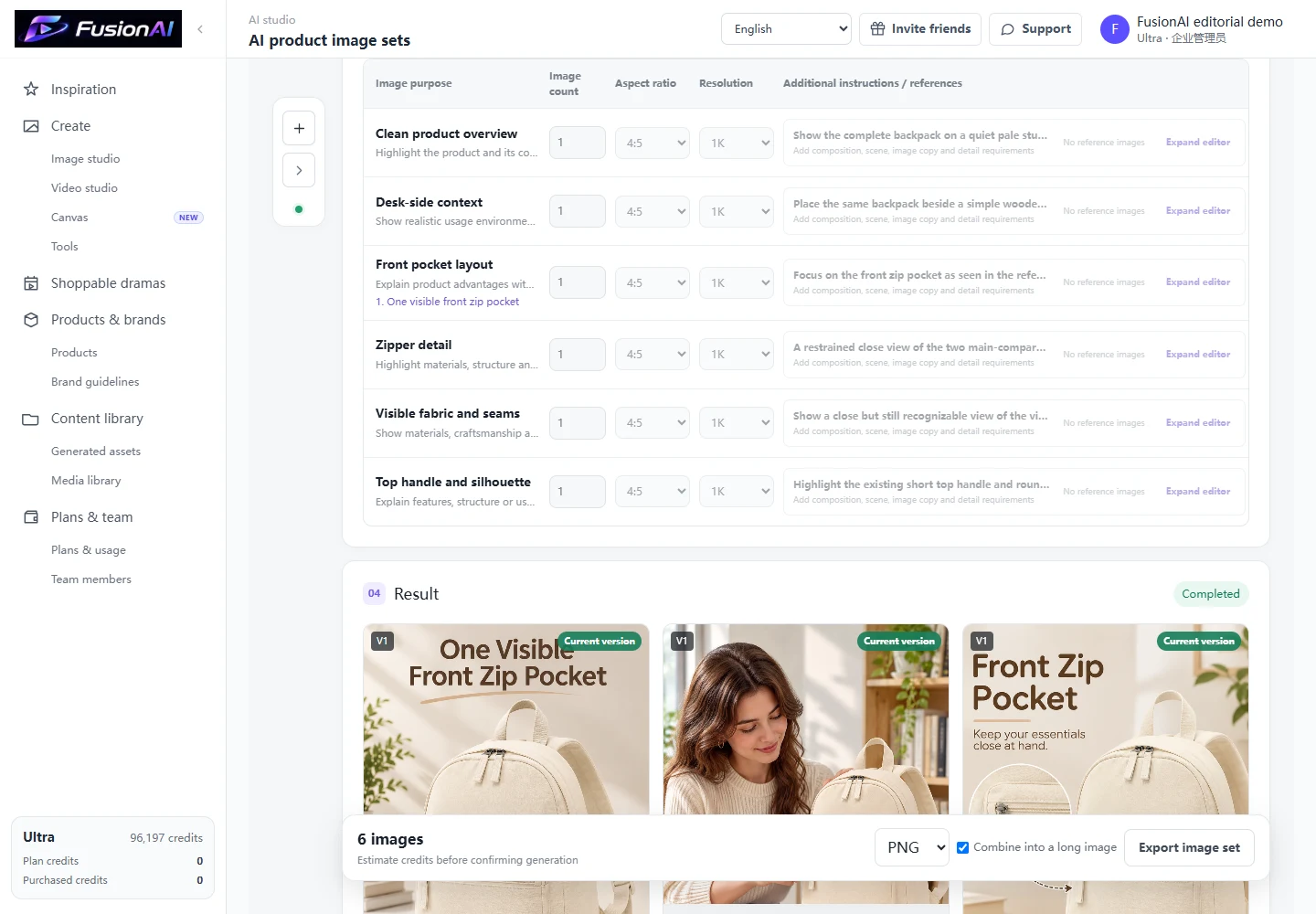
The tested plan contains a clean overview, desk-side scene, front-pocket explanation, zipper detail, fabric-and-seam view and handle view. Use the requirements column to specify the subject, crop and prohibited additions for each row. A single close-up cannot stand in for the whole set. Avoid six nearly identical hero compositions.
Open each row and give it a distinct viewing angle or detail; inspect its additional requirements and reference field before generating.
4. Read the set estimate before submitting
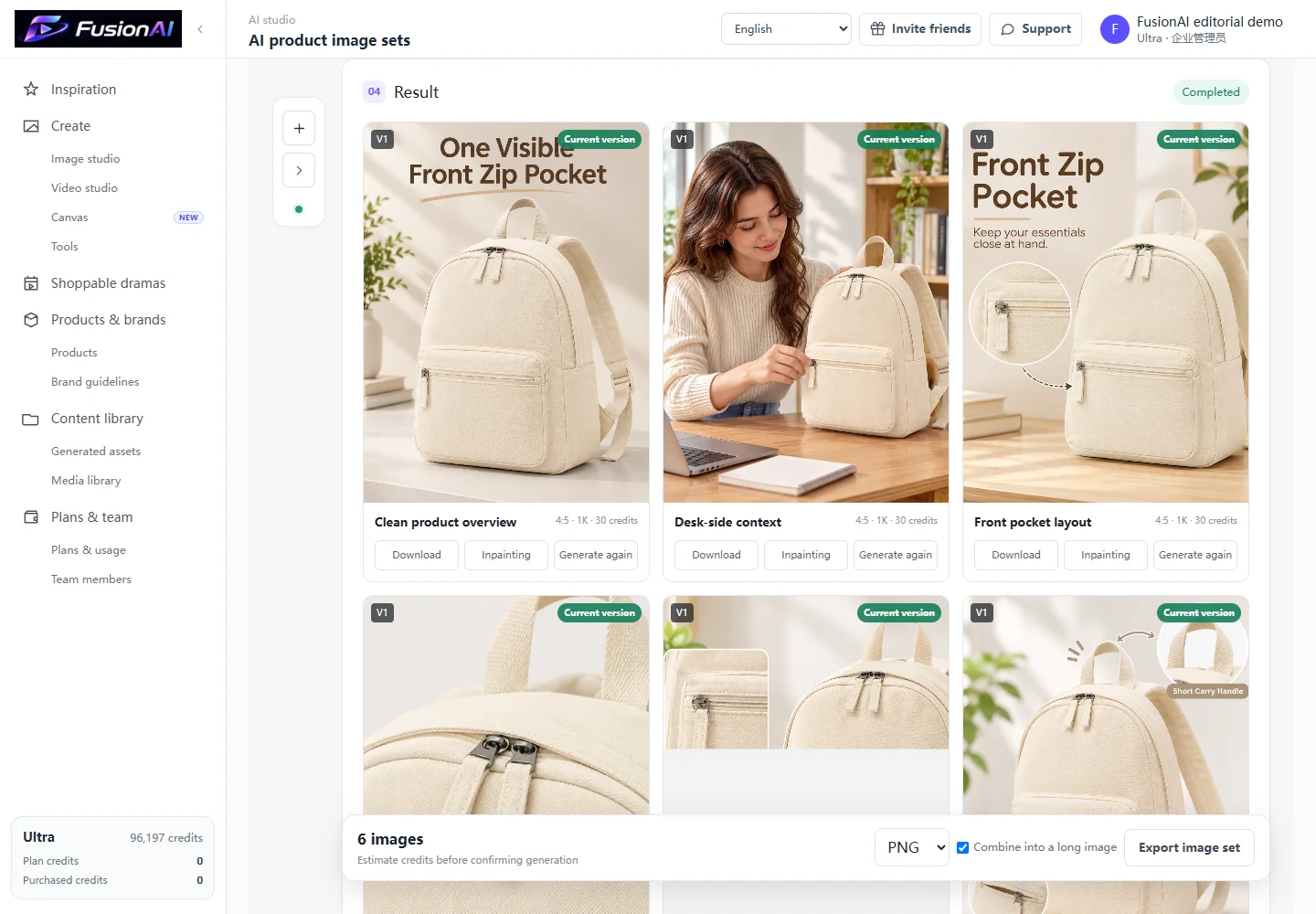
Check counts, ratios and resolution across the plan, then read the total estimate. The recorded set requests six 4:5 images at 1K. Submit the project once and inspect each item’s state; a partial project requires checking individual failures rather than assuming every planned image exists.
Check the number of rows and each row’s quantity against the total estimate; save the plan before confirming the complete set.
5. Review six separate results before export
Compare silhouette, pocket shape, zipper arrangement, color and shadows across the set. Read any generated words at full size. Record differences rather than silently describing the results as identical to the reference. Export only selected candidates, and keep factual copy review separate from the visual review.
Unzip the export and open all six files; mark wrong text, missing details or repeated purposes for individual rework.
Recorded result and what changed
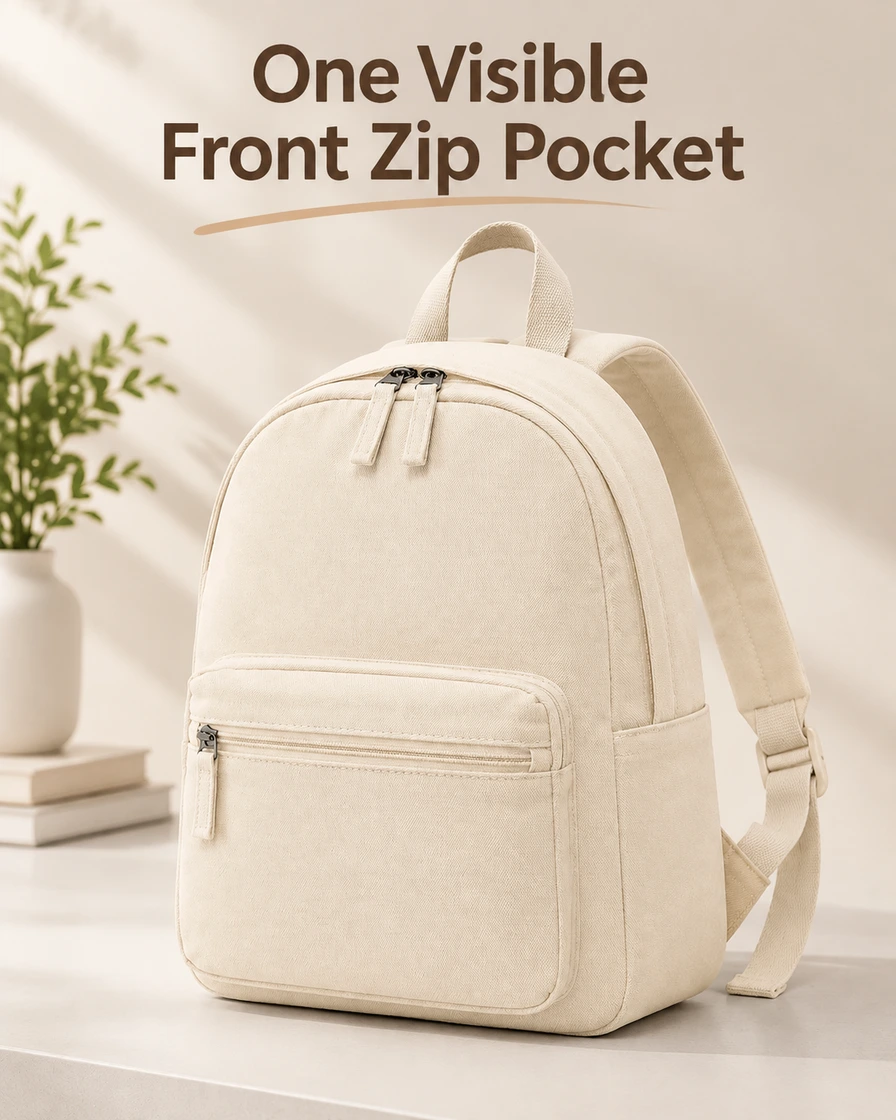
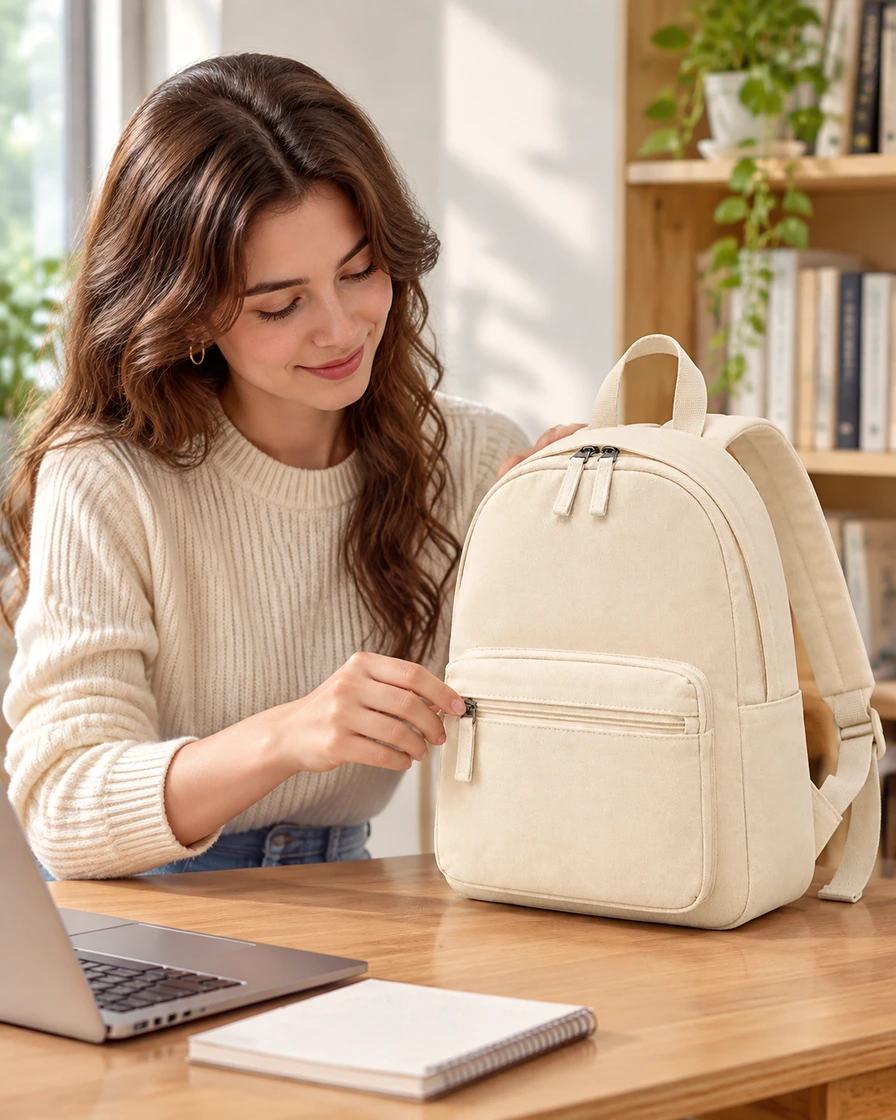
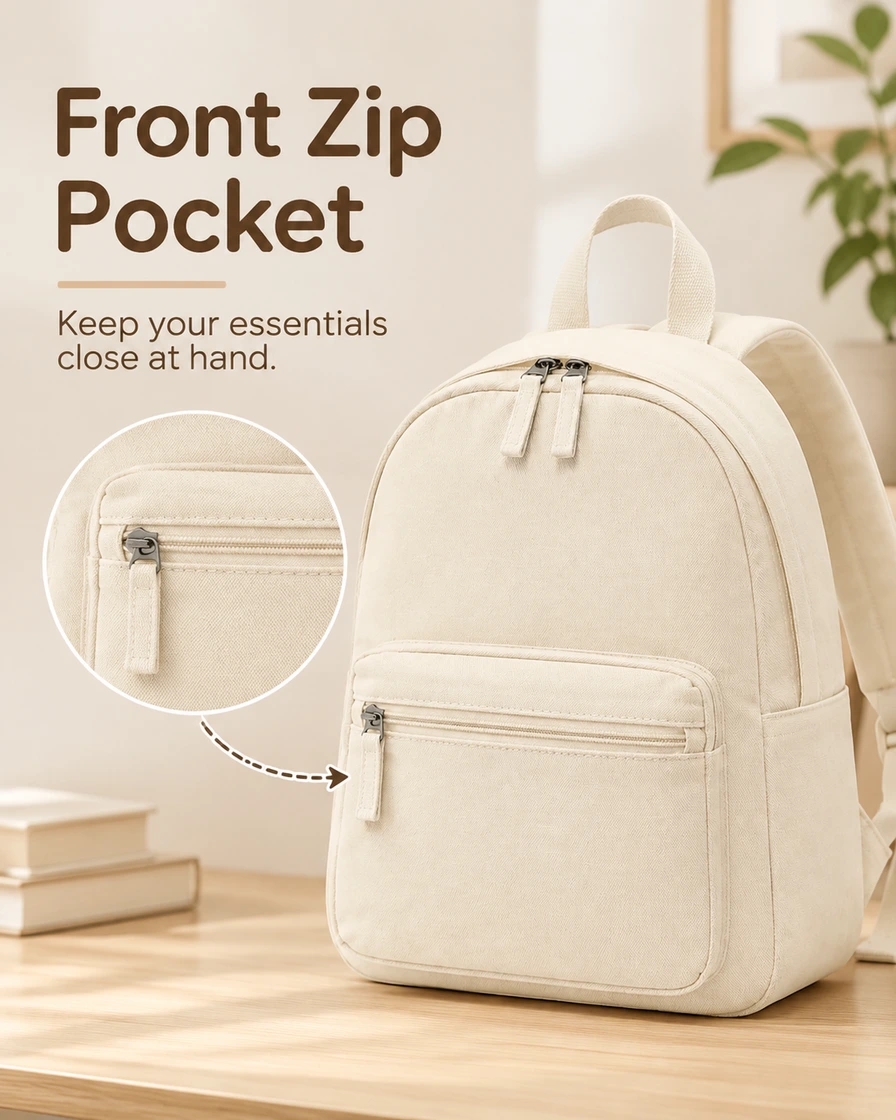
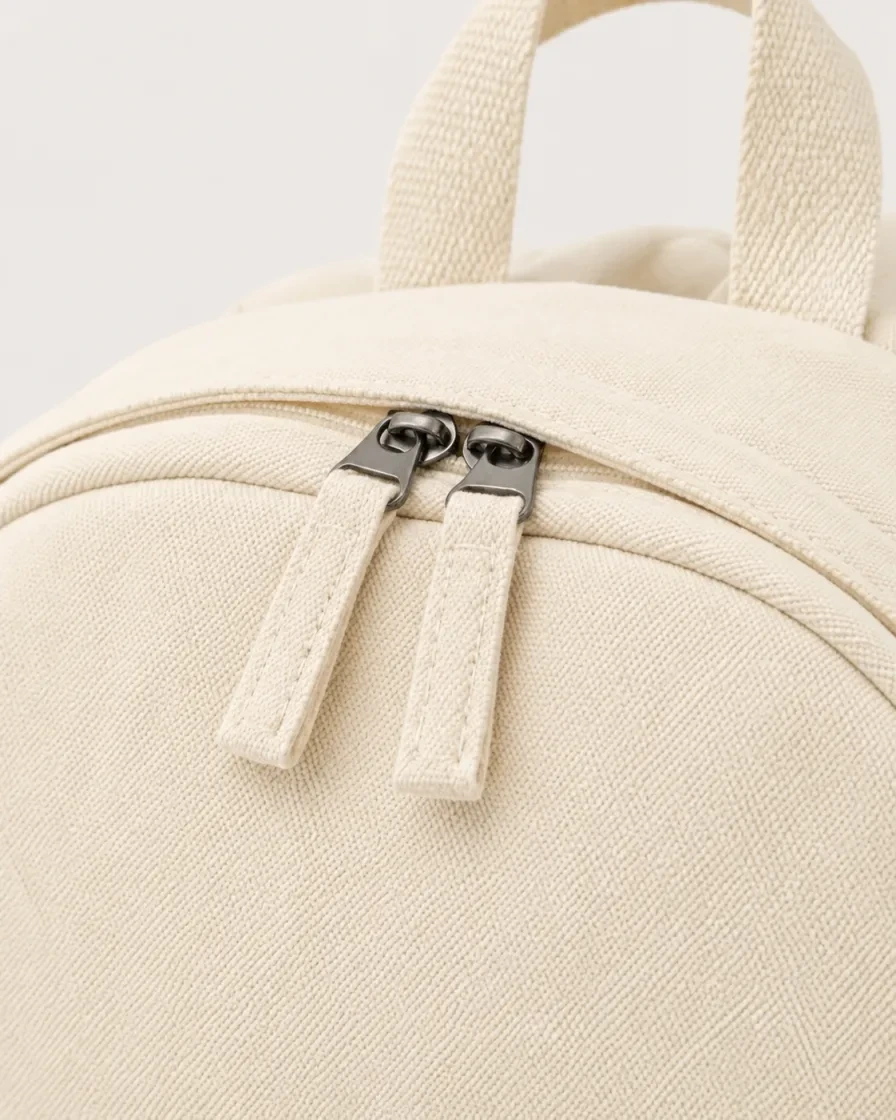
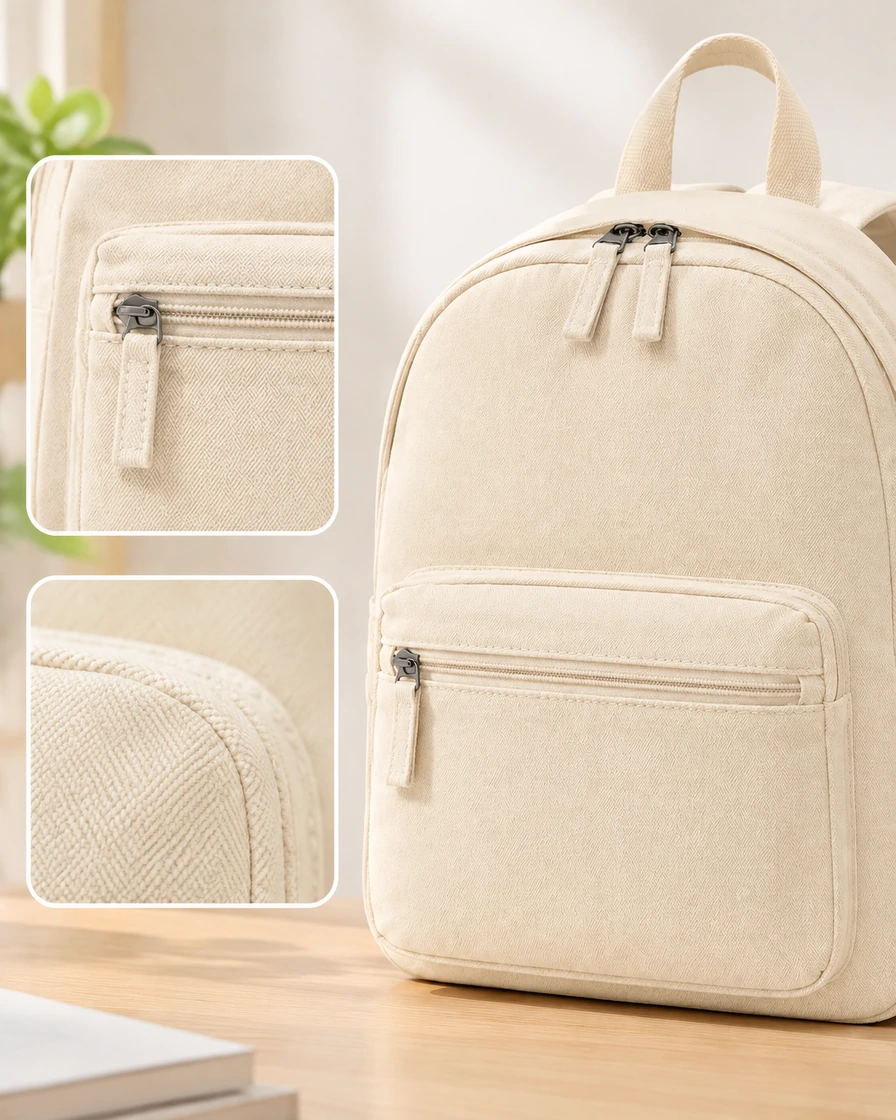
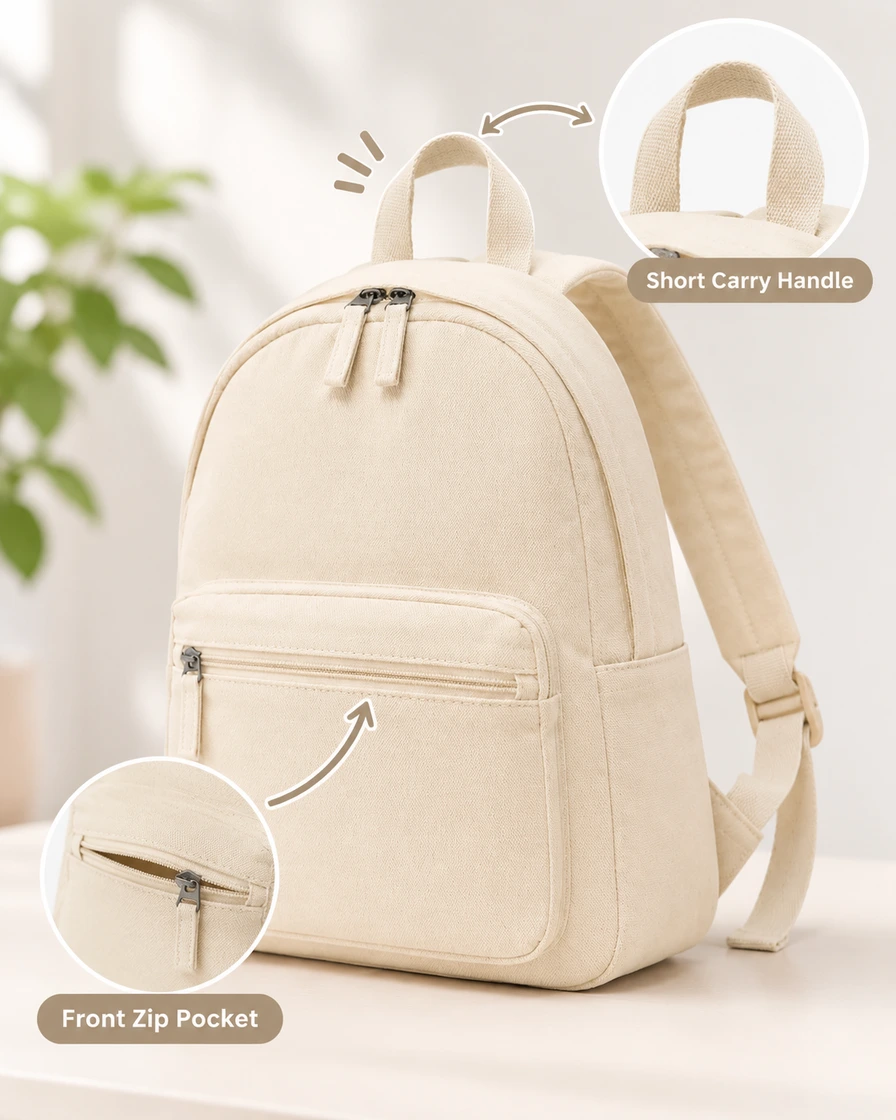
All six planned items completed and are different in purpose. The overview, scene, pocket, zipper, fabric and handle views are present. Several images include English titles, annotations or inset panels. The submitted system plan requests marketing titles or diagram elements in some categories, which conflicts with several no-text row requirements. These are reviewable candidates, not six automatically approved listing files.
The first attempt failed before generation because a display-preview reference was not supplier-accessible; its 180 reserved credits were returned. A separate corrected task completed. The reference is synthetic and cannot prove waterproofing, capacity or material composition. The source creation cost 30 credits separately.
| Image | Review finding |
|---|---|
| Product overview | The full bag is visible, but an English title was added despite a no-text request. |
| Desk-side scene | The bag appears in a desk-side scene with an adult model; scene props are not sold contents. |
| Front-pocket explanation | The pocket explanation includes a title, short copy and inset. Review the words before use. |
| Zipper detail | A close view shows the two zipper pulls, rather than a full-product composition. |
| Fabric and seams | Fabric and stitching are presented with inset panels; this is not a material-composition test. |
| Handle view | The handle view adds callouts that were not requested. |
Settings and dated charge
GPT Image 2 · FusionAI AI product image sets
Six outputs · 4:5 · 1K · each file 896 × 1120 · 30 credits per image, 180 credits total · ZIP export with six images
Task reference: 4c590e17-2082-46e9-bcd7-aee6a7d7a7e1
The downloaded ZIP was opened and checked: six separate 896 × 1120 images, one combined long image and a JSON manifest. A successful export does not approve the extra typography.
When the result is not right
The first attempt in this demonstration failed while accessing the reference image and returned its reserved credits. The corrected task was submitted under a separate record. In your own project, wait for upload completion and inspect failed rows before retrying; never repeatedly submit a pending whole set.
Questions about this workflow
Did all six outputs pass the visual requirements?
All six completed, but several contain titles or callouts. The saved system planning prompt and some no-text row requirements conflict. The case identifies these deviations; generation completion is not listing approval.
How should six image purposes differ?
Give each row one purpose: overview, lifestyle, pocket, zipper, fabric or handle. Specify its crop and what the viewer should learn.
Why is there text despite a no-text request?
The recorded plan and some row briefs conflict. Check both planning instructions and every row before regenerating affected images.
What should I check in the export?
Open the ZIP, confirm six separate files, then inspect dimensions, product consistency, text and each planned purpose.
Related steps and evidence
- Inspect original inputs, actual output and task record
- Explore the relevant product workflow
- Read the relevant model guide
- Open this workspace
Review and export each image by purpose
Create a simple handoff list
Use columns for image purpose, reference, allowed changes, factual checks and filename. If only one image fails, fix its specific row and compare it with the already approved set. Name the exported files by SKU, purpose and language.
Explore: Create a simple handoff list