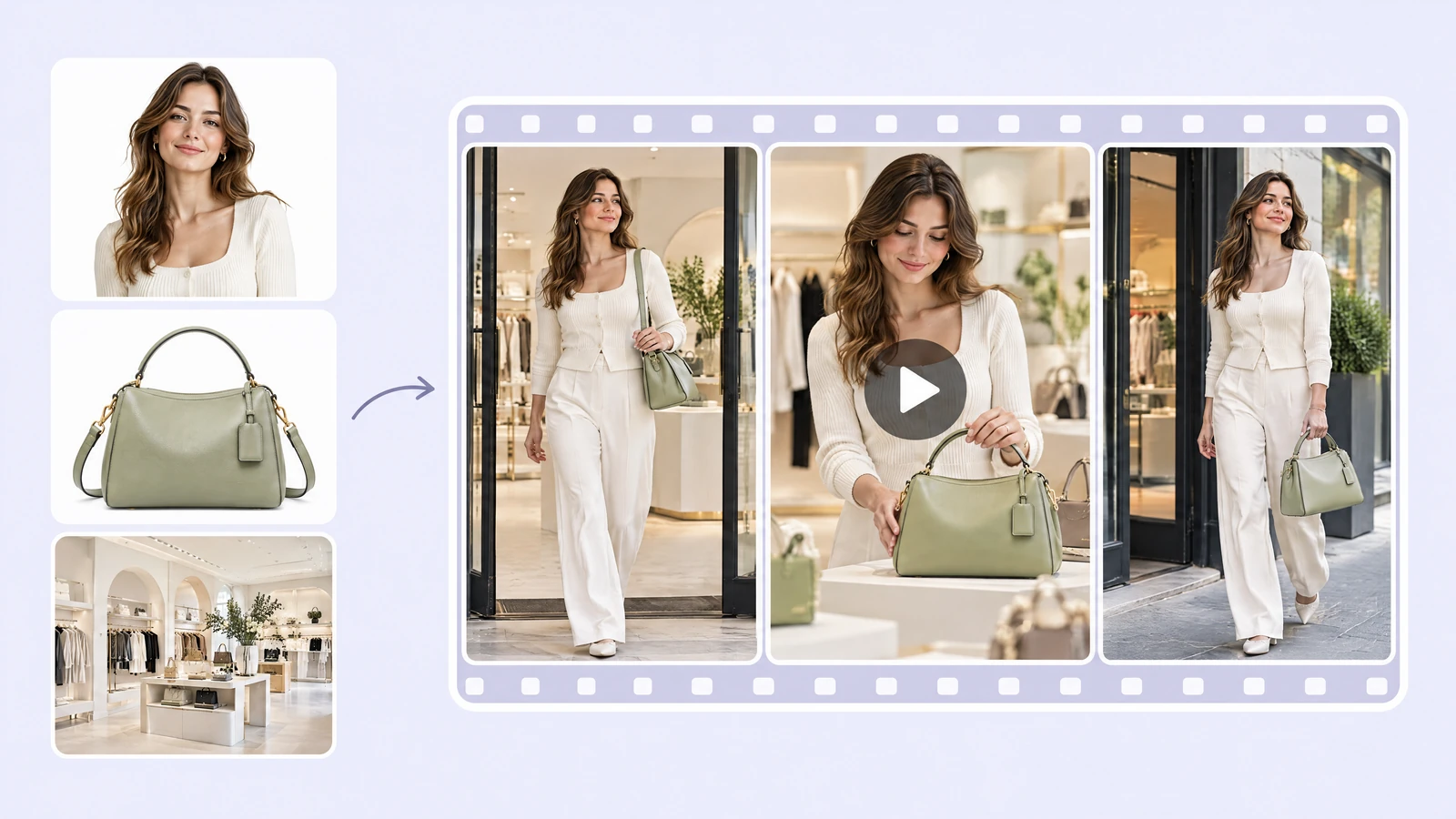
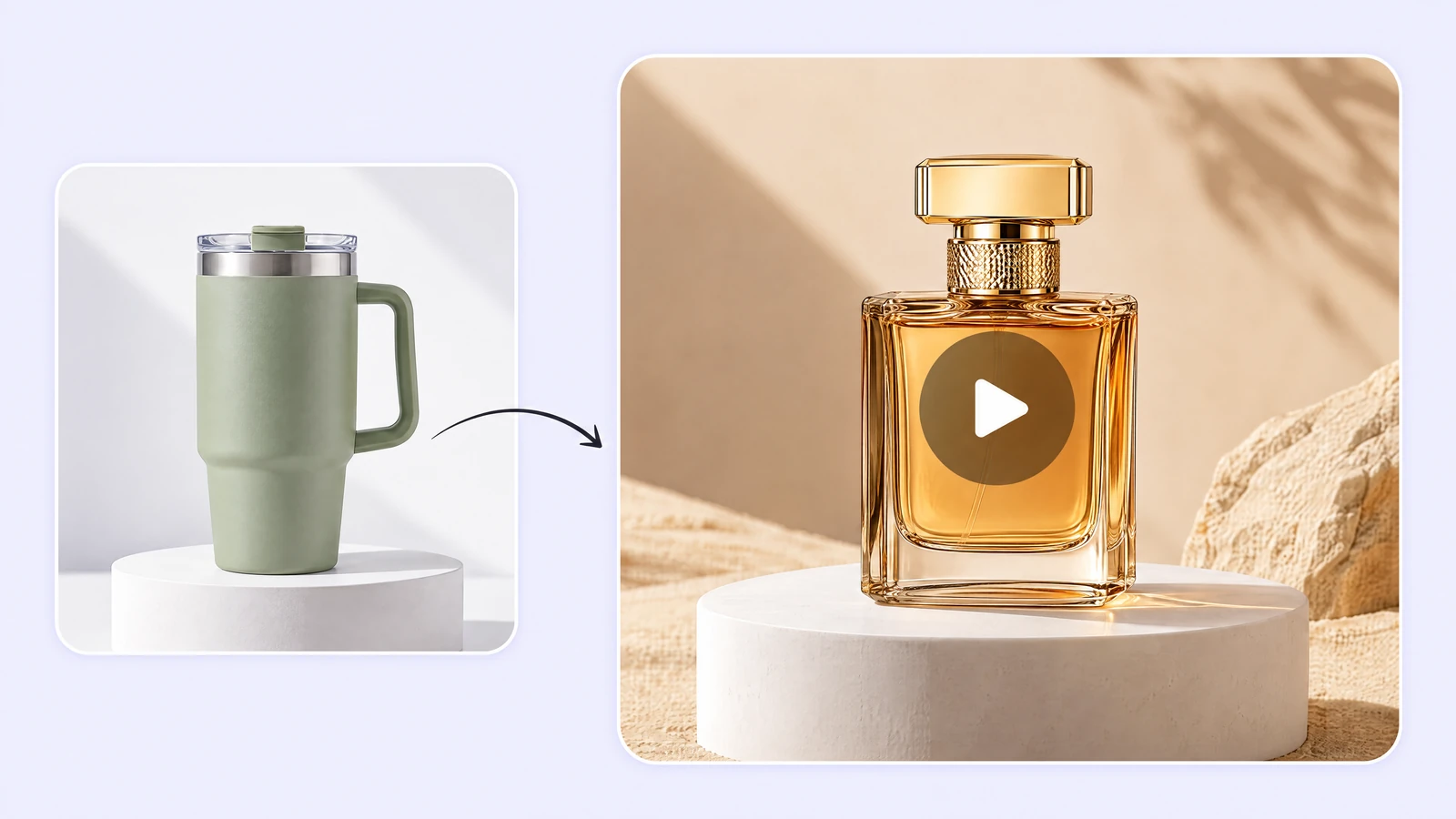
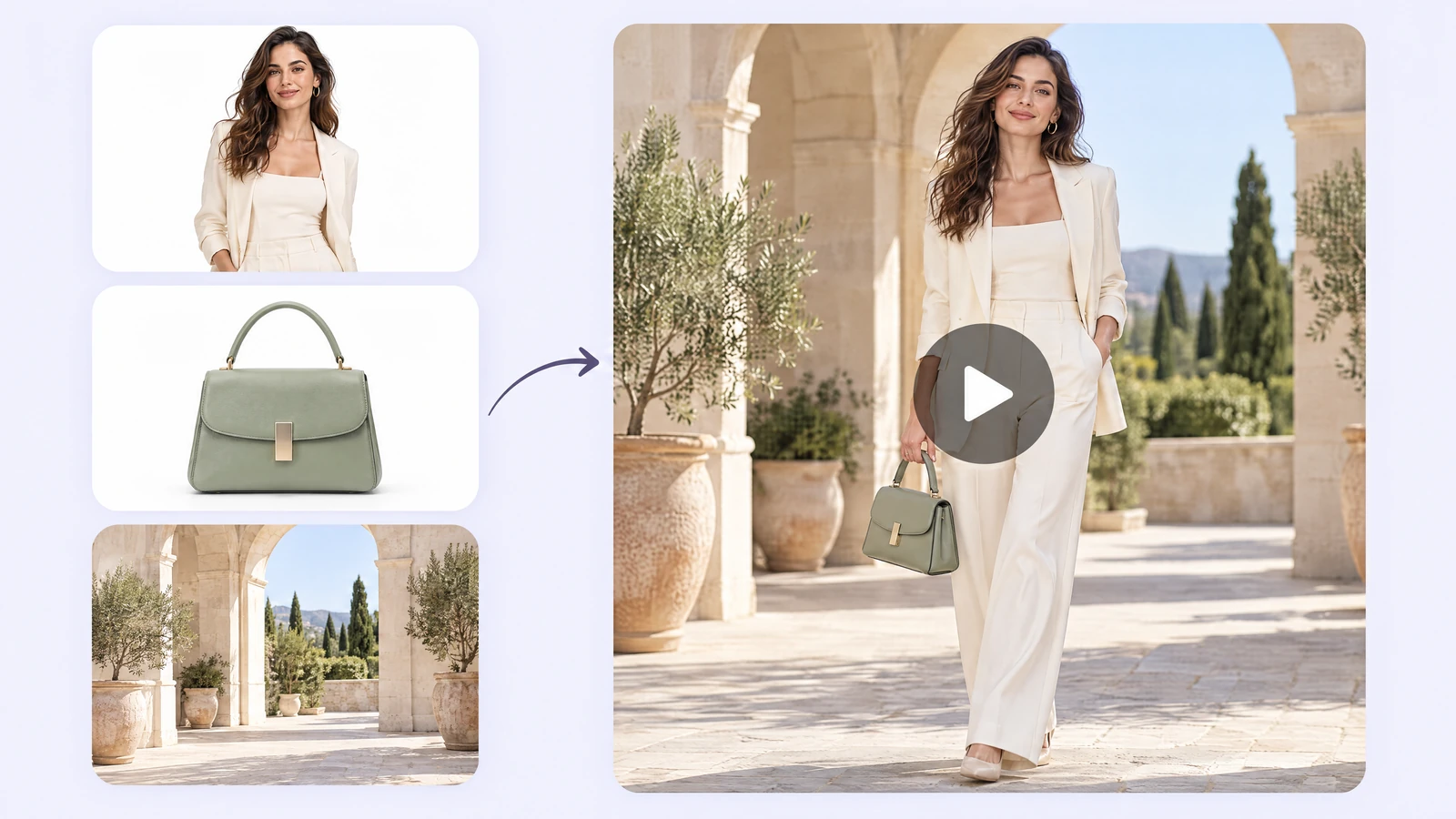
Text or image to video
Text starts a new shot; image-to-video uses an uploaded still to establish the opening composition.

Turn a product photo into a short video. Upload the opening frame, describe one action or camera move and review the clip from start to finish. The same workspace also supports text and multimodal generation with compatible models.
Choose settings and review the credit estimate in the workspace.
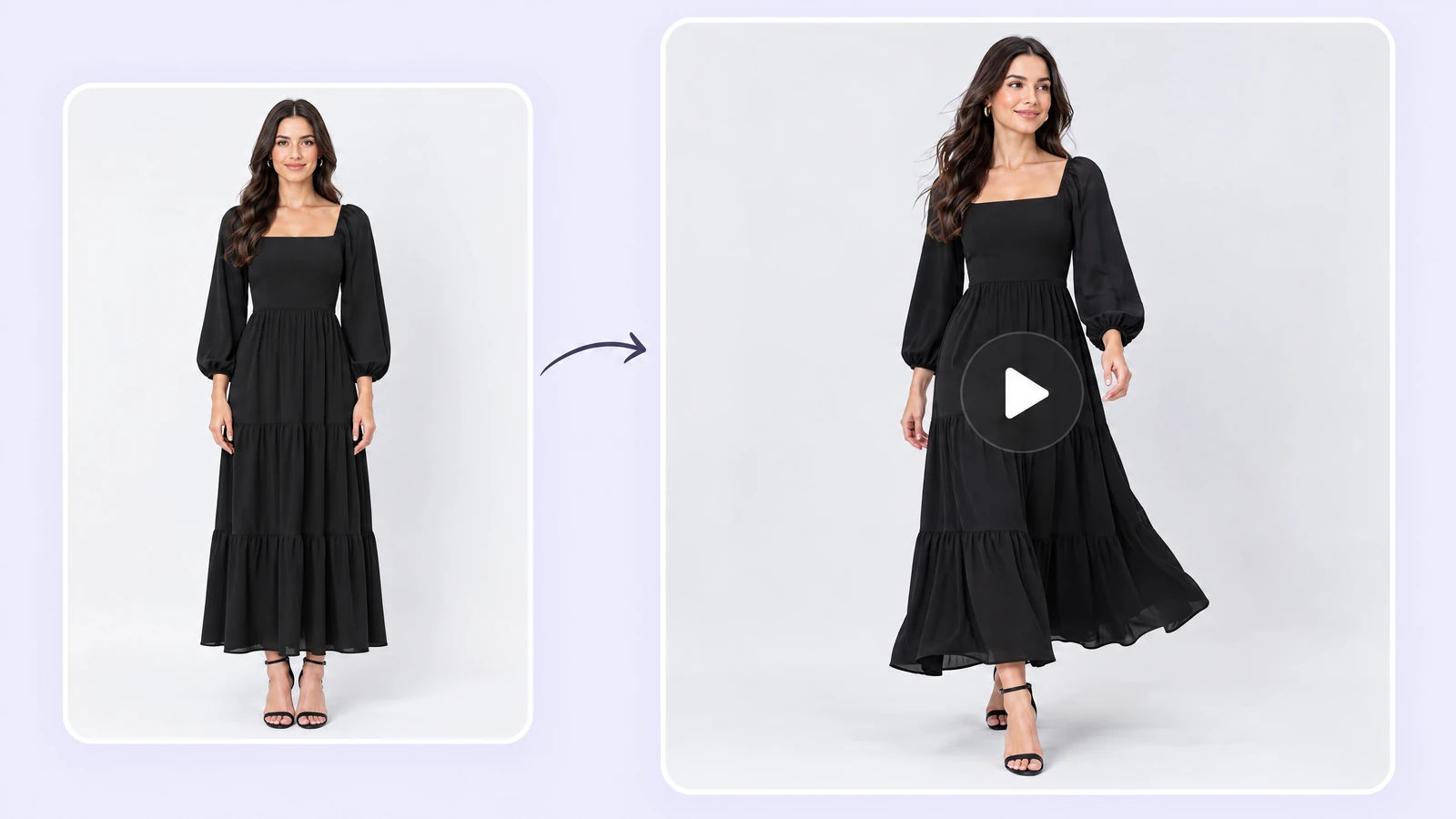
Text starts a new shot; image-to-video uses an uploaded still to establish the opening composition.
Use compatible opening and closing images and describe the transition. Check both endpoints and the motion between them.
Assign appearance, motion or audio roles to attachments. Editing changes a source clip; extension continues it. Availability and duration rules vary by entry.
Describe who or what appears, a single visible action and how the camera moves. Use this when you do not need a specific first frame.
Explore: Text → explore a new shotFor a product on a table, start with a sharp image and ask for a slow push-in while the product stays still. If exact endpoints matter, select a supported first-and-last-frame mode and verify both images.
Explore: Image → animate a known opening frameUse the model’s available inputs to give product appearance, scene and action different roles. Confirm model limits and the estimate before submitting.
Explore: Multiple references → separate identity and movementSelect a model that accepts a starting image. Use a clear product photo in the desired aspect ratio and leave room for any planned camera movement.
For a steady product shot, ask for a slow camera push-in with the item fixed. Name packaging and shape as details to preserve. Set the output duration and confirm the estimate.
Check the first frame, the strongest movement and the ending. Look for label changes, warped edges or a cropped product. If the model loses consistency, reduce camera movement before adding more references.
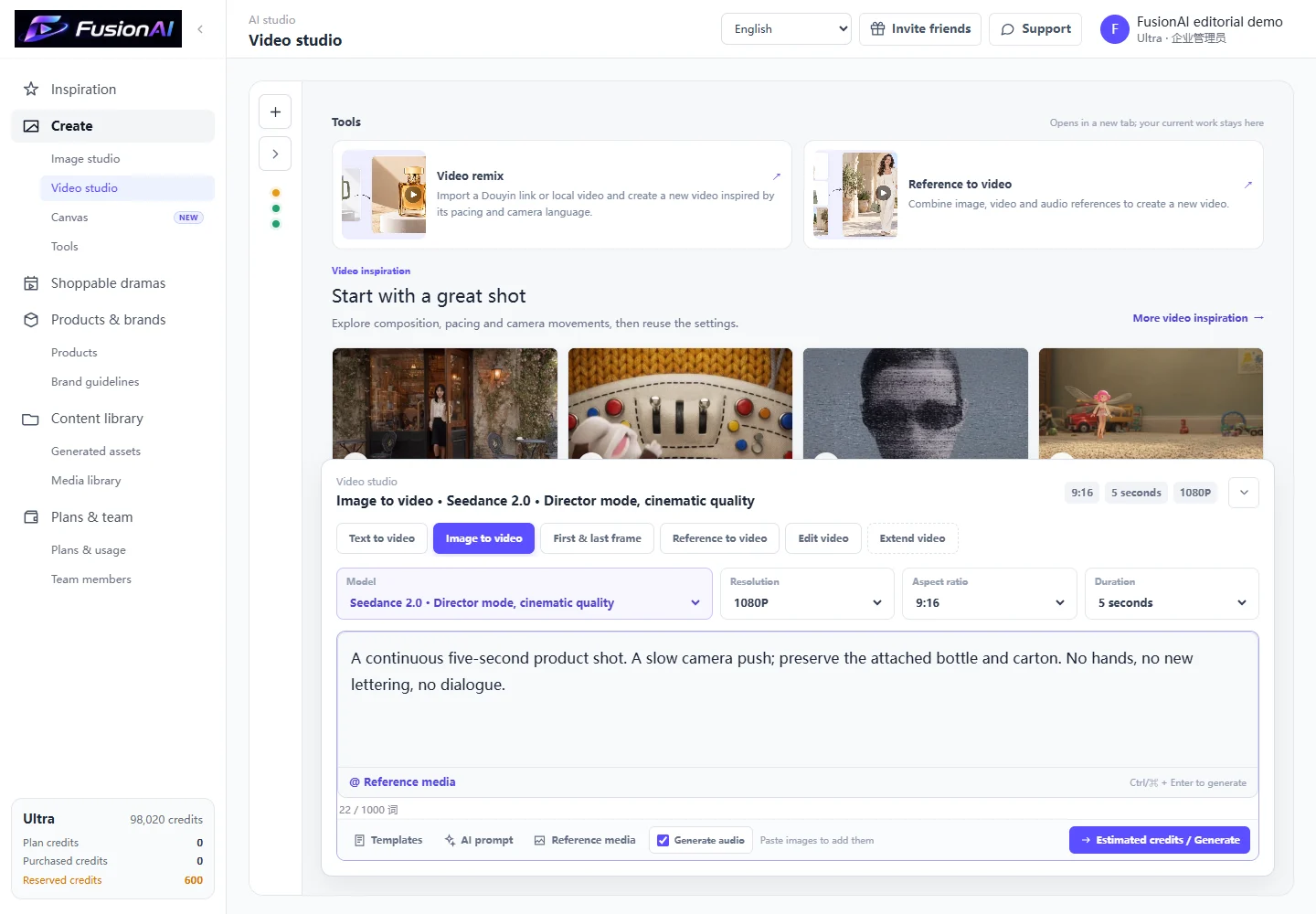
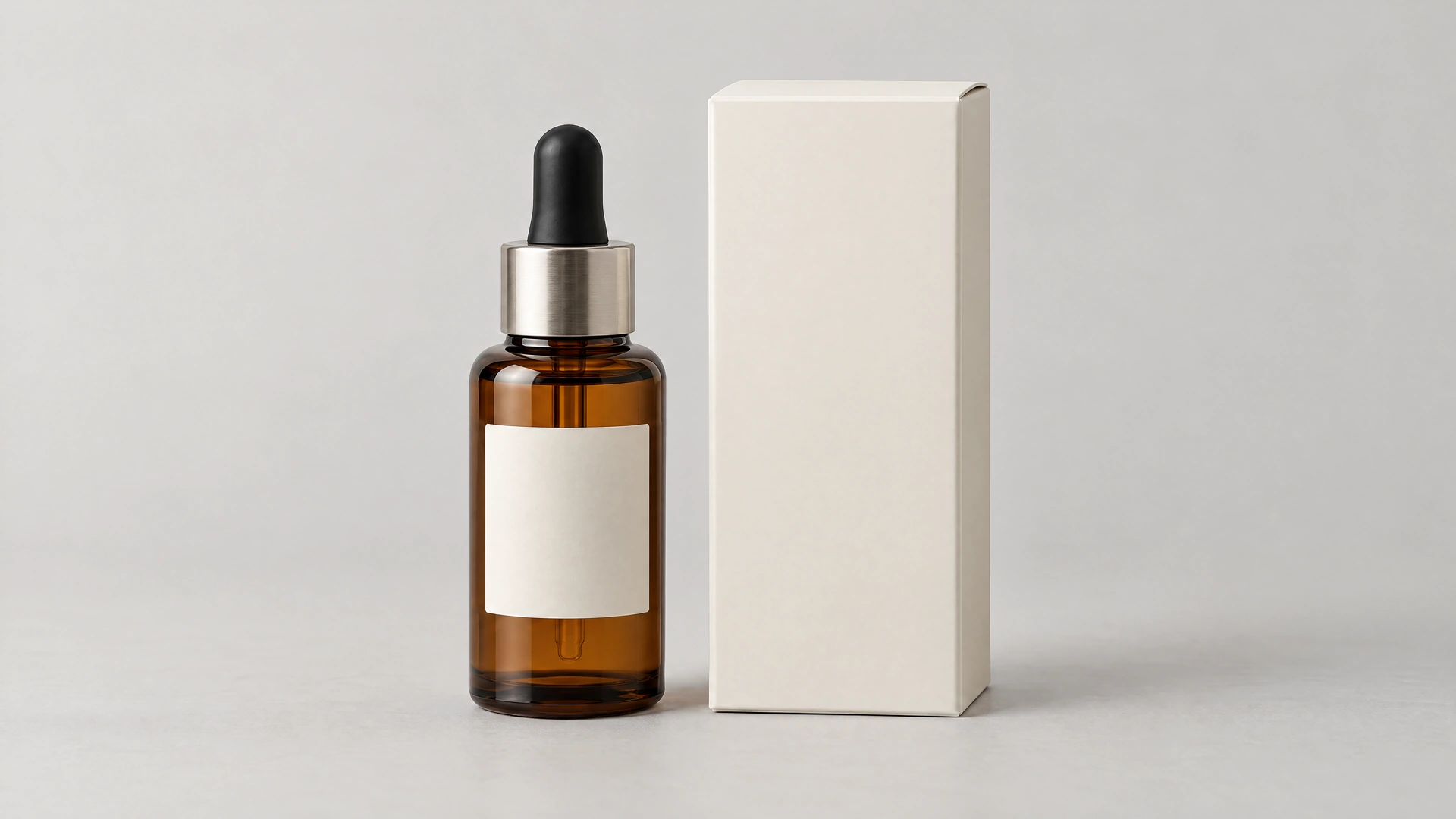
The complete clip decodes and plays. The bottle and carton remain recognizable during a slow forward camera move; beginning, middle and ending frames were inspected.
The carton reaches the upper edge near the end, so this candidate needs more headroom for a fully framed delivery. No audio, person, dialogue or 2.5 capability was tested. One clip is not a benchmark.
A first frame fixes the opening composition. A reference supplies selected appearance, scene or style information, according to the model and operation.
No. The live composer validates the selected entry’s input combinations, counts, duration and audio settings.
It produces the requested shot. Story order, captions, factual claims and final editing still require review.
Follow a recorded Seedance 2.0 image-to-video task, from an approved opening composition to a full review of the returned five-second clip.
Read the step-by-step tutorial →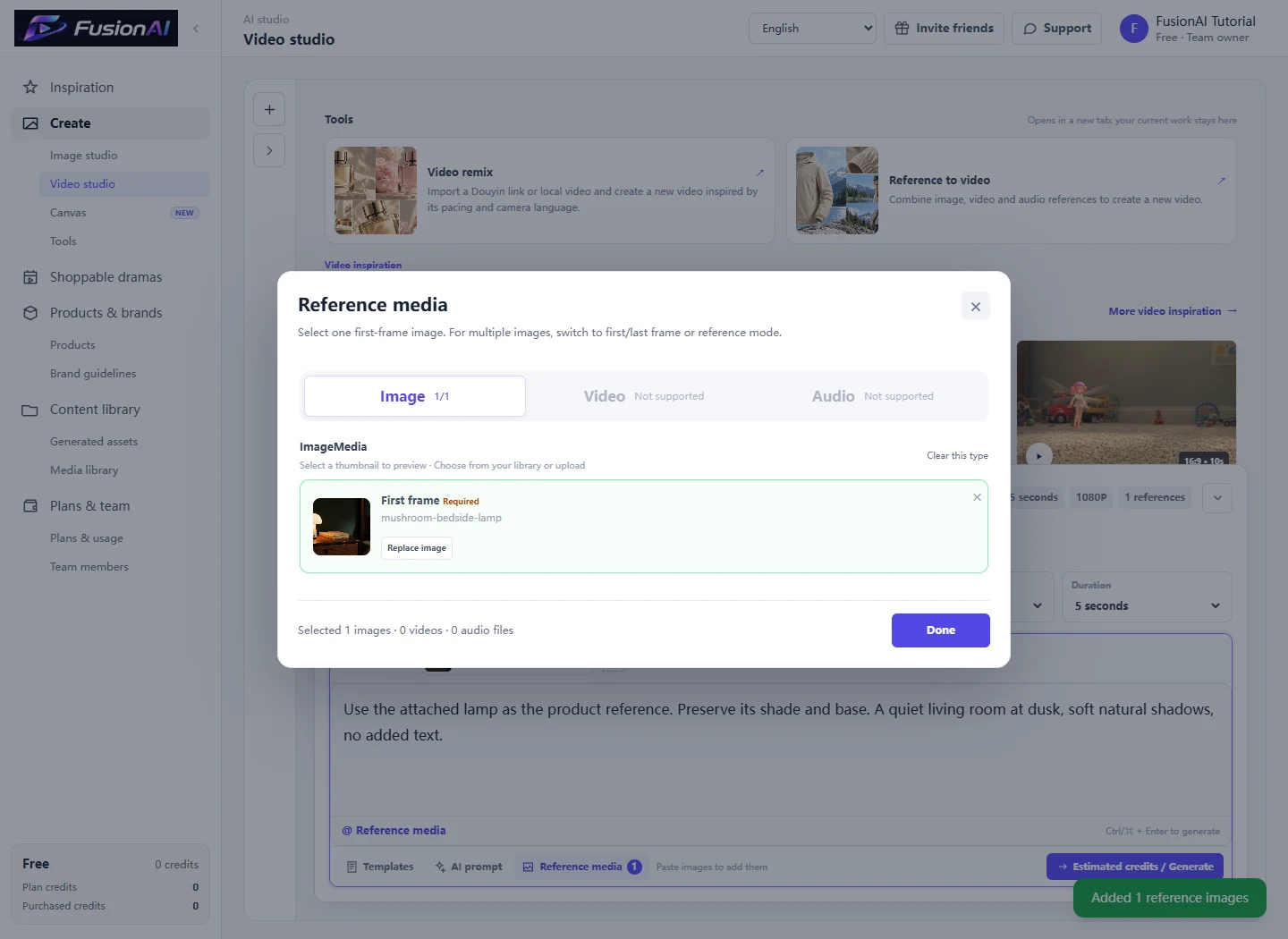
Bring the right inputs. Keep the result that works for your brief.