
How to Create a Product Video with Image and Motion References
FusionAI Content Team · Updated 2026-11-14 · 4 min read
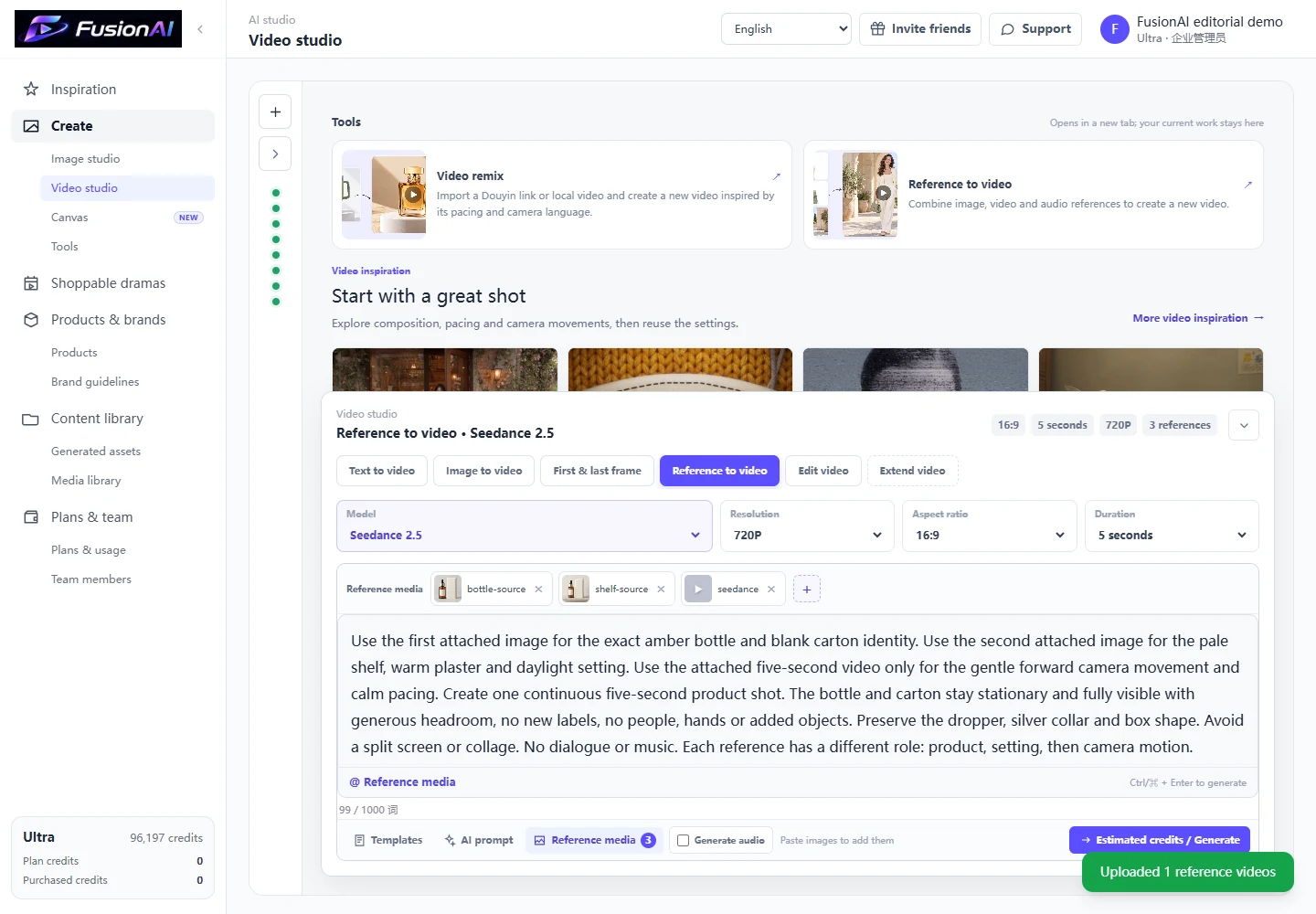
This walkthrough uses the current FusionAI interface and original synthetic teaching materials. Follow the steps, then inspect the saved result and dated task record. The workspace estimate governs a new request.
Before you start
Use product and setting images plus an original motion-reference clip in Seedance 2.5. Attach real files, define their roles and review the complete result.
1. Build a reference-role list before uploading
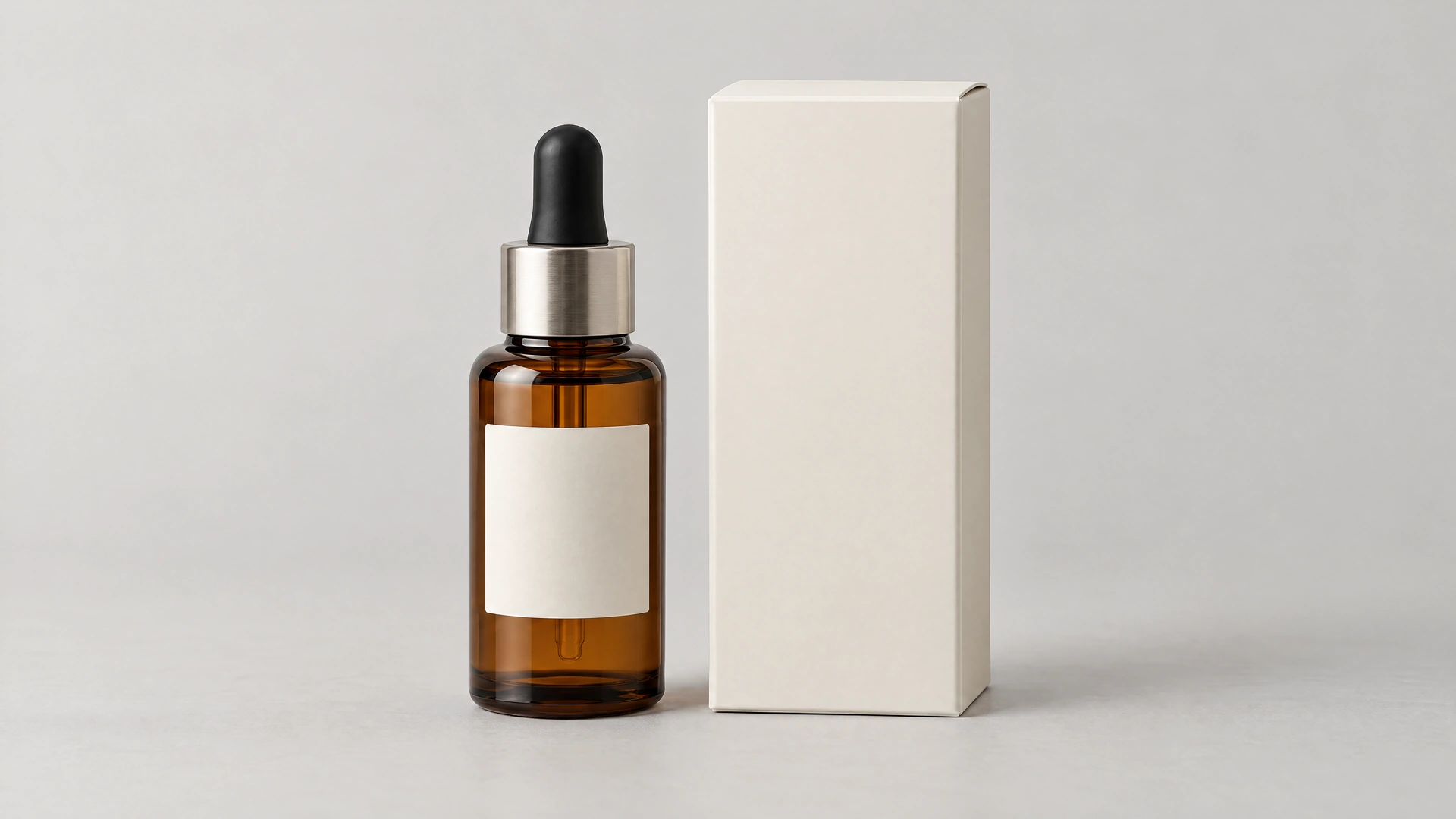
Use the first image for product identity, the second for the location and light, and a short video for camera movement. Do not ask the motion video to define a different product. The demonstration uses only original synthetic assets and a previously generated clip, with no customer or third-party footage.
Name each file by role so the product image, setting image and movement clip remain distinguishable.
2. Choose reference generation in Seedance 2.5
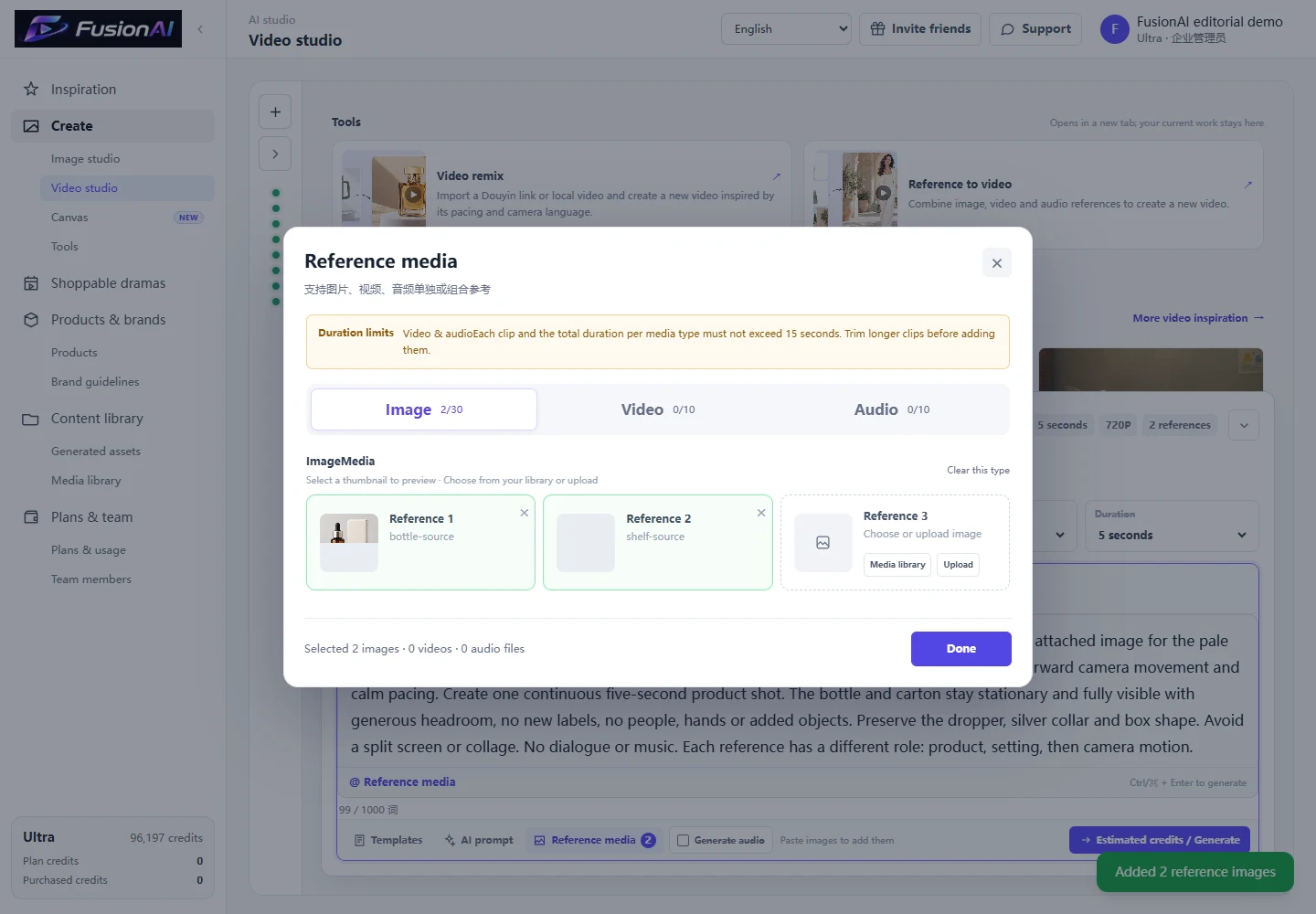
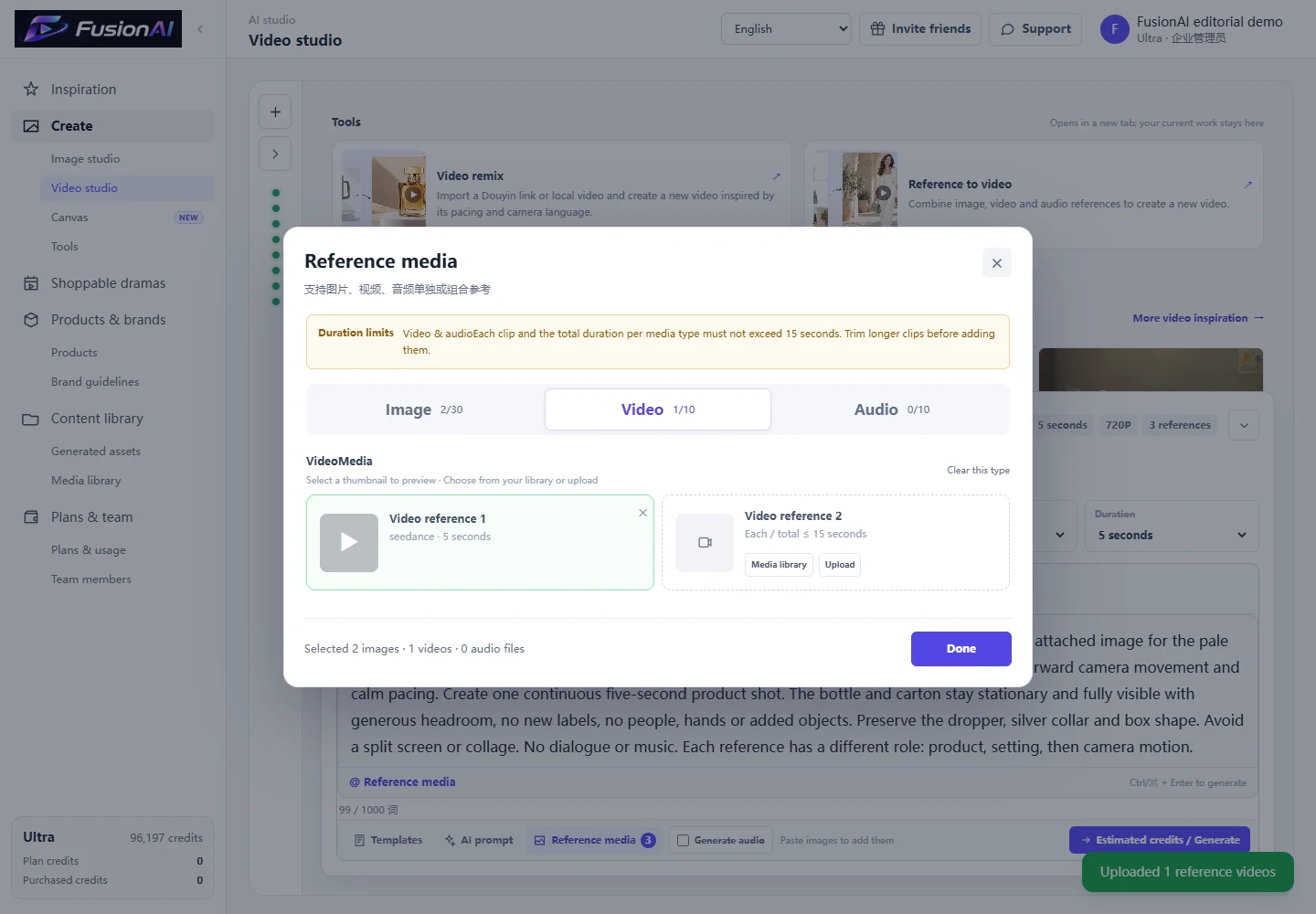
Open video studio and choose the exact 2.5 entry, then reference generation. Attach both images and the video in their corresponding media areas. Wait for thumbnails and verify the selected files. Typed filenames or @ labels do not upload attachments on their own.
Check that the selected model exposes reference generation and supports the media types you intend to attach.
3. Write the story, then assign references
Describe one continuous shot and state preservation requirements. Then assign the product, setting and camera roles explicitly. Use the system’s displayed filenames or reference labels so the attachments are unambiguous. Keep the desired move compatible with the reference clip; conflicting motion instructions make evaluation harder.
Attach and select the files first, then mention their filenames and roles; a typed mention alone does not attach a file.
4. Read input and output billing together
A reference video can add billable input seconds. Read the updated estimate after selecting it, not the estimate from an image-only request. The recorded mixed-reference task requests five output seconds and includes a short original input clip. Confirm once and keep the task record for the actual charge.
Review selected attachment counts, input-video duration and output duration before accepting the updated estimate.
5. Judge identity, setting and motion separately
Play the whole returned clip. Compare the dropper, collar, carton and blank labels against the product image; compare the shelf and light against the setting image; then inspect camera continuity. An attractive clip may still miss one reference role. Keep these checks separate when deciding whether to refine the prompt.
Inspect product identity, setting and movement separately; note omissions instead of treating a smooth clip as a fully correct result.
Recorded result and what changed
The complete clip decodes and plays to its end. The bottle and carton remain visible during a restrained forward camera move in a pale shelf setting. The opening, midpoint and final frames were inspected.
An earlier two-image candidate omitted the carton. The later task changes both the prompt and attachments, so it is not a controlled proof that adding video alone fixes subject identity. One task does not establish every reference combination or audio quality.
Settings and dated charge
Seedance 2.5 · FusionAI reference generation
Seedance 2.5 · reference generation · two images + one 5.04-second reference video · 5-second output requested · 16:9 · 720P choice · actual 1280 × 720, 5.042 seconds · 1,010 credits
Task reference: 9b029ea9-2ecf-4abd-90ca-61b24d3836f8
When the result is not right
If the wrong subject dominates, remove conflicting references or rewrite their roles. If the estimate rises after adding video, inspect input duration before submitting. Do not describe a two-image task as a video-reference test; preserve the exact attachment list in the case record.
Questions about this workflow
Does typing an @ reference upload the file?
No. Add and select the actual files first. Confirm both image references and the motion video are present before reading the final estimate.
How should product, setting and motion references differ?
Use the product image for appearance, the setting image for environment and the video for movement; state those roles in the prompt.
Does a higher model version guarantee all objects remain?
No. The earlier two-image candidate omitted the carton. Inspect each required object across the full clip.
How do I troubleshoot conflicting reference motion?
Choose one motion source and remove unrelated movement instructions. Keep the product and background constraints separate.
Related steps and evidence
- Inspect original inputs, actual output and task record
- Explore the relevant product workflow
- Read the relevant model guide
- Open this workspace
When two references disagree
Resolve one conflict at a time
For example, if your product photo is upright but the movement clip shows a tilted item, explicitly keep the product upright and borrow only the camera move. Compare the opening, point of maximum movement and ending. If the item drifts, retry with a steadier motion reference before adding more files.
Explore: Resolve one conflict at a time