Seedance 2.5: AI Video Generation, References and Editing
FusionAI Content Team · Updated 2026-11-20 · 6 min read
Seedance 2.5 is ByteDance’s joint video-and-audio generation model. It can create a new clip, use media as guidance, edit an existing video, or continue its story. Start by deciding which of those jobs you need to do.
FusionAI controls verified on 20 November 2026.
Open Seedance 2.5 in Video Studio
Official Seedance 2.5 capabilities and example scenes
ByteDance documents up to 30 seconds per generation and multi-round extension. The official standard reference limits are 30 images, 10 videos and 10 audio clips; official Flash limits are 10 images, 5 videos and 5 audio clips. These describe the model family. FusionAI menus and limits depend on the selected entry and mode.
A backstage-to-stage story in one take
The release demo follows a singer from preparation through a corridor to a stage reveal. The structure gives each beat a different job: establish the subject, follow a movement, then reveal a wider scene. A product demo can use the same structure for a reveal, one use action and a held closing view.
Watch this example in the official ByteDance release
A clay-render motion guide with separate visual references
The official animation shows how a plain 3D video can specify blocking and camera movement while a separate still supplies color, lighting and materials. For a product shot, use a short motion clip for camera path and a sharp product photo for identity. An ordinary reference upload does not imply a dedicated 3D or green-screen editor.
Watch this example in the official ByteDance release
Green-screen training scenes and timestamped camera edits
ByteDance’s source demo changes the environment across several time ranges; another adjusts camera motion in a breakfast sequence. To adapt the method, start with one requested change in a short window and list what should remain visible and audible elsewhere.
Watch this example in the official ByteDance release
Which mode should I choose in FusionAI?
The verified Seedance 2.5 entry shows 4–30 seconds for modes with selectable duration, and 480P / 720P / 1080P quality labels. Input-driven modes use the source rules below. Individual combinations and credit estimates may vary.
| Mode | Use and input |
|---|---|
| Text to video | A written scene without a source file. |
| Image to video / First and last frame | One opening still, or two stills with explicit opening and ending roles. In first/last-frame mode, framing follows the source. |
| Reference to video | Generate a new clip guided by the selected files. The current entry lists up to 30 images, 10 video clips and 10 audio clips. Reference video and audio are each limited to 15 seconds in total. |
| Edit video | Use the original clip as the editing source. Output aspect ratio and duration follow the source. |
| Extend video | Use the source as a starting point. Choose the direction and set the total output duration, including the input clip. |
1. AI video generation from text, one image or two frames
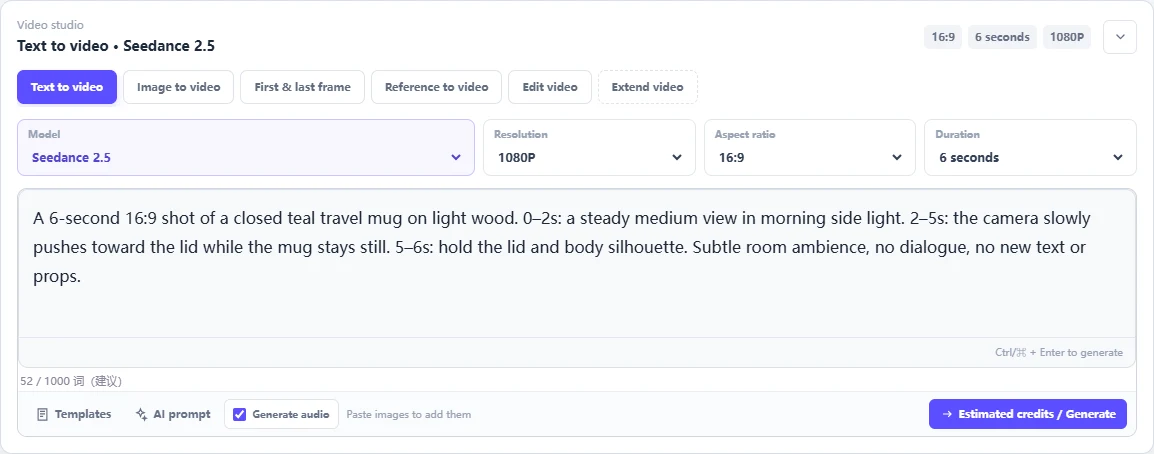
- Open Video Studio, select Seedance 2.5 and choose Text to video if you do not have a source image. For an existing product, use Image to video with one clear opening image. Choose First and last frame when you also need to specify the end; upload one image to each slot.
- For the first pass, choose 5–8 seconds and one main action. Set a ratio appropriate for the destination where the mode permits it, review the selected quality and the credit estimate, and confirm. Watch the opening, transition and ending before extending the clip.
Prompt to adapt
A 6-second 16:9 shot of a closed teal travel mug on light wood. 0–2s: a steady medium view in morning side light. 2–5s: the camera slowly pushes toward the lid while the mug stays still. 5–6s: hold the lid and body silhouette. Subtle room ambience, no dialogue, no new text or props.
2. Generate a new video from product, motion and sound references
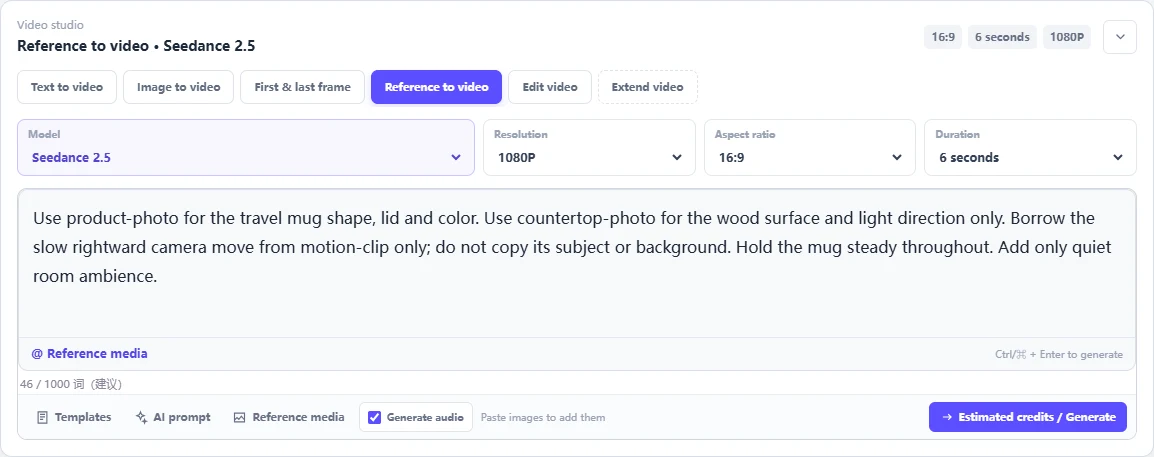
- Switch to Reference to video. Open Reference media and attach the product image, optional setting image and a short motion clip. Add an audio reference only where the selected route and mode support it. Wait for the previews and select only the files you want.
- Type @ and choose each uploaded file from the menu. Write the role next to the mention: product appearance, setting, camera movement or sound. State which reference takes priority if they conflict, then play the full output before using it.
Prompt to adapt
Use @product-photo for the travel mug shape, lid and color. Use @countertop-photo for the wood surface and light direction only. Borrow the slow rightward camera move from @motion-clip only; do not copy its subject or background. Hold the mug steady throughout. Add only quiet room ambience.
Verified FusionAI result: two images and one motion clip
The linked test used product and scene images plus an original motion clip. Review its input assignments and the returned five-second clip, including the observed differences.
Inspect the product, setting and motion case · Follow the multi-reference product video tutorial
3. Edit an existing video by specifying a time range
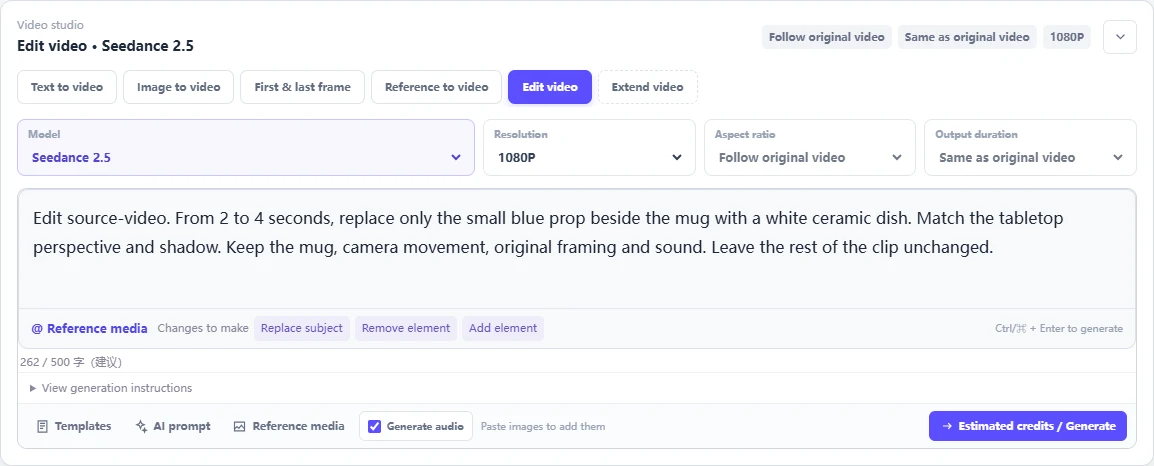
- Select Edit video and upload the source video. For this route, the interface follows the source duration and framing. Add an image reference only if the replacement needs a precise look. Start with a short permitted source rather than a complex multi-scene film.
- Mention the source with @. Specify seconds, the exact visual change and what remains unchanged. Review the estimate. Compare before, during and after the requested range, including subject, camera continuity and audio. Timestamp prompts guide the model; they do not guarantee a frame-exact edit.
Prompt to adapt
Edit @source-video. From 2 to 4 seconds, replace only the small blue prop beside the mug with a white ceramic dish. Match the tabletop perspective and shadow. Keep the mug, camera movement, original framing and sound. Leave the rest of the clip unchanged.
Extend a usable clip without losing continuity
- Choose Extend video and upload the clip. Select backward extension to continue the ending, or forward extension to build an opening that leads into it.
- Choose total output duration. For example, a 5-second clip and a 10-second total leaves about 5 seconds for new content.
- Describe the join: last pose or first pose, camera direction, light and sound. Compare the join, then review the full export.
What the examples verify
Official scenarios illustrate model capabilities. The workflow screenshots verify controls and the prompts for text generation and editing are practice examples; they are not presented as completed FusionAI tests. The embedded reference video is an actual FusionAI result. Check availability, source limits and the estimate before submitting a new task.