What this walkthrough covers
Follow the actual FusionAI interface to prepare ai video creation. Screenshots use a FusionAI demonstration account with sample content. They show request preparation before generation.
Before you start
A text brief, a starting image or the references required by the chosen video operation.
Sign in with your email account. Use files you may edit and check the selected model before attaching references. A blank result area is expected before a task is submitted.
Step 1: Open Video studio and choose the operation
Open Video studio and select Wan 3.0 in the model control for this example. Choose Image to video. That operation expects one starting image; other operations have different reference requirements.
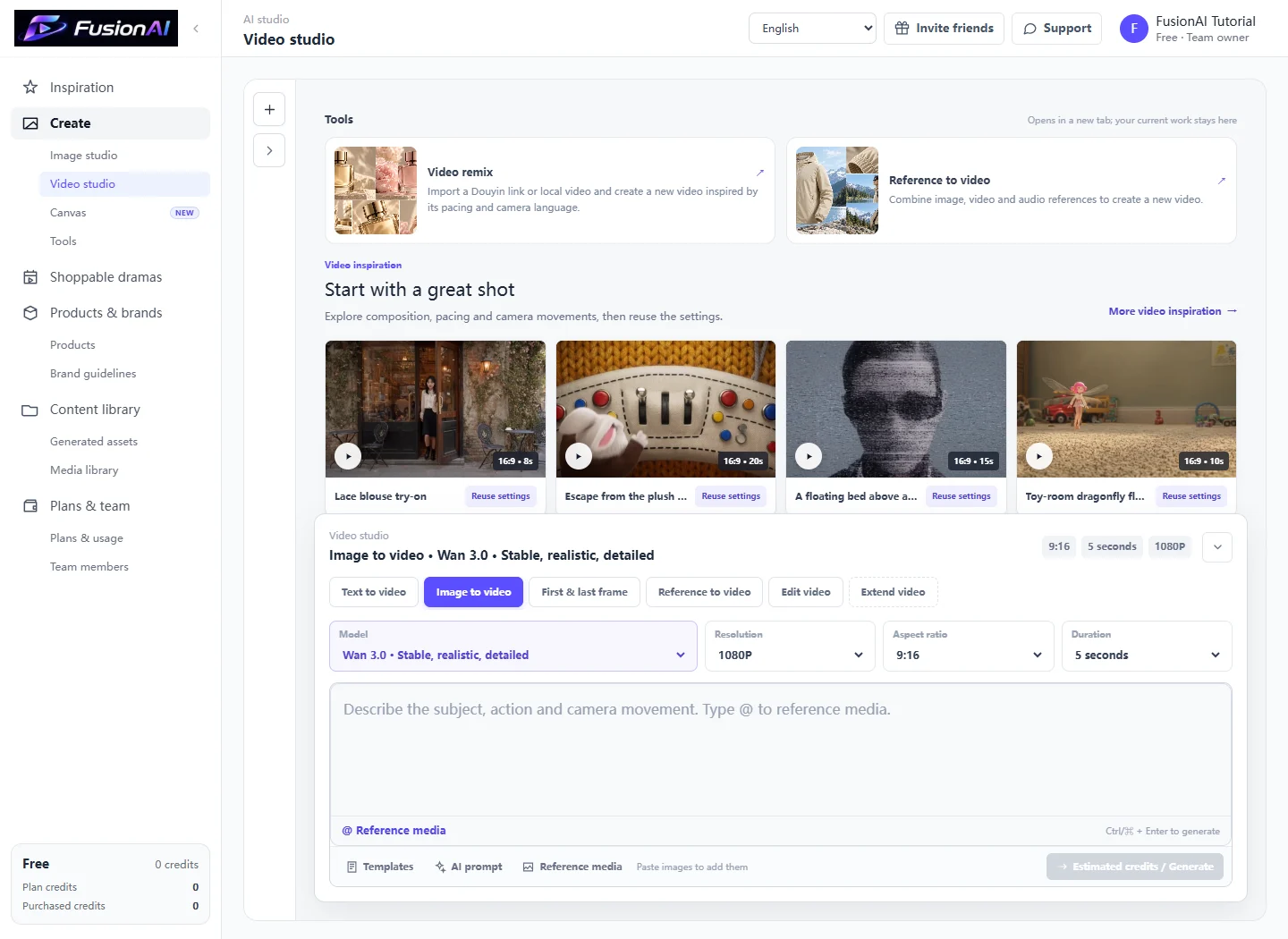
Step 1 — Open Video studio and choose the operation. Actual FusionAI interface; request preparation example.
Step 2: Describe one coherent shot
Describe a single action or restrained camera move that fits the chosen duration. State the product to preserve, setting, light and sound. Inspect picture quality, ratio and duration in the same composer.
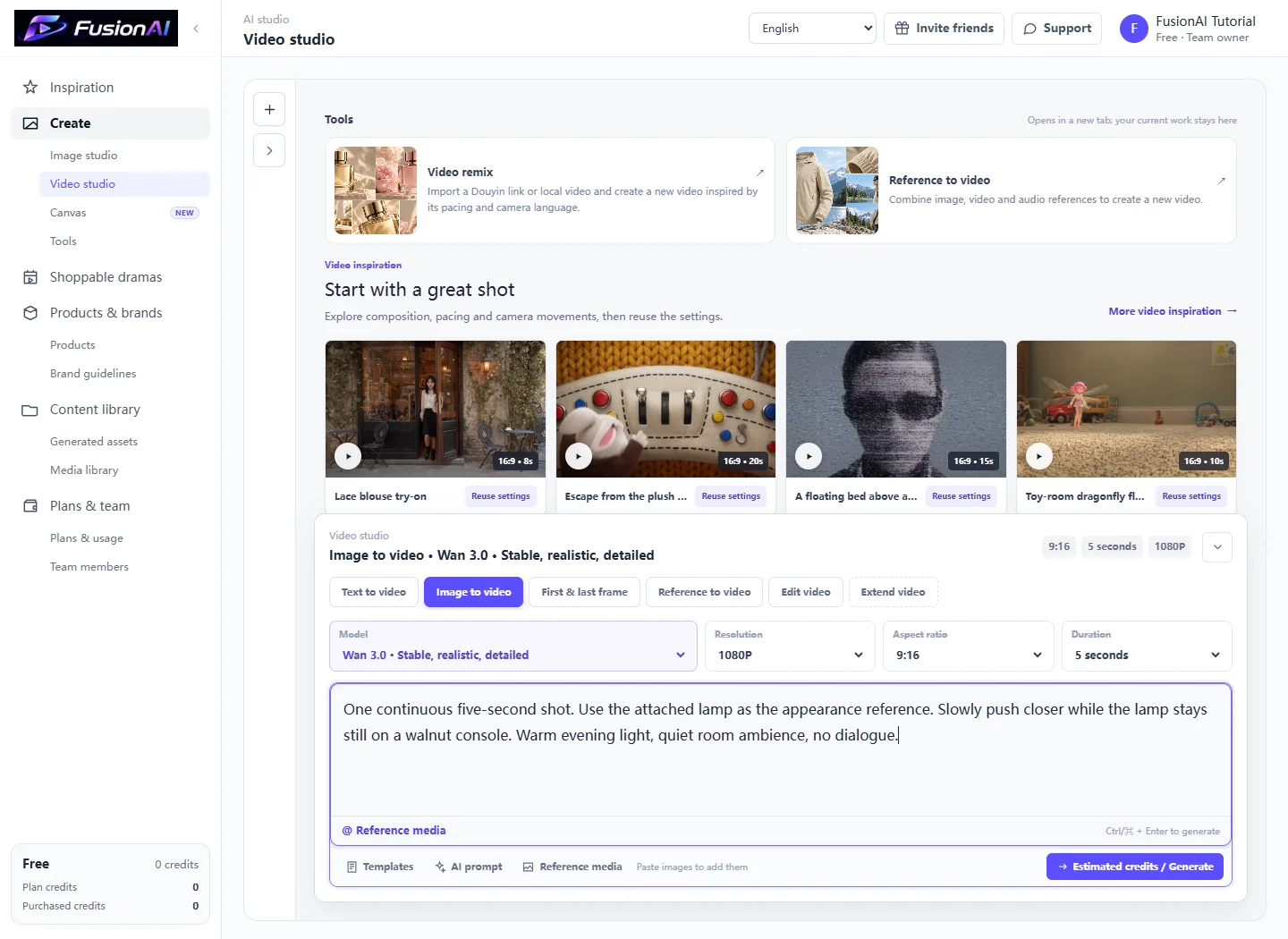
Step 2 — Describe one coherent shot. Actual FusionAI interface; request preparation example.
Step 3: Attach the product reference
Open Reference media and upload or choose the starting image. Check the selected file and thumbnail, then use Done to return to the composer. Use the @ control when assigning reference roles. This demonstration stops before confirmation.
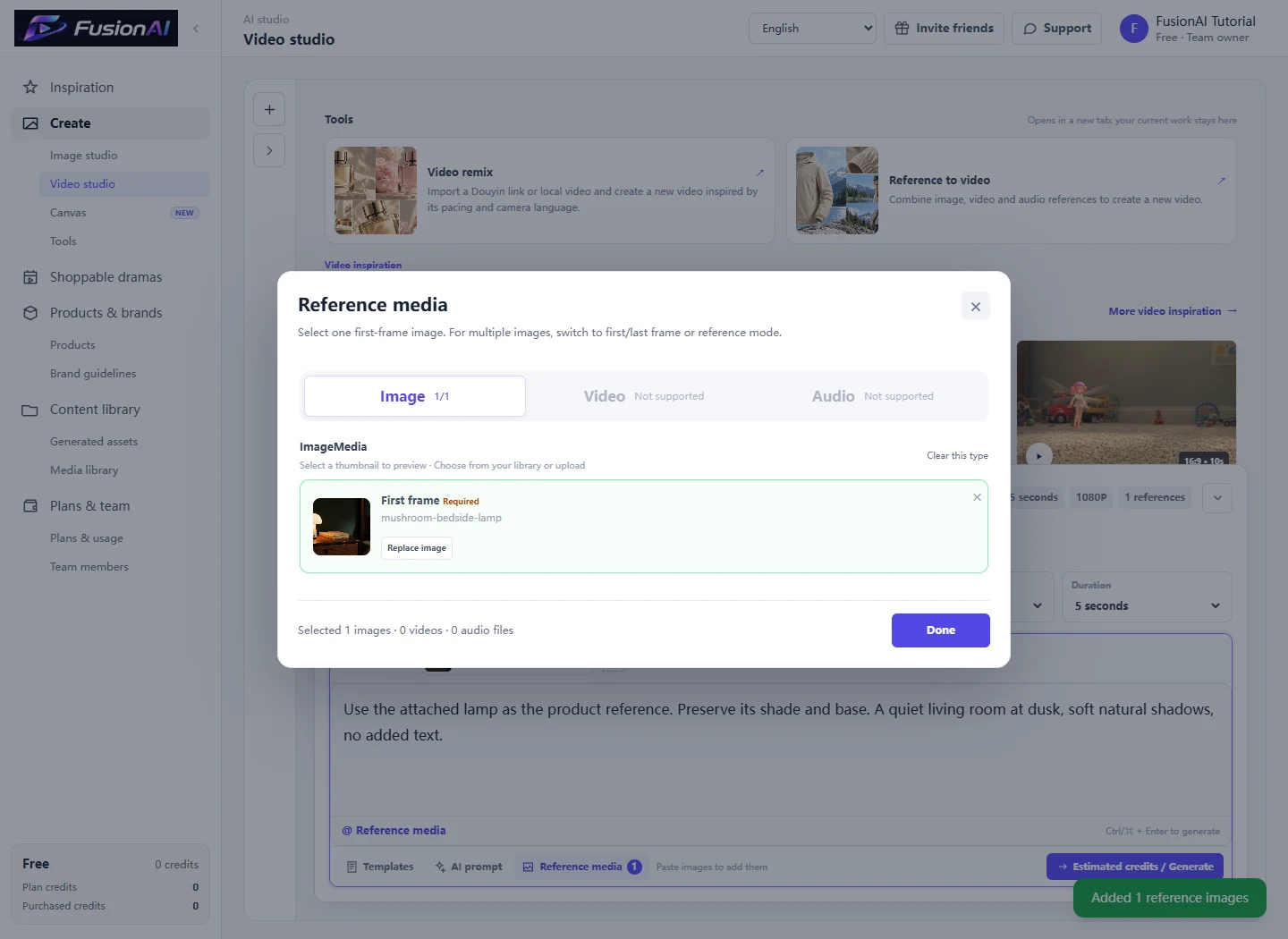
Step 3 — Attach the product reference. Actual FusionAI interface; request preparation example.
A brief you can adapt
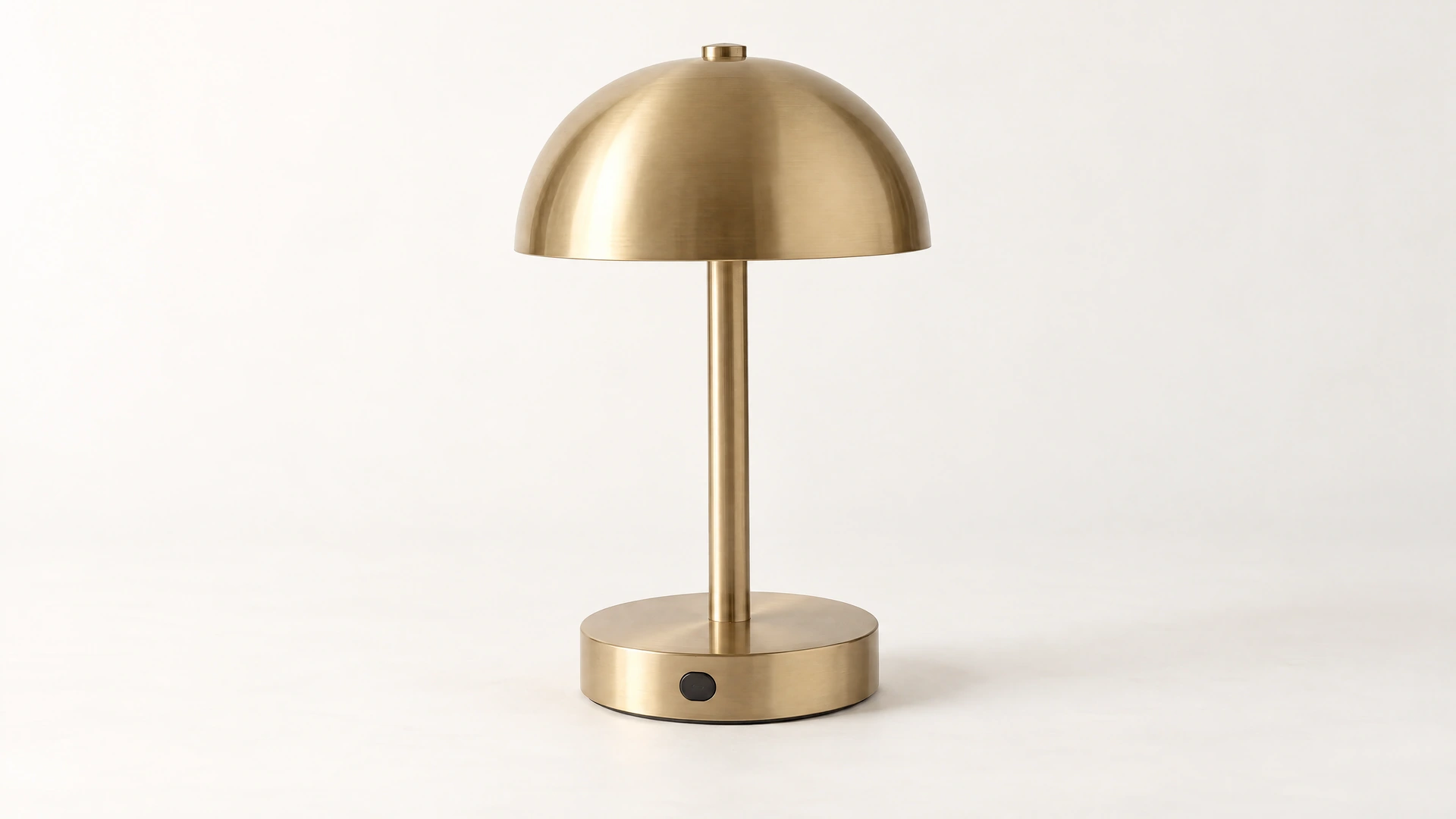
A five-second slow push toward a stationary desk lamp. Preserve the shade and brass stem; soft evening light, quiet room ambience, no dialogue.
Replace the product and visual direction with your own references. If you use @ media, choose an actual attached file from the reference control. Typing an unattached filename does not add a reference.
Before you confirm generation
- Check the required inputs and make sure the selected reference is the intended source.
- Confirm the model, operation and available output settings. Read the estimate before paying for a task.
- Use Save draft when that control is provided and you want to keep the plan without generating.
- After a real task finishes, inspect the output against the source. Do not infer success from a submitted status alone.
What to check in your own result
Check temporal changes, anatomy, product details, camera jumps, speech, sound and the last frame.
Individual generated shots. Use the drama workflow when you need an organized multi-shot episode.
If the setup does not look right
- Missing upload thumbnail: wait for the upload to finish, then check file eligibility and the current model’s reference limit.
- A mode or setting is absent: select a model that exposes the required operation; controls differ by model.
- The estimate is unavailable: resolve missing required fields or attachments before continuing.
- The result changes the wrong detail: narrow the edit instruction, state what must remain fixed and compare a new candidate.
Continue learning
Read the full product guide · Open the workspace · Browse all tutorials