Wan 3.0 and Prime: AI Video, References and Editing
FusionAI Content Team · Updated 2026-11-20 · 5 min read
Use Alibaba’s Wan 3.0 prompt method in FusionAI. Plan camera movement from an opening still, assign reference roles, edit a source video and check the actual return.
Official capabilities and example scenes
Two frames give a transition a destination
Alibaba’s examples show how a start and end image can anchor a visual transition. When both frames show the same product, describe the action between them and avoid changing product, environment and perspective all at once.
Separate the timeline from audio and style
The official examples divide shots into time ranges, with separate directions for camera, action, dialogue and ambience. An ecommerce adaptation can move from a full product view to a close detail with sound tied to one action.
See the original examples and model documentation
What FusionAI exposes for each entry
| Model in Video Studio | Available modes | Selectable duration and quality |
|---|---|---|
| Wan 3.0 | Text to video · Image to video · First & last frame · Reference to video · Edit video · Extend video | 2–30 s · 480P / 720P / 1080P |
| Wan3.0-Prime | Text to video · Image to video · First & last frame · Reference to video · Edit video · Extend video | 2–30 s · 480P / 720P / 1080P |
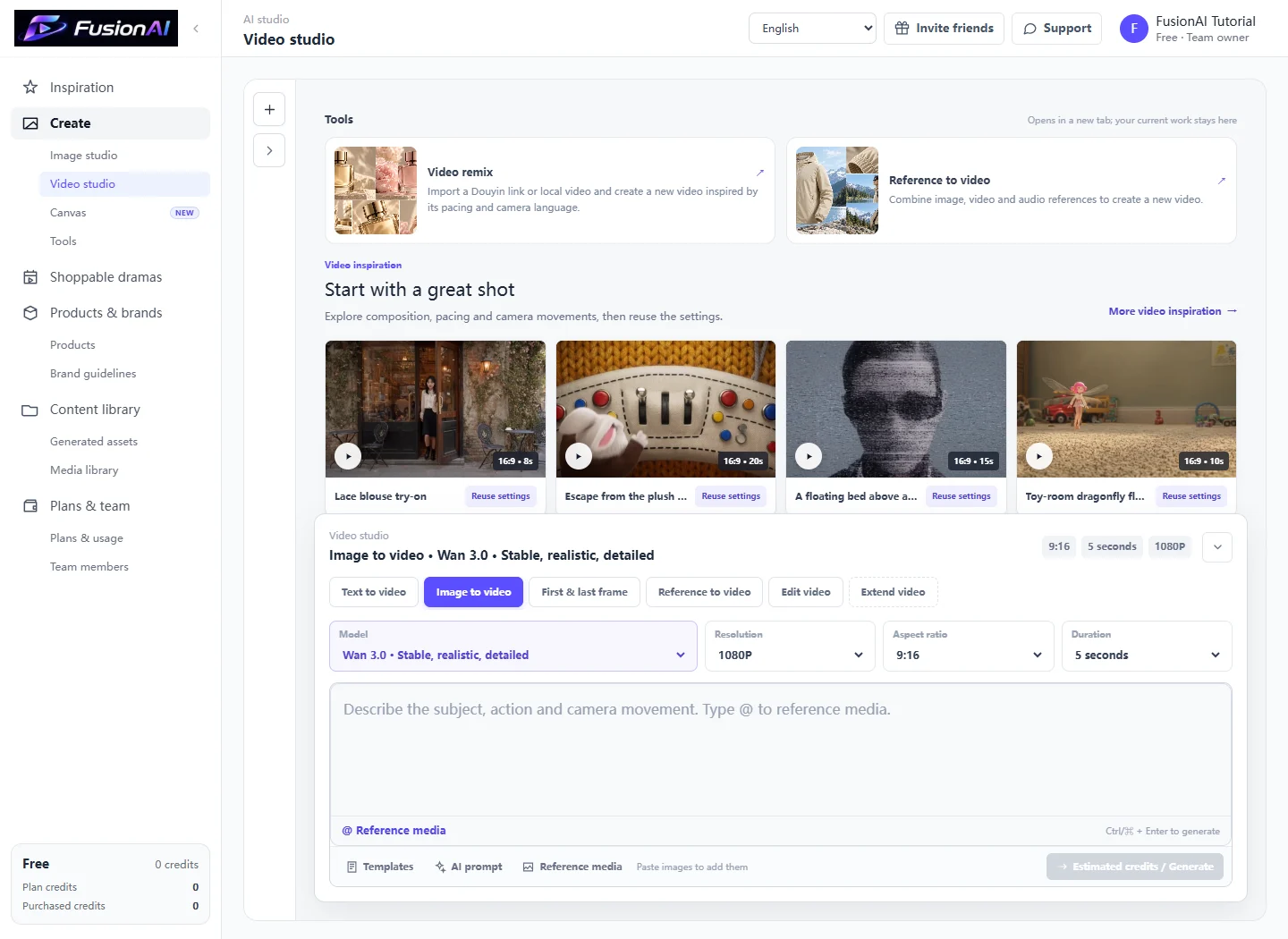
In FusionAI both entries expose six modes. The current reference control allows up to 10 images, 5 videos and 5 audio clips; the combined video and combined audio limits are each 15 seconds. In Edit video the output follows the source ratio and duration. For extension use the selected entry’s duration control; the Prime catalog notes a combined input and output limit of 30 seconds. Alibaba also documents file and webpage references; the FusionAI workspace illustrated here uses image, video and audio uploads.
Catalog and interface checked on 20 November 2026. The table shows configured choices; some are mode dependent. Use the live estimate and confirm the actual returned file.
1. Build a product shot from one opening frame
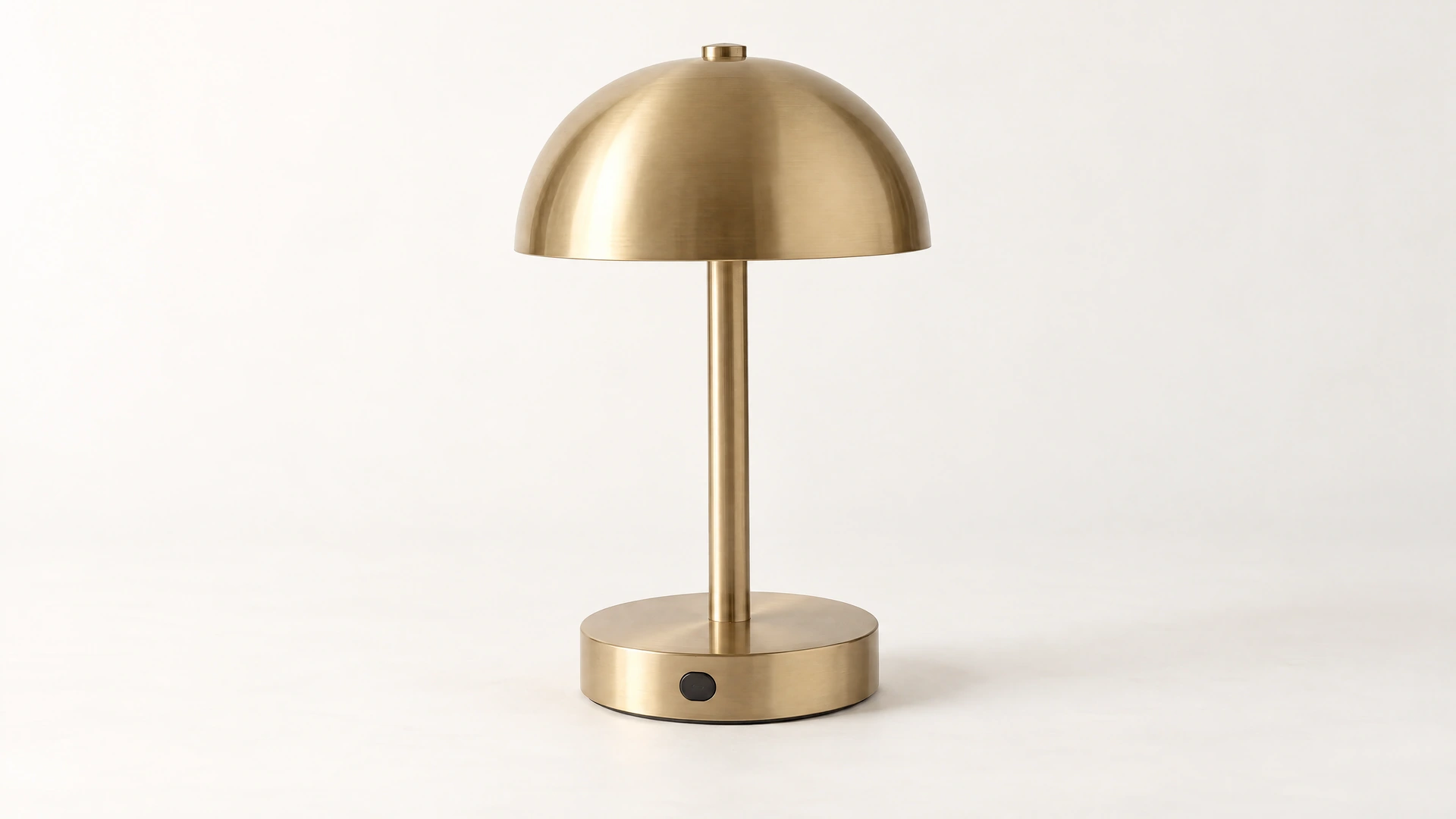
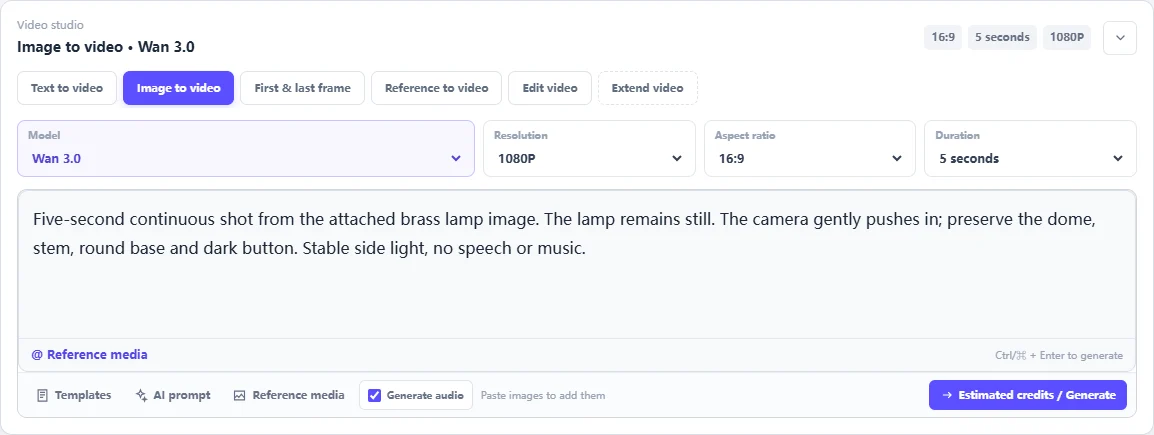
- Choose Wan 3.0 and Image to video. Upload the product photo with the lamp, stem and base fully visible.
- Use a 5-second clip and a modest push-in. Describe which product details should stay fixed. After generation watch the whole clip and check how much of the lamp remains in frame.
Prompt to adapt
Five-second continuous shot from the attached brass lamp image. The lamp remains still. The camera gently pushes in; preserve the dome, stem, round base and dark button. Stable side light, no speech or music.
Verified FusionAI output
The Wan 3.0 run returned a 5.000-second, 1280 × 720 product clip with no audio track. As the camera approached, the shade left the frame. A successful task can still fail a full-product framing requirement.
Read the full test, inputs and output review · Follow the first-frame walkthrough
2. Turn a shot plan and media into a multi-reference brief
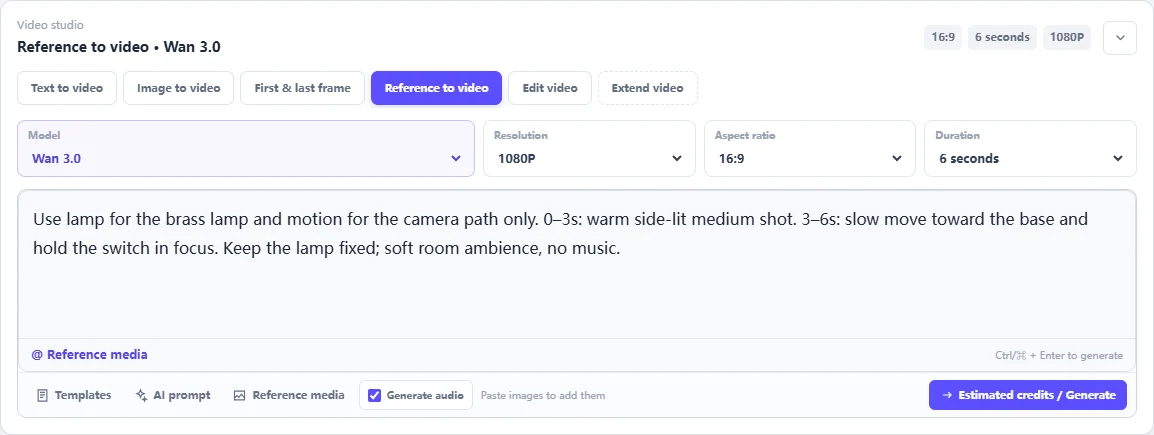
- Open Reference to video and attach separate product and motion references. If you use a setting still or sound, assign each a specific role with @.
- Write the overall intent, then use time ranges for the shots. In each range state the subject action, shot size and camera movement. Describe ambience separately and review where the clip cuts or changes framing.
Prompt to adapt
Use @lamp for the brass lamp and @motion for the camera path only. 0–3s: warm side-lit medium shot. 3–6s: slow move toward the base and hold the switch in focus. Keep the lamp fixed; soft room ambience, no music.
3. Edit the scene while keeping the original product
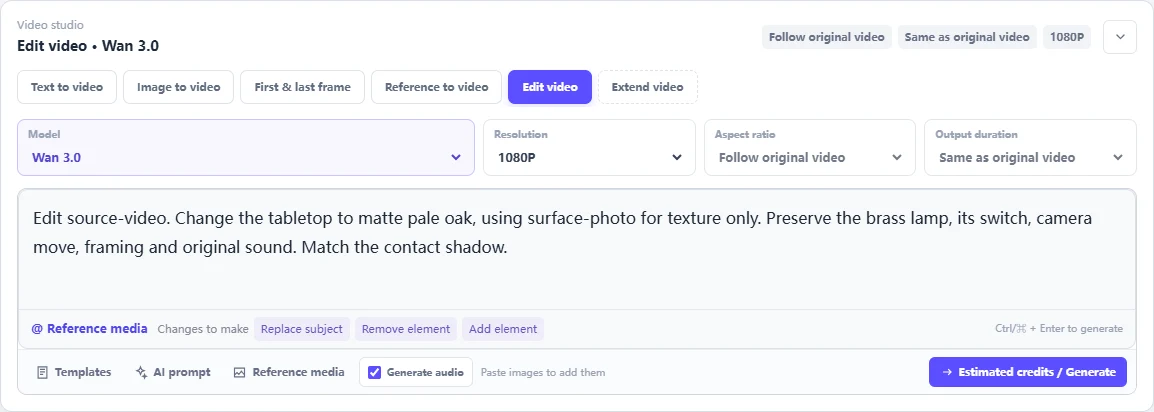
- Select Edit video and attach the original as the editing source. If the intended surface color matters, add a still of that surface as a secondary reference.
- Specify where and what to change and what not to change. The output follows source framing and duration. Check edges, reflections, and the frames adjacent to the edit.
Prompt to adapt
Edit @source-video. Change the tabletop to matte pale oak, using @surface-photo for texture only. Preserve the brass lamp, its switch, camera move, framing and original sound. Match the contact shadow.
Choose a mode and review the result
For a predetermined opening and ending, choose First & last frame. When an image supplies style but should not determine the exact first frame, use Reference to video. In editing, verify that the original sound and motion actually remain before export.
For extension, start from a clean existing clip. Describe what happens before or after it, then verify the join and match the selected model’s duration field. Do not carry over another model’s duration rule.
- Check the first frame, the point of most movement, and the last frame for subject drift, unwanted crop or altered labels.
- Listen to the actual export for dialogue, ambience and timing. Change one input or instruction at a time when troubleshooting.
The embedded clip is a recorded FusionAI generation. Other workflows and prompts are guided practice, with screenshots of the actual settings.
Continue with another video workflow
- Seedance 2.0: Image to Video, Multimodal References and Editing
- Kling 3.0 and Omni: AI Image to Video and First & Last Frame
- Seedance 2.5 guide