
Kling 3.0 and Omni: AI Image to Video and First & Last Frame
FusionAI Content Team · Updated 2026-11-20 · 4 min read
Compare the Kling Video 3.0 and Omni entries in FusionAI, then plan a product shot from text, an opening image or two keyframes with clear camera and sound direction.
Official capabilities and example scenes
Elements and branding across shots
The standard model’s official release shows a reference binding interface and discusses keeping branded markings visible during motion. On a product shot, treat readable labels as something to inspect in each part of the clip.
Omni’s elevator-to-office storyboard
Kuaishou’s release illustrates a character moving through different locations with an explicit storyboard. Borrow the principle of writing the framing and action of each shot. The dedicated storyboard and reference-video controls shown by Kling are not available for Omni in FusionAI’s current catalog.
See the original examples and model documentation
What FusionAI exposes for each entry
| Model in Video Studio | Available modes | Selectable duration and quality |
|---|---|---|
| Kling-v3 | Text to video · Image to video · First & last frame | 3–15 s · 720P / 1080P / 4K |
| Kling-v3-omni | Text to video · Image to video | 3–15 s · 720P / 1080P / 4K |
Use Kling Video 3.0 for a prescribed first and last frame. Omni in FusionAI currently exposes text-to-video and image-to-video. Both entries offer a sound control; the official series’ reference-video, editing and storyboard capabilities do not imply those menus are available here. Check the returned file rather than treating a quality label as measured native detail.
Catalog and interface checked on 20 November 2026. The table shows configured choices; some are mode dependent. Use the live estimate and confirm the actual returned file.
1. Keep the product recognizable through a camera move
- Select Kling Video 3.0 and Image to video. Upload one sharp image with edges and the label area visible.
- Ask for a shallow camera arc, choose an 8-second clip, then check how shape and lettering hold up at the midpoint and end.
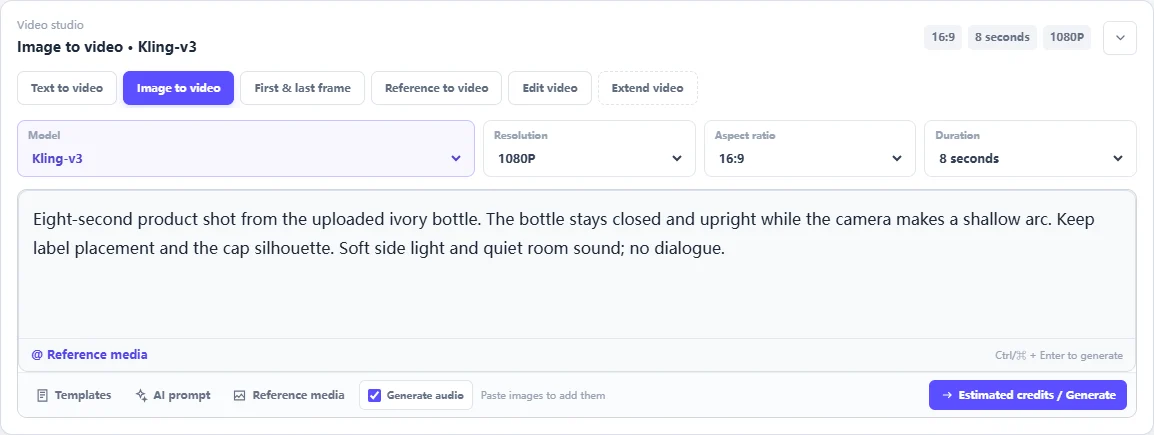
Prompt to adapt
Eight-second product shot from the uploaded ivory bottle. The bottle stays closed and upright while the camera makes a shallow arc. Keep label placement and the cap silhouette. Soft side light and quiet room sound; no dialogue.
2. Guide the same subject between two keyframes
- Keep Kling Video 3.0 selected and switch to First & last frame. Put a medium view in the first slot and a matching closer view in the last slot. Align the lighting, crop direction and object placement.
- Describe a simple move between the two frames. Check that the midpoint does not introduce a cut, a different label or an extra object.
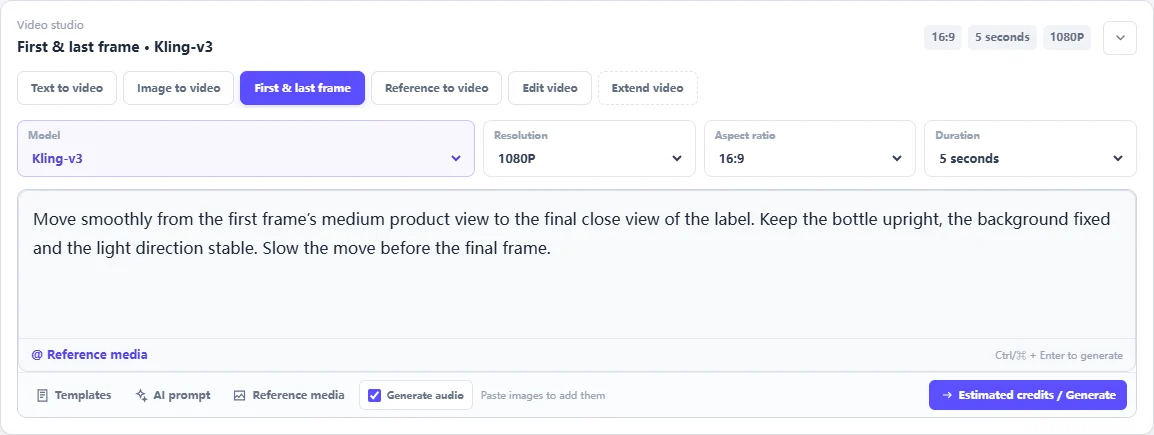
Prompt to adapt
Move smoothly from the first frame’s medium product view to the final close view of the label. Keep the bottle upright, the background fixed and the light direction stable. Slow the move before the final frame.
3. Draft a short scene with Omni and separate sound direction
- Select Kling Video 3.0 Omni and Text to video to explore an original scene without a source. For a specific SKU, switch to its Image to video mode to start from a product still.
- Describe one action and the camera position. Specify whether the clip needs dialogue, room tone or no music, then check both sound and picture in the returned file.
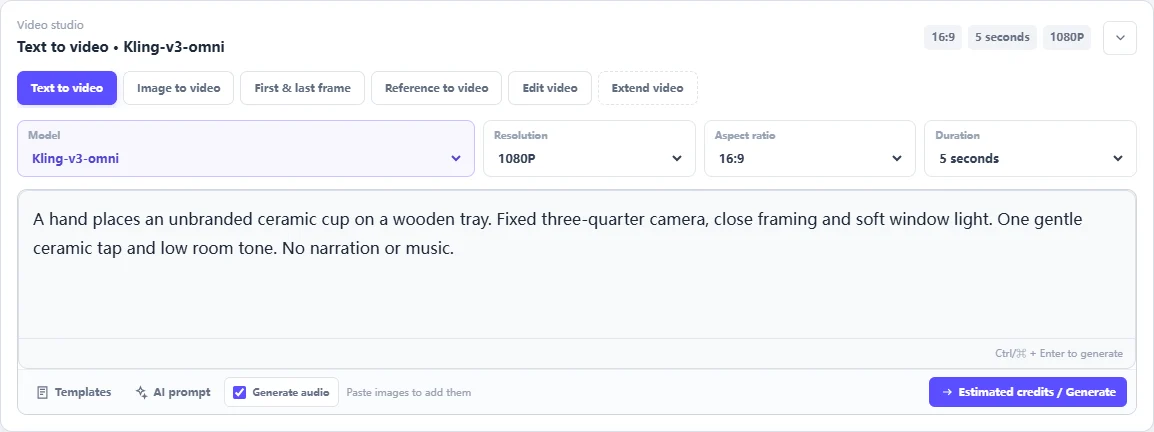
Prompt to adapt
A hand places an unbranded ceramic cup on a wooden tray. Fixed three-quarter camera, close framing and soft window light. One gentle ceramic tap and low room tone. No narration or music.
Choose a mode and review the result
If you need to edit an existing clip or borrow movement from another video, compare the Reference to video and Edit video modes in the Seedance 2.0 or Wan 3.0 guides. Use Kling 3.0 here for the modes shown in its current catalog.
- Check the first frame, the point of most movement, and the last frame for subject drift, unwanted crop or altered labels.
- Listen to the actual export for dialogue, ambience and timing. Change one input or instruction at a time when troubleshooting.
Kuaishou’s examples illustrate the model family. The FusionAI screenshots verify the controls; the practice prompts are not presented as completed generations.
Continue with another video workflow
- Seedance 2.0: Image to Video, Multimodal References and Editing
- Wan 3.0 and Prime: AI Video, References and Editing
- Seedance 2.5 guide