Prepare your inputs
Upload the accessory and model references to their corresponding fields.

Place or replace an accessory in a marked wearing region. Review proportion, occlusion, contact and placement.
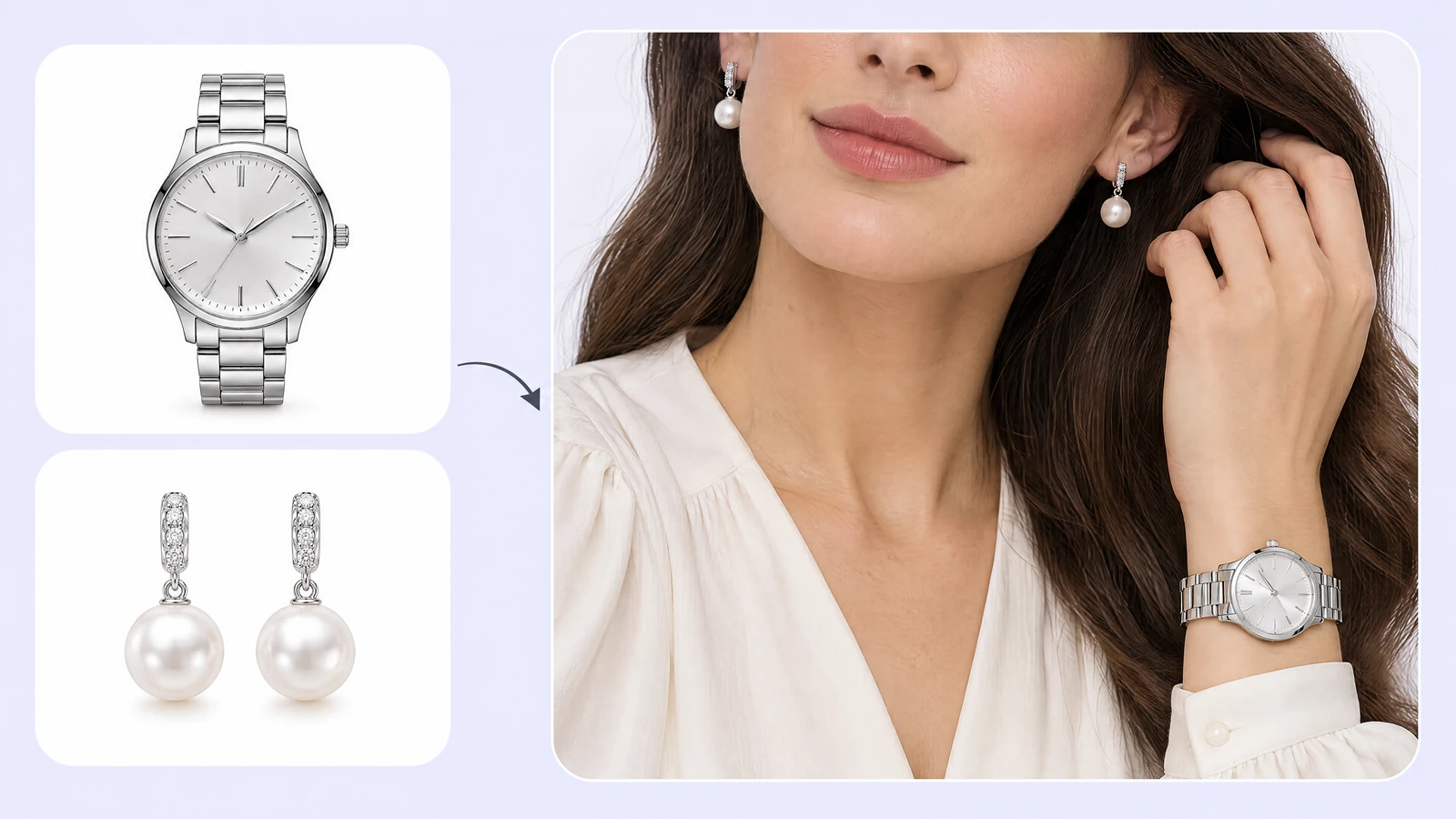
Explore the actual FusionAI interface before opening your workspace.
An accessory or jewelry product image and a permitted adult model reference.
Try this workflow Interface preview · no generation is started here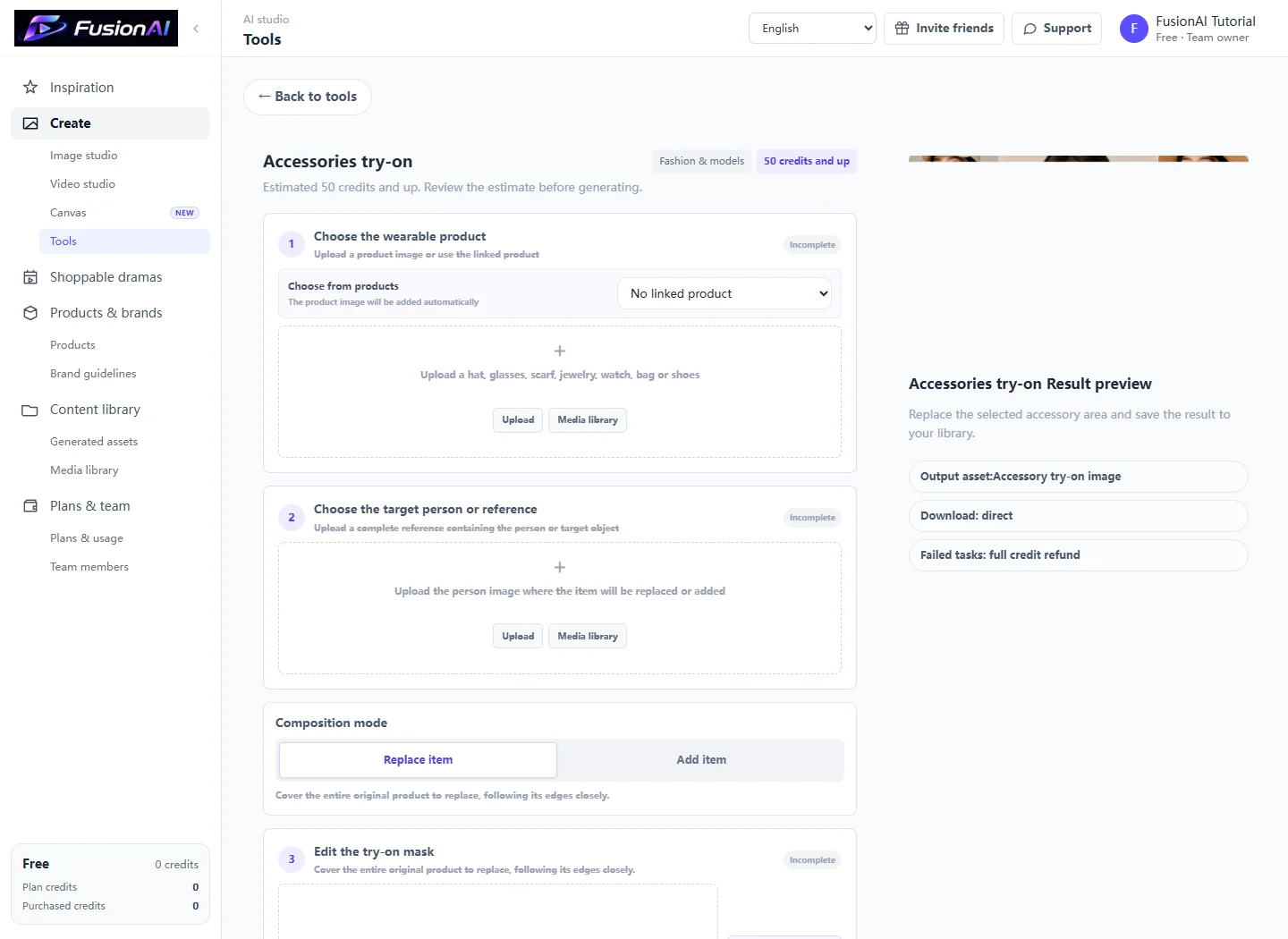
Describe placement, scale and orientation. Keep the product reference unobstructed.
Try this workflow Interface preview · no generation is started hereCheck placement, contact with skin or clothing, reflections, stone count and actual scale.
Try this workflow Interface preview · no generation is started hereAn illustrative accessory-wearing image; dimensions must be checked against real measurements.
Try this workflow Interface preview · no generation is started herePlace or replace an accessory in a marked wearing region. Review proportion, occlusion, contact and placement.
An accessory or jewelry product image and a permitted adult model reference.
Describe placement, scale and orientation. Keep the product reference unobstructed.
Check placement, contact with skin or clothing, reflections, stone count and actual scale.
Prepare your references, make intentional choices and inspect the result.
Upload the accessory and model references to their corresponding fields.
Describe placement, scale and orientation. Keep the product reference unobstructed. Review the settings and estimate, then inspect the candidate at the attachment points.
Compare clasp, stone count, metal color and relative size with the real product.
Continue with virtual clothing try-on. Keep your product references and review criteria close as you move into the next part of production.
Explore Virtual clothing try-on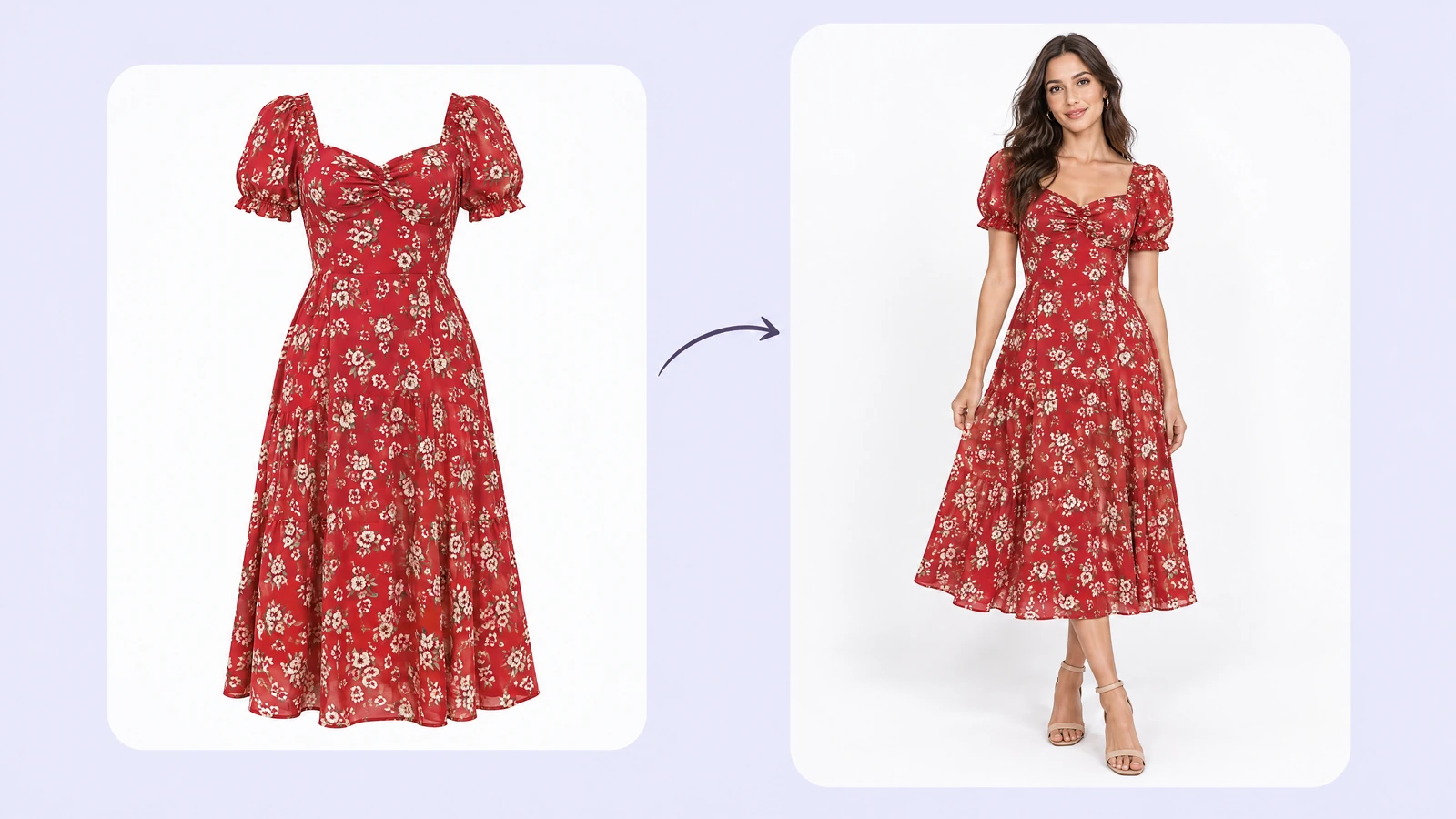
An accessory or jewelry product image and a permitted adult model reference.
Describe placement, scale and orientation. Keep the product reference unobstructed.
Check placement, contact with skin or clothing, reflections, stone count and actual scale.
Create a wearing visual from a garment or outfit and an optional model reference. Check prints, construction and fit representation.
Explore product ↗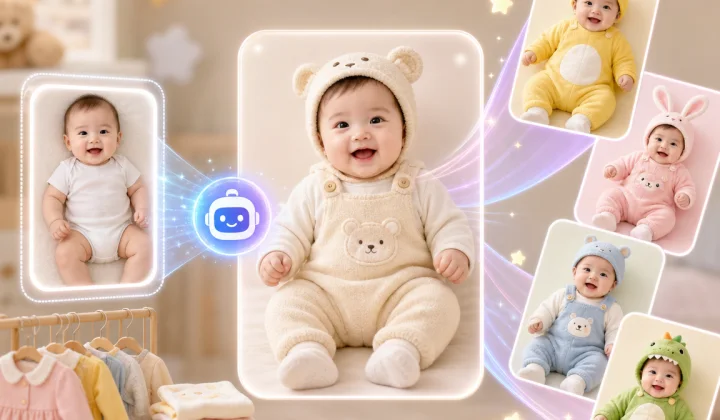
Prepare baby clothing display visuals with permitted references and available age, scene and framing settings. Generated images are not evidence of real fit or safety.
Explore product ↗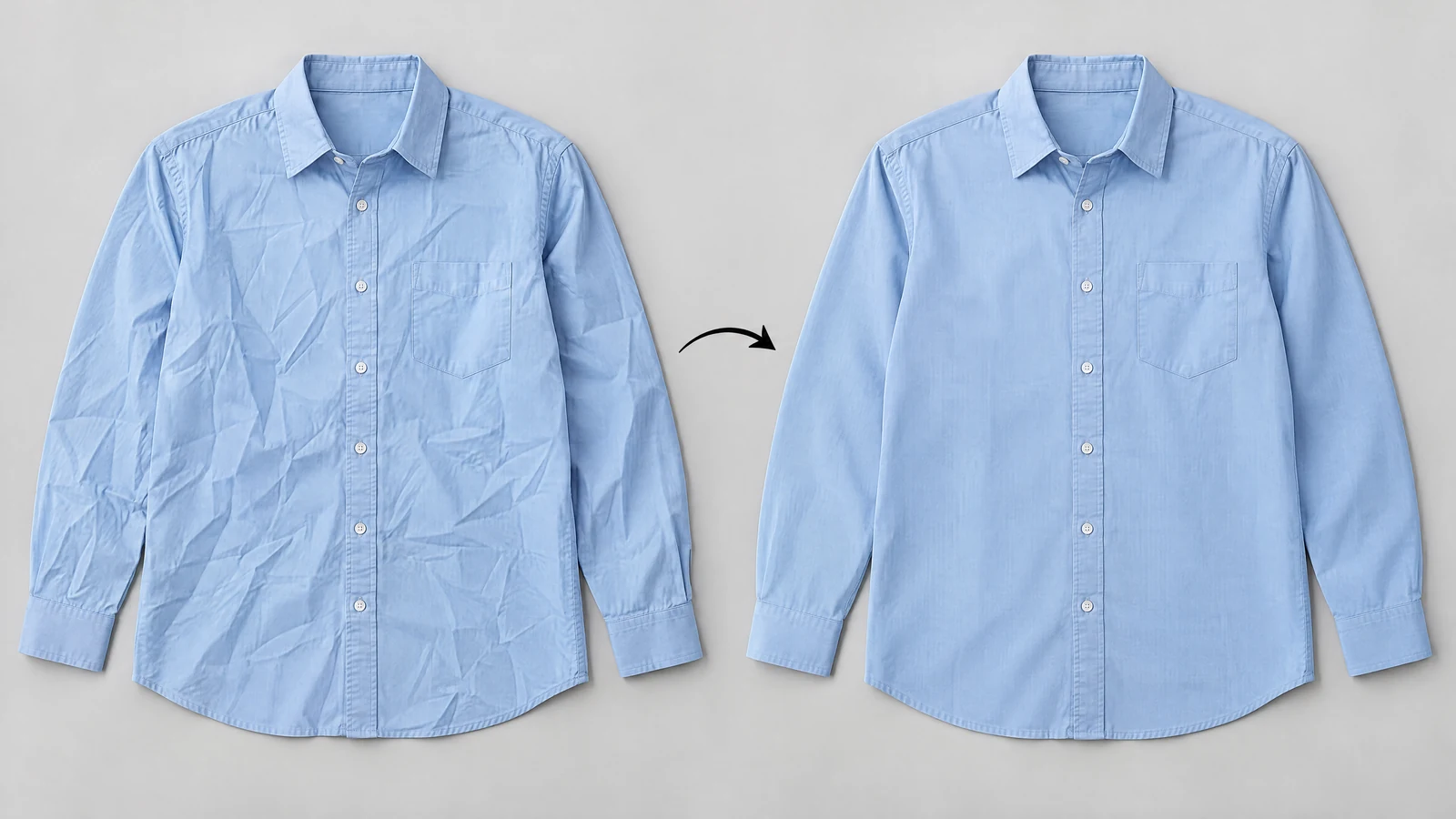
Tidy nonessential wrinkles while preserving fabric structure, intentional pleats and the actual condition of the item.
Explore product ↗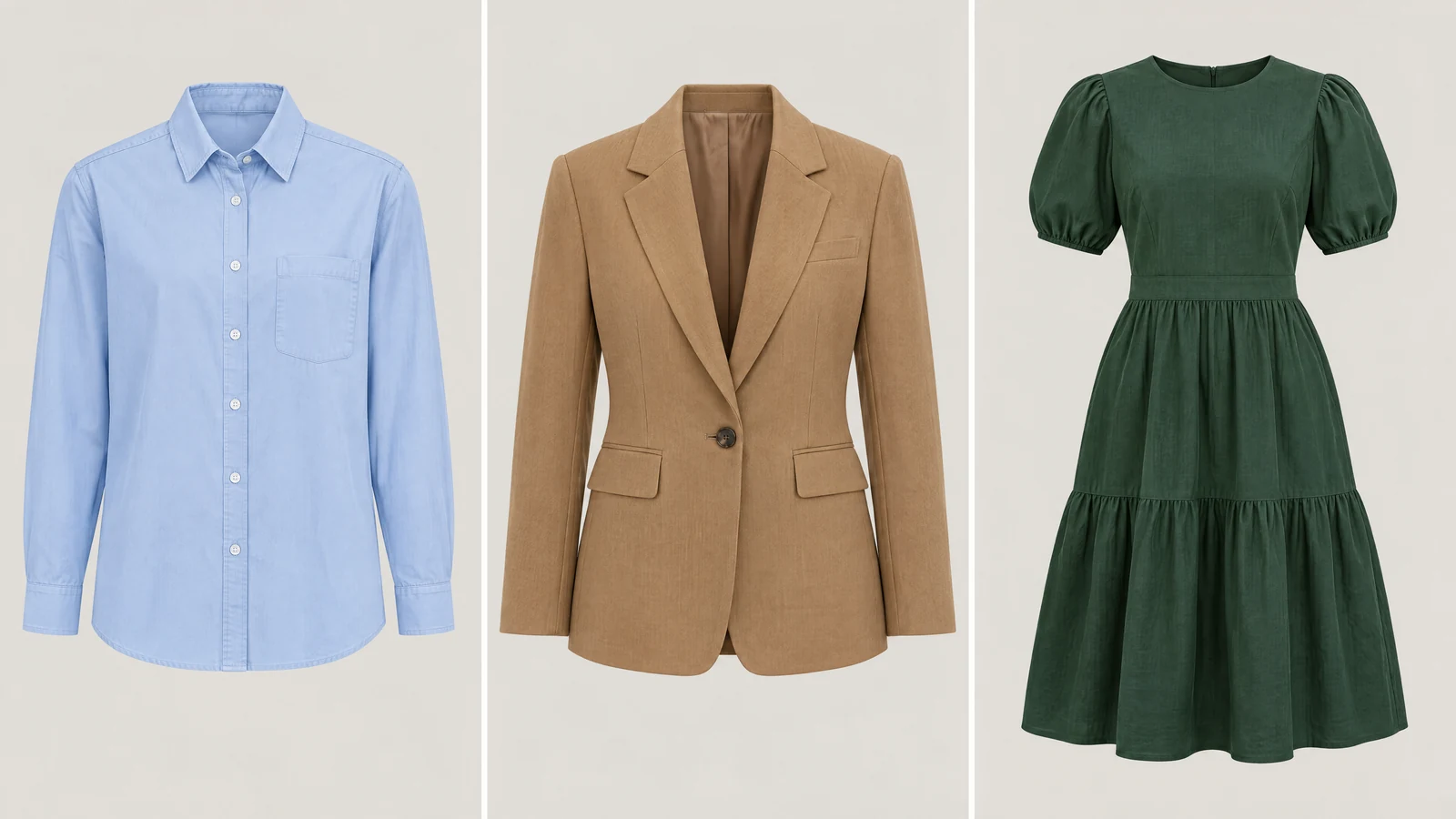
Apply a consistent retouching direction to 2–8 garment photographs. Each input receives its own result and requires an individual review.
Explore product ↗An accessory or jewelry product image and a permitted adult model reference.
An illustrative accessory-wearing image; dimensions must be checked against real measurements.
Check placement, contact with skin or clothing, reflections, stone count and actual scale.
Open the workspace, choose the supported model and settings, and review the displayed credit estimate before confirming generation. Subscription plans and credit packs are listed on the pricing page.
Use references you are entitled to use and check the input requirements in the workspace. Available formats, reference counts and output settings depend on the tool and selected model.
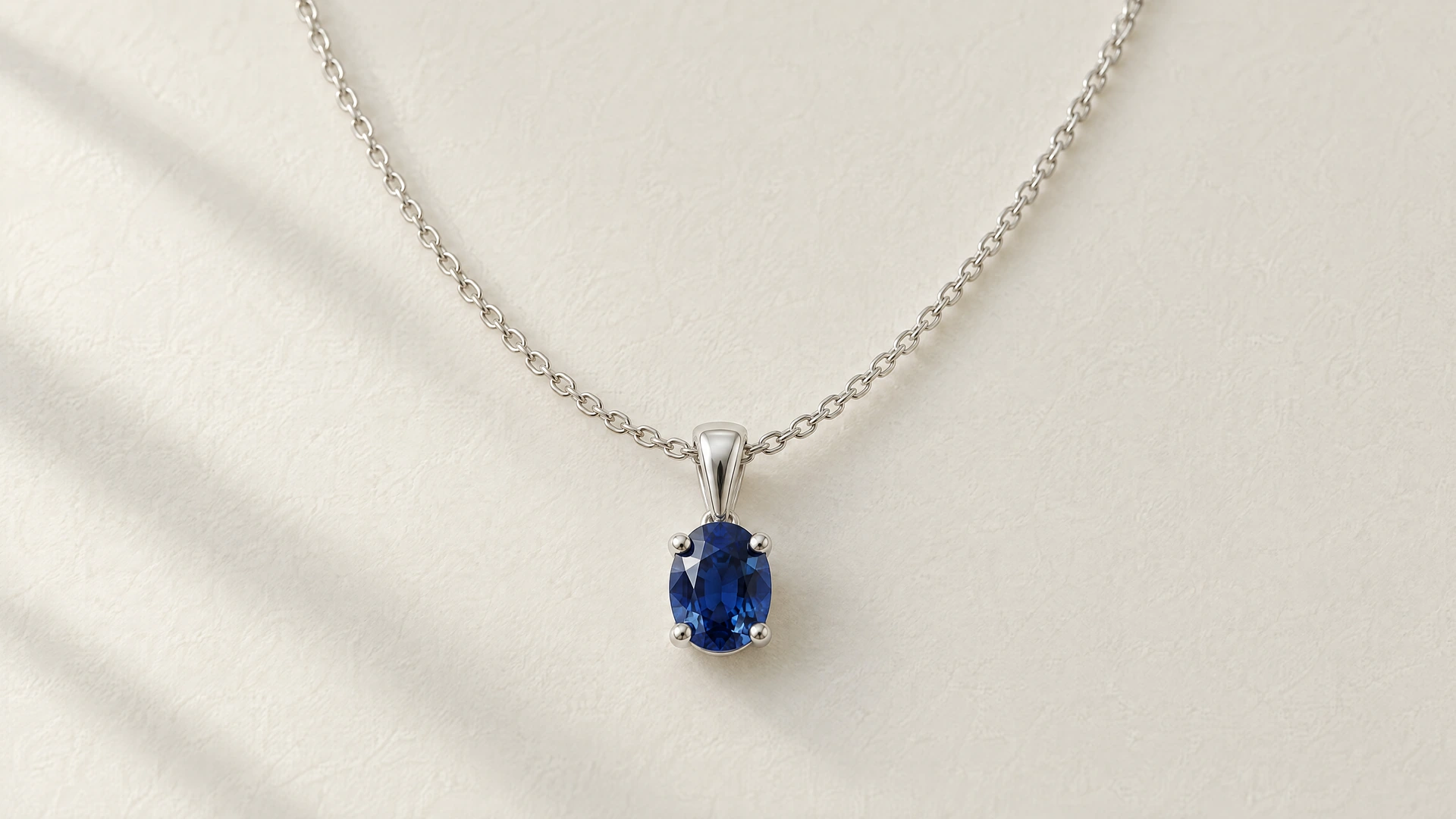
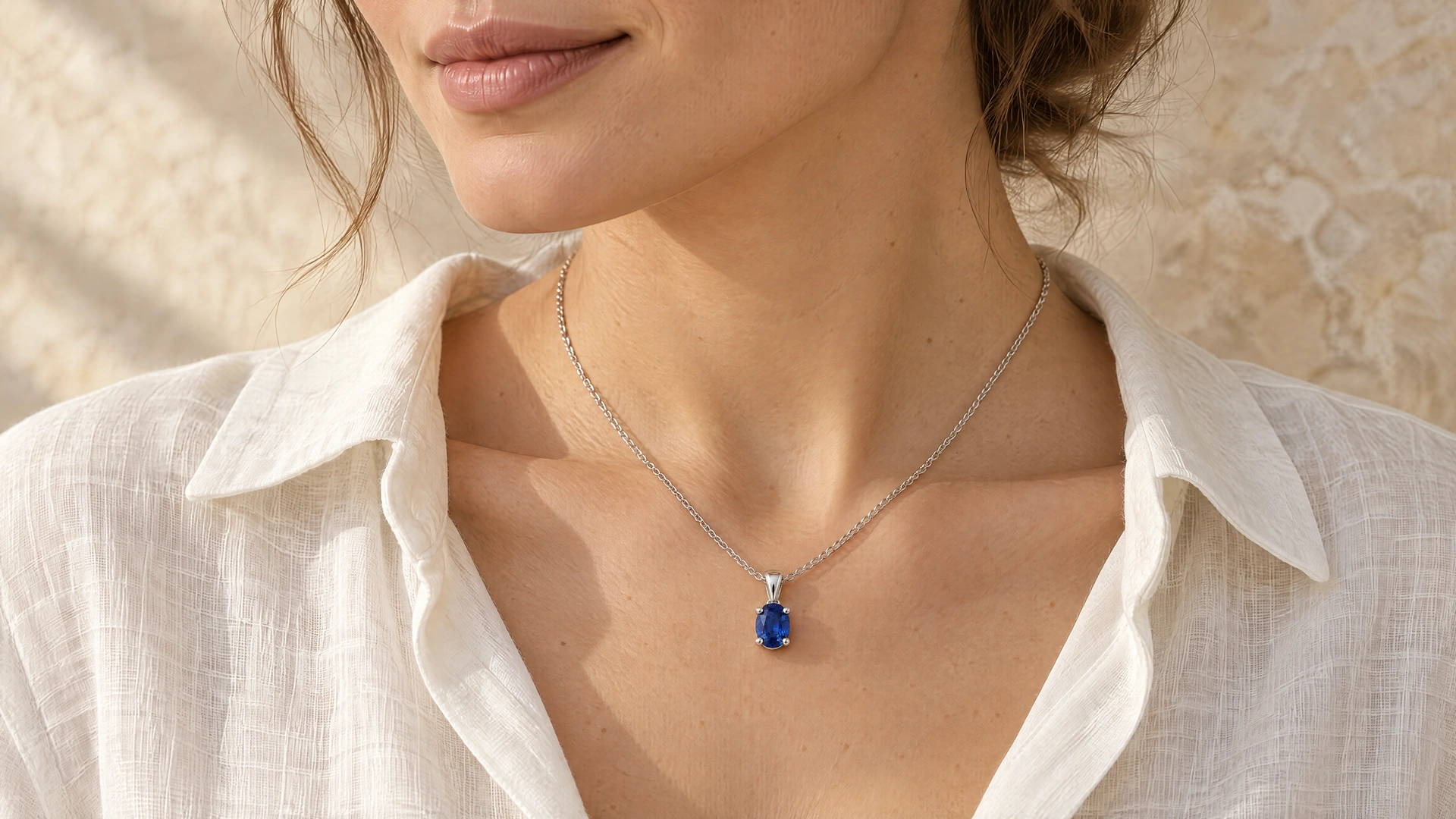
Model: GPT Image 2.5 Sunburst · FusionAI Open API
Parameters: Requested: 4K, 3840 × 2160, high quality, 1 image. Received: 3840 × 2160.
Use the attached necklace as the sole exact jewelry reference. Create a refined close-up editorial photograph showing the same delicate silver cable chain and one oval sapphire-blue gemstone pendant on the neck and upper chest of an adult woman wearing a simple ivory open-neck linen shirt. Preserve the four-prong silver setting, oval stone shape and blue facets. The pendant is modest and physically plausible, not oversized. Frame from lower face to upper chest, neutral pose, soft natural side light, real skin texture, simple warm stone background. No other jewelry, rings, fingers, earrings, extra pendants, text, labels, logos, diagrams or collage. Landscape 16:9, understated premium ecommerce wearing-context photograph.
Review findings: The result shows a blue oval stone on a delicate silver chain against a simple ivory shirt. The composition makes the wearing position readable, while the small setting still needs close inspection.
Limitations: Generated scale is illustrative and cannot replace measured dimensions. Check the setting, prongs, chain and metal color against original macro photographs. The source and adult model are synthetic.
Prepare your inputs, explore the possibilities and choose what works for your brand.