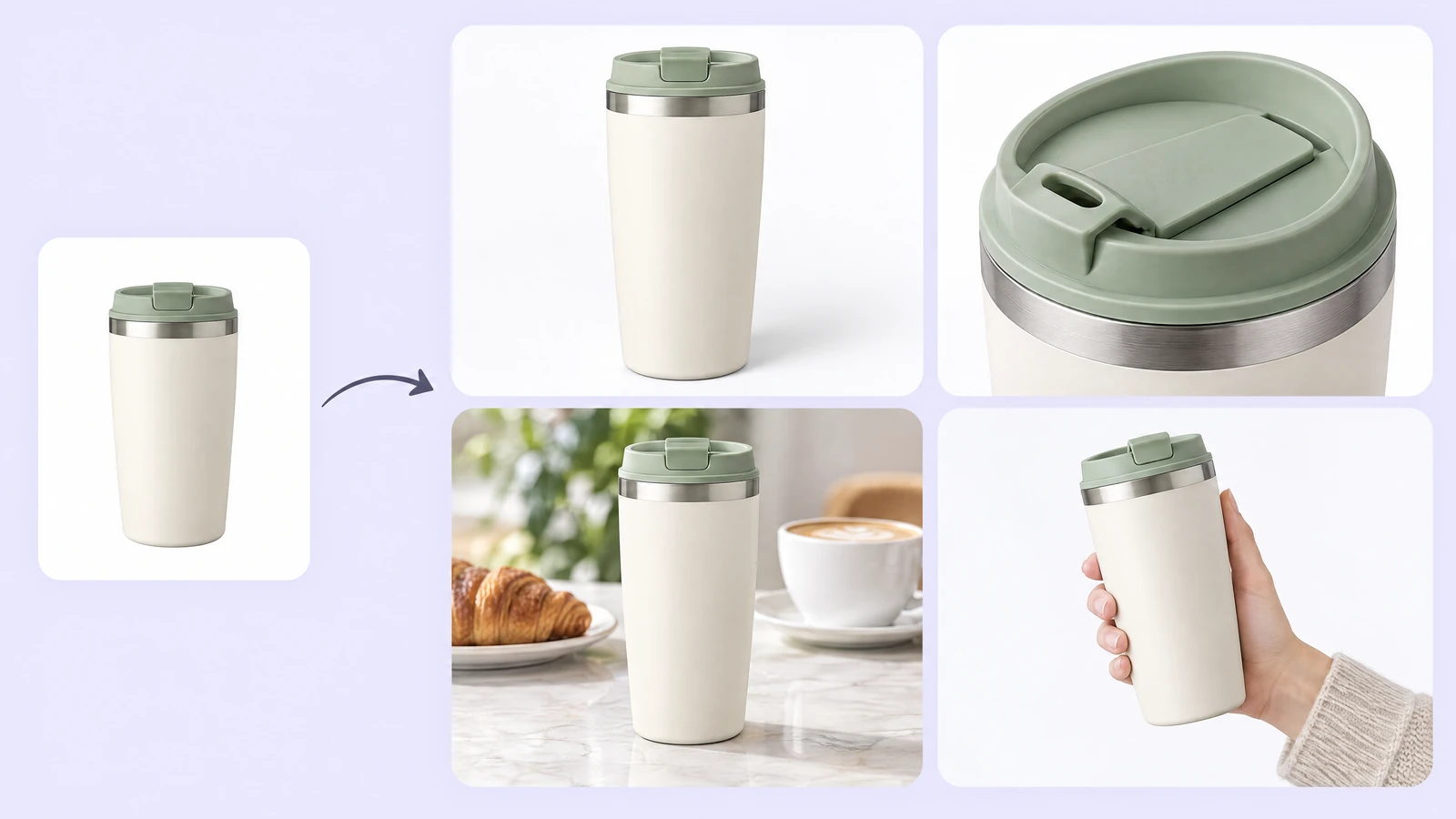
Text and media inputs
Keep a brief and source media separate so their roles are visible in the graph.

Connect a brief, reference media and generation nodes in one visual canvas. Review intermediate results, change the responsible stage and save the structure for another project.
Choose settings and review the credit estimate in the workspace.
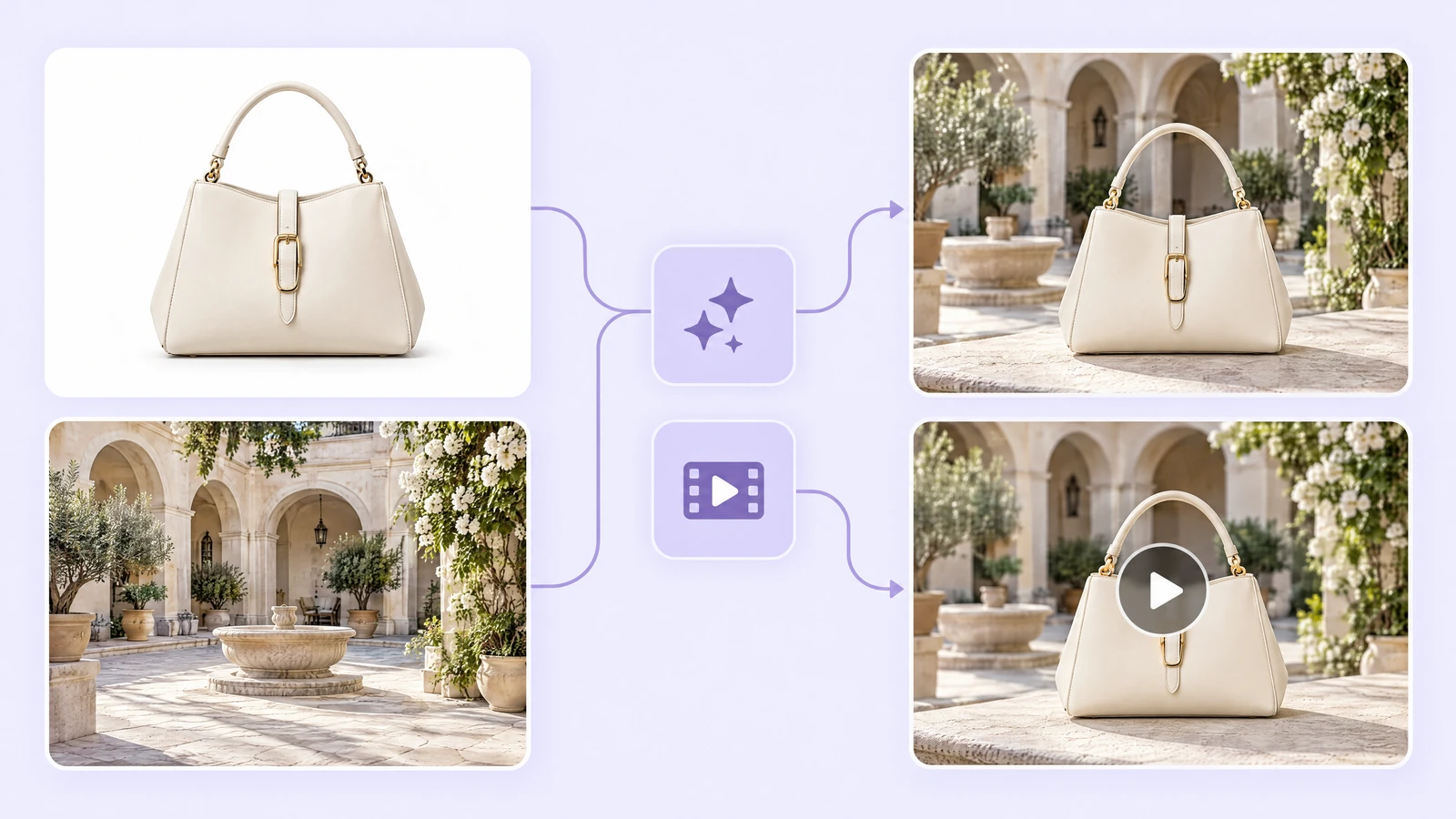
Keep a brief and source media separate so their roles are visible in the graph.
Connect upstream outputs to the supported inputs of image, processing or video nodes. Check every node’s settings.
Retain useful intermediate assets and save the workflow structure. A saved graph is not a promise that every future input will work unchanged.
Start from a blank canvas or an available template. Name the workflow after its deliverable, not the model alone.
Add the source and generation nodes, connect their intended roles and inspect ratio, model and credit settings before running.
Inspect each output before passing it on. If one stage fails, revise that stage; save the useful structure for the next brief.
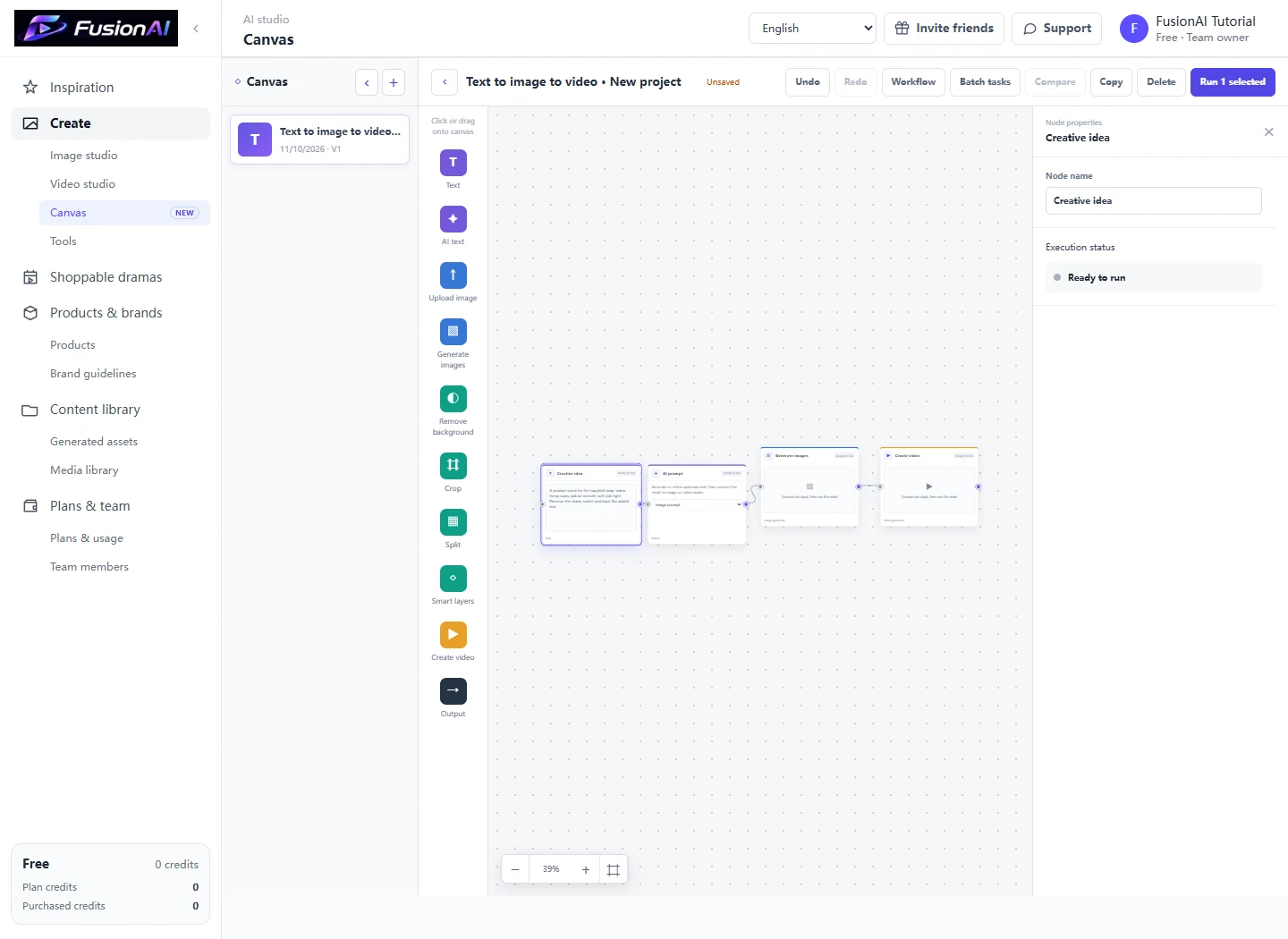
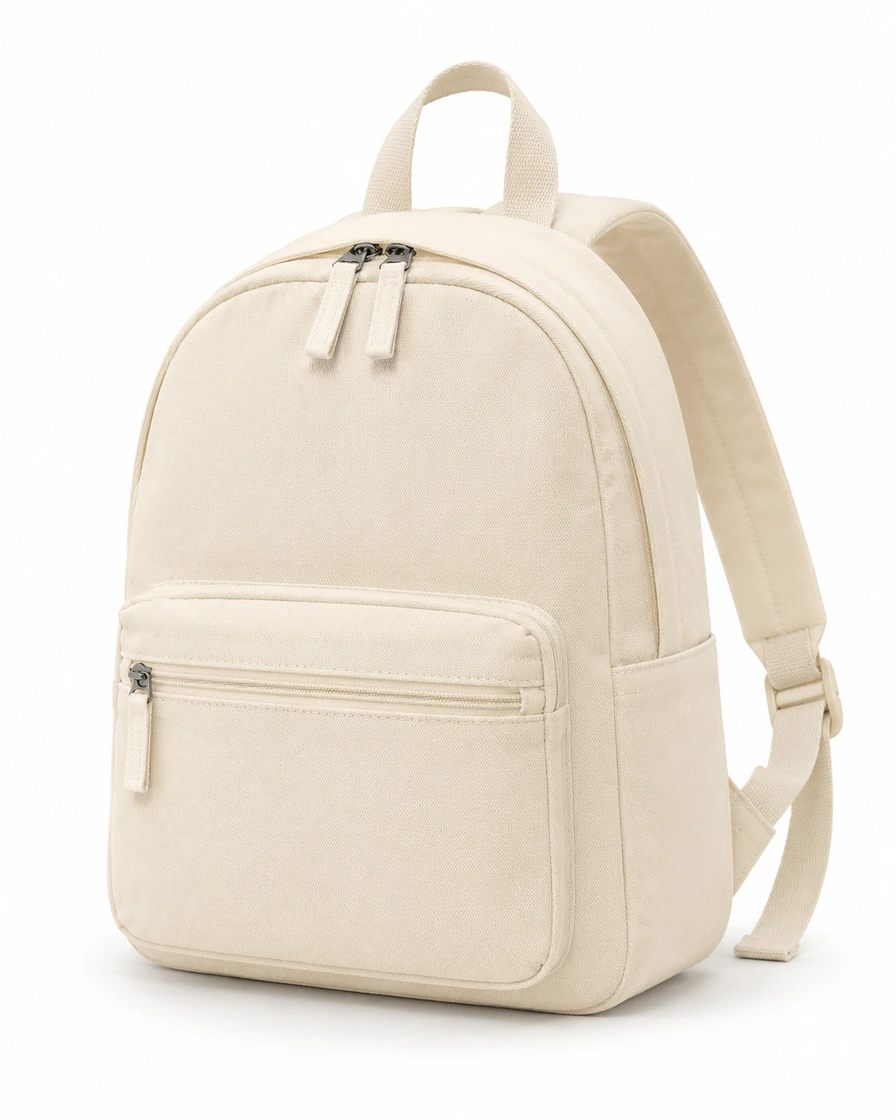

The same four-node structure produced a backpack scene after replacing the bottle reference and text. The completed result shows the backpack on a light wood surface with warm side light; the handle, front pocket and shoulder strap are recognizable.
The estimate was 40 credits and actual settlement was 41; the run record is the cost source. Reusing a graph does not preserve pixels or approve a new product automatically. This validates one image workflow, not arbitrary video automation or every node combination.
The studio focuses on an individual request. Canvas makes the connections and intermediate assets of a multi-step task visible and reusable.
Reuse the structure, then check the new reference, fixed details and every affected node setting before running.
No. Inspect upstream outputs before carrying them forward, especially labels, product geometry and reference selection.
Follow a four-node image workflow, inspect its run and reuse the graph with a different product reference. Understand what is reused and what still needs review.
Read the step-by-step tutorial →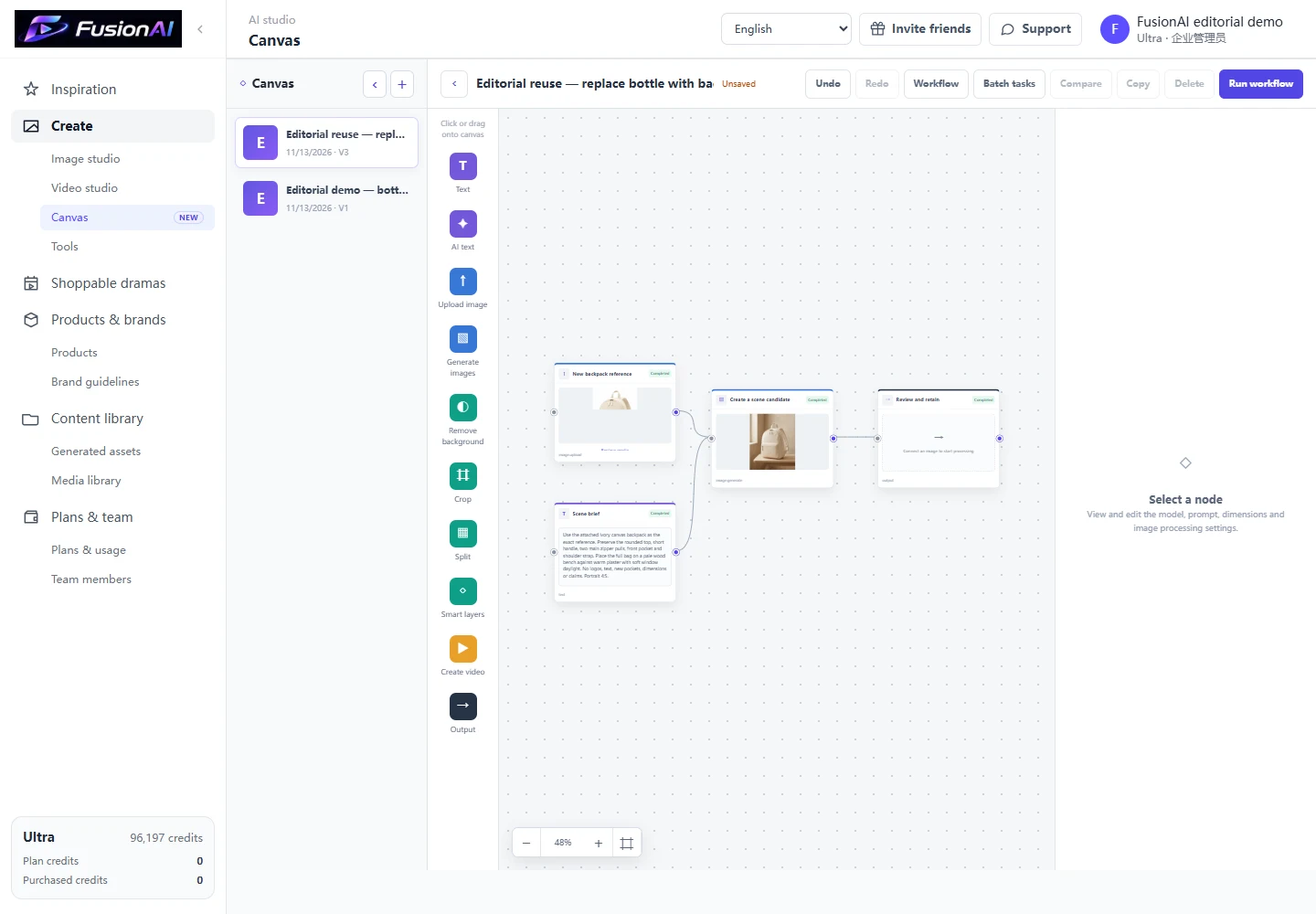
Bring the right inputs. Keep the result that works for your brief.