
Build and Reuse a Product Image Workflow on Canvas
FusionAI Content Team · Updated 2026-11-14 · 4 min read
This walkthrough uses the current FusionAI interface and original synthetic teaching materials. Follow the steps, then inspect the saved result and dated task record. The workspace estimate governs a new request.
Before you start
Follow a four-node image workflow, inspect its run and reuse the graph with a different product reference. Understand what is reused and what still needs review.
1. Map the smallest useful workflow
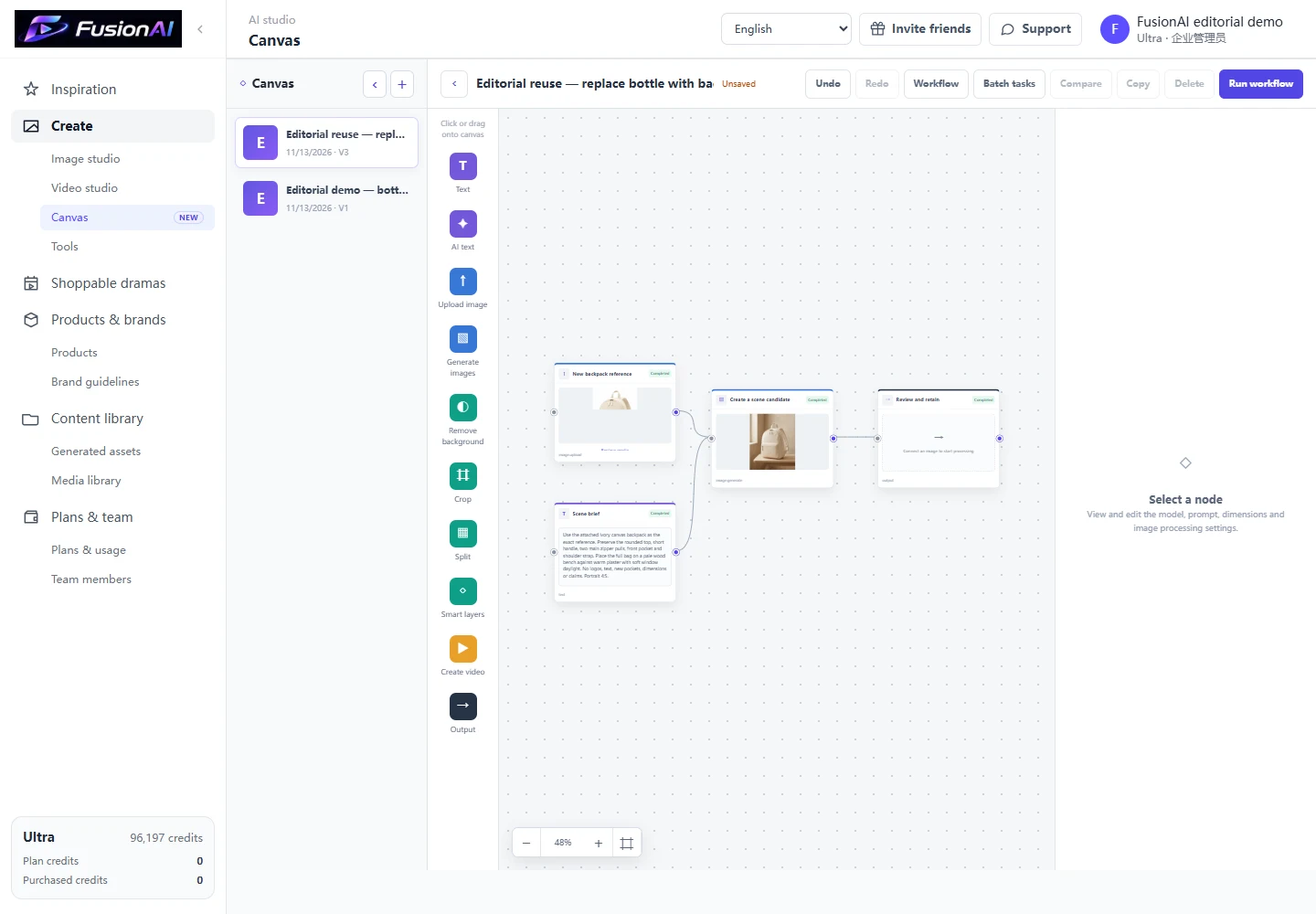
Start with an image input and a text brief feeding one image-generation node, then connect its result to an output node. This is an image workflow, not an automatic video factory. Keep the source material and generation instruction in separate nodes so their roles remain visible.
Trace each connection from upload to output and confirm that the graph has only the nodes needed for the task.
2. Set the selected generation node
Choose an available image model and the required ratio and quality. The recorded reusable structure uses Nano Banana 2. Confirm that the reference node points to the intended material and that the text node asks for that same product. A connected line alone does not prove the input is valid.
Open the generation node and check its prompt, model and output options rather than relying on the node label alone.
3. Estimate the graph and inspect node states
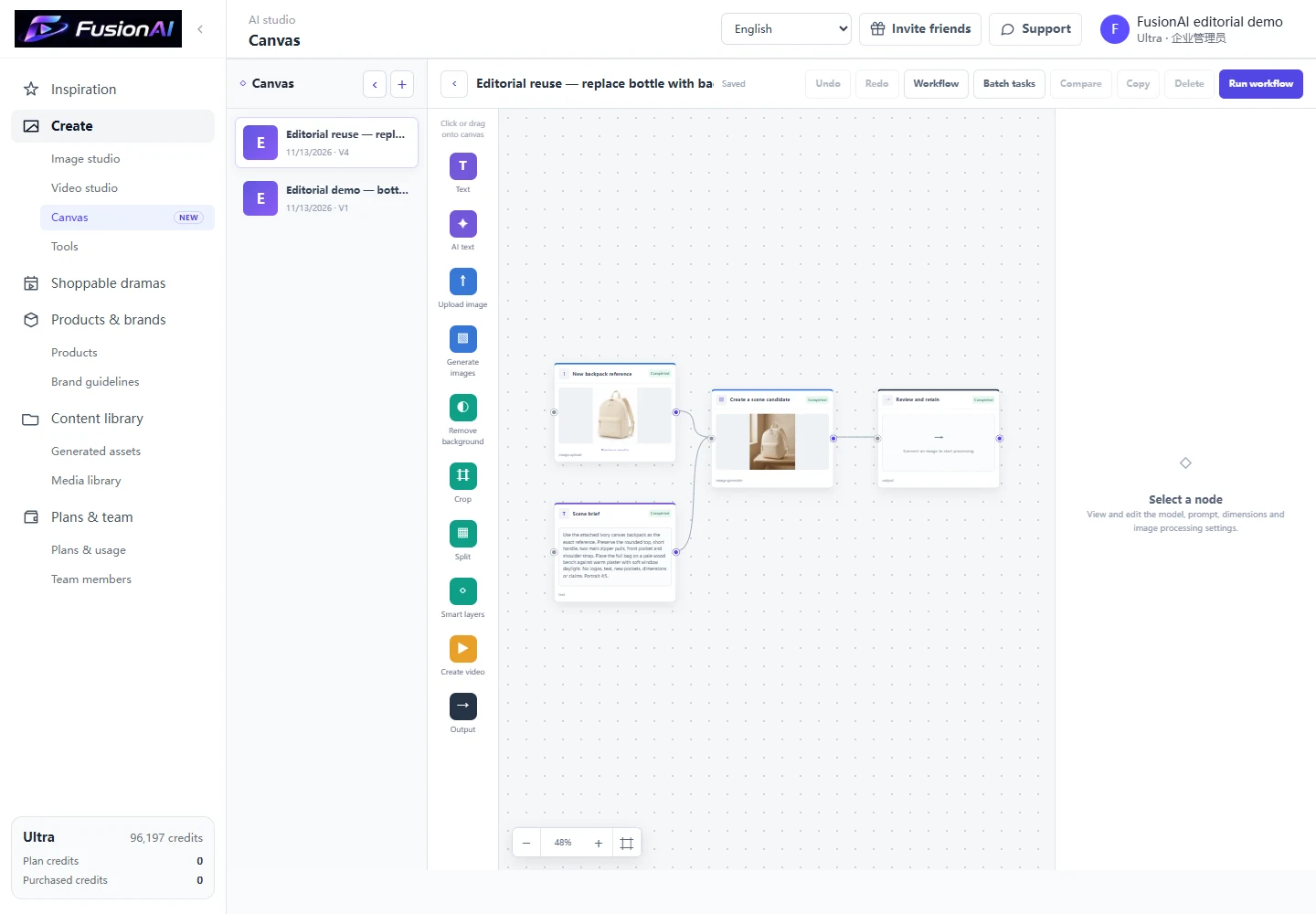
Read the graph estimate before running. After submission, inspect individual nodes and the output rather than judging success from the project title. A failed upstream node can prevent a downstream result. Preserve the run ID and selected output for later review.
Read the overall estimate and inspect individual node states; a completed input node does not mean the output node finished.
4. Duplicate the project before replacing the product
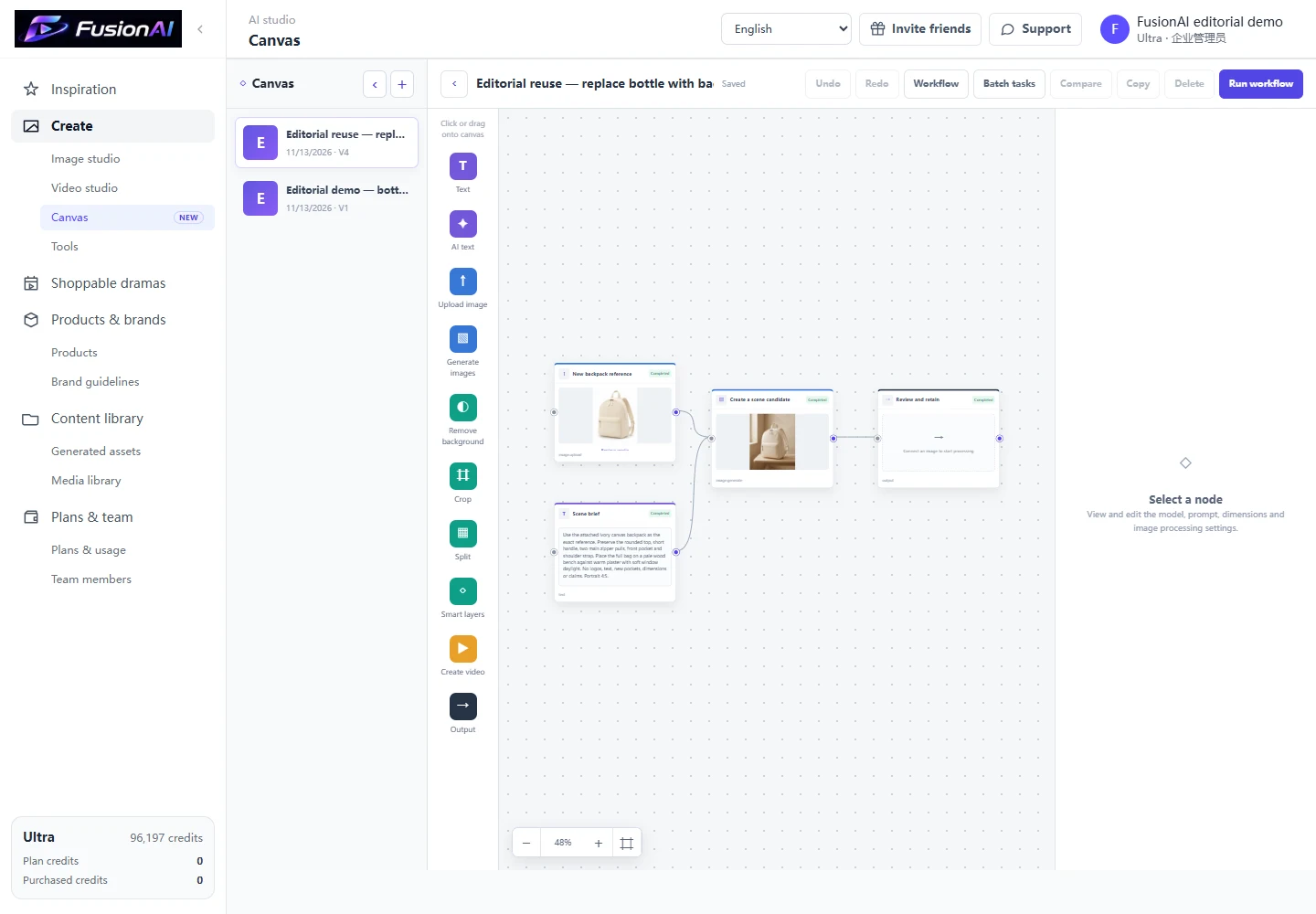
The original graph used a bottle and carton. The reuse test duplicates it, replaces the reference with an ivory backpack and updates the text and ratio to match. Keeping the original project makes comparison easier. A changed input should not silently keep a prompt describing the old product.
Duplicate first, then replace the image and every product-specific phrase, including the output aspect ratio when needed.
5. Review the new result as a new creative task
Inspect the backpack silhouette, front pocket, handle, straps and contact shadows against its own source. Reusing nodes saves setup work; it does not approve the output automatically. Compare both runs to show that the graph was reused, while keeping each product’s reference and result paired correctly.
Open the new output and compare it with the new input; keep the earlier result in its original project for reference.
Recorded result and what changed
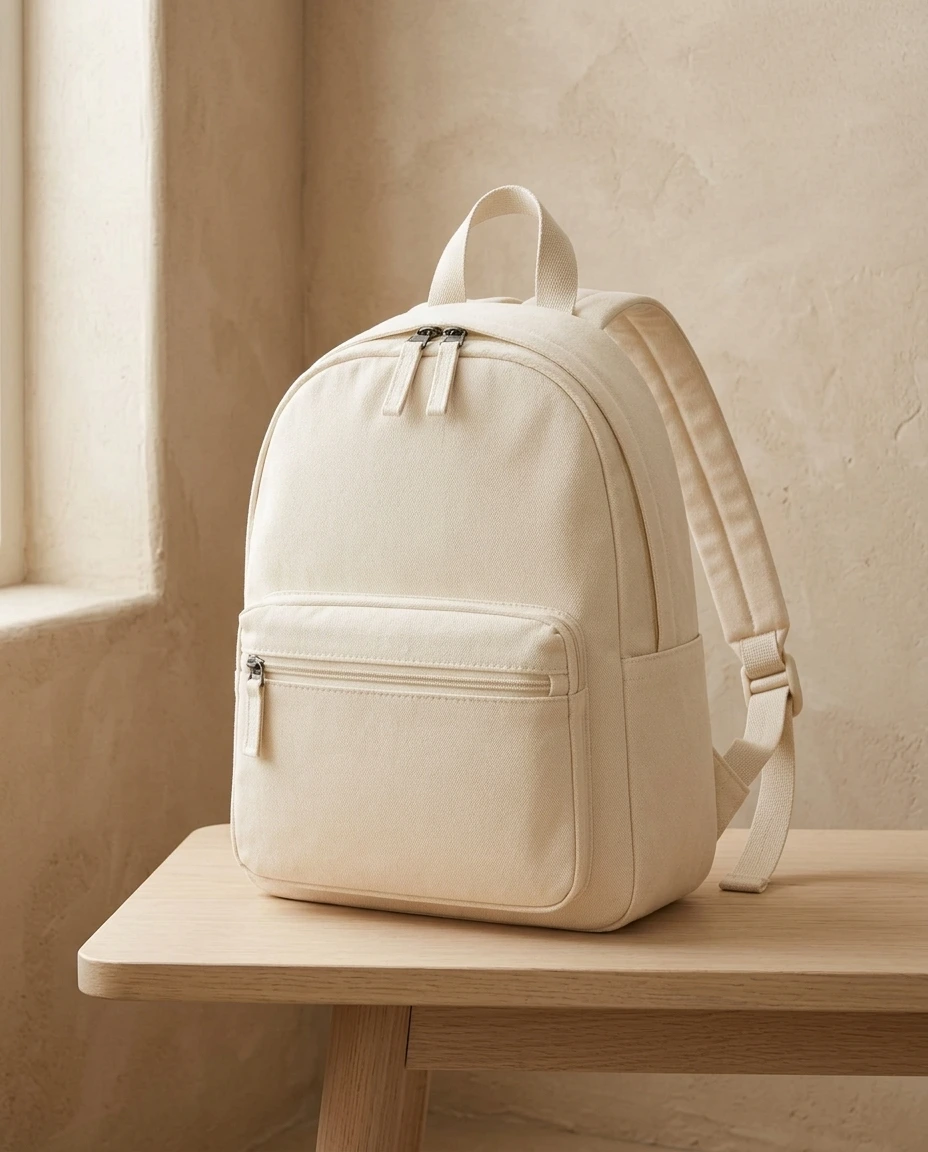
The same four-node structure produced a backpack scene after replacing the bottle reference and text. The completed result shows the backpack on a light wood surface with warm side light; the handle, front pocket and shoulder strap are recognizable.
The estimate was 40 credits and actual settlement was 41; the run record is the cost source. Reusing a graph does not preserve pixels or approve a new product automatically. This validates one image workflow, not arbitrary video automation or every node combination.
Settings and dated charge
Nano Banana 2 · reused FusionAI Canvas graph
Duplicated graph · reference + text → Nano Banana 2 → output · 1K, 4:5 · actual 928 × 1152 · 41 credits · four succeeded nodes
Task reference: 93f8f868-96b5-4fb5-adeb-20edf1763dfe
When the result is not right
If output is missing, inspect the first failed node and its input before retrying. When reusing a graph, update filenames, material selections and product-specific text together. Do not carry an unreviewed intermediate image into the next stage.
Questions about this workflow
What does reusing the Canvas actually reuse?
The four-node graph and its connections. The new product reference, brief and final visual review are specific to the second task.
Which fields need changing for a new product?
Replace the input image, product-specific text and output ratio, then verify every downstream node uses the new reference.
Why duplicate instead of overwriting the original graph?
Duplication preserves the completed original and provides a separate run to review against the new product.
How do I confirm the reused graph finished?
Check each of the four node states, open the final image and compare it with the new input rather than the previous output.