
AI Shoppable Drama: From Script to Finished Video
Turn a product selling point into a story. Write and plan an episode, reuse character and product references across shots, then review and compose a finished video.

A real episode, shown from script to final preview
This product story follows a woman as she reaches for a teal ceramic mug, lifts it and takes a sip. A single action links the three shots. The script, production board and composed preview all come from the same English-language episode.
- 3 shots
- 16:9 landscape
- ≈15 seconds
Turn a selling point into shots
Create an episode and paste a script, import a TXT/Markdown file, or start from a story outline. In Smart Storyboard, choose whether to preserve the plot and dialogue or develop the outline. Review what happens, what is shown, and what is said in each shot. Add framing, lighting or camera movement where it helps, then confirm the storyboard.
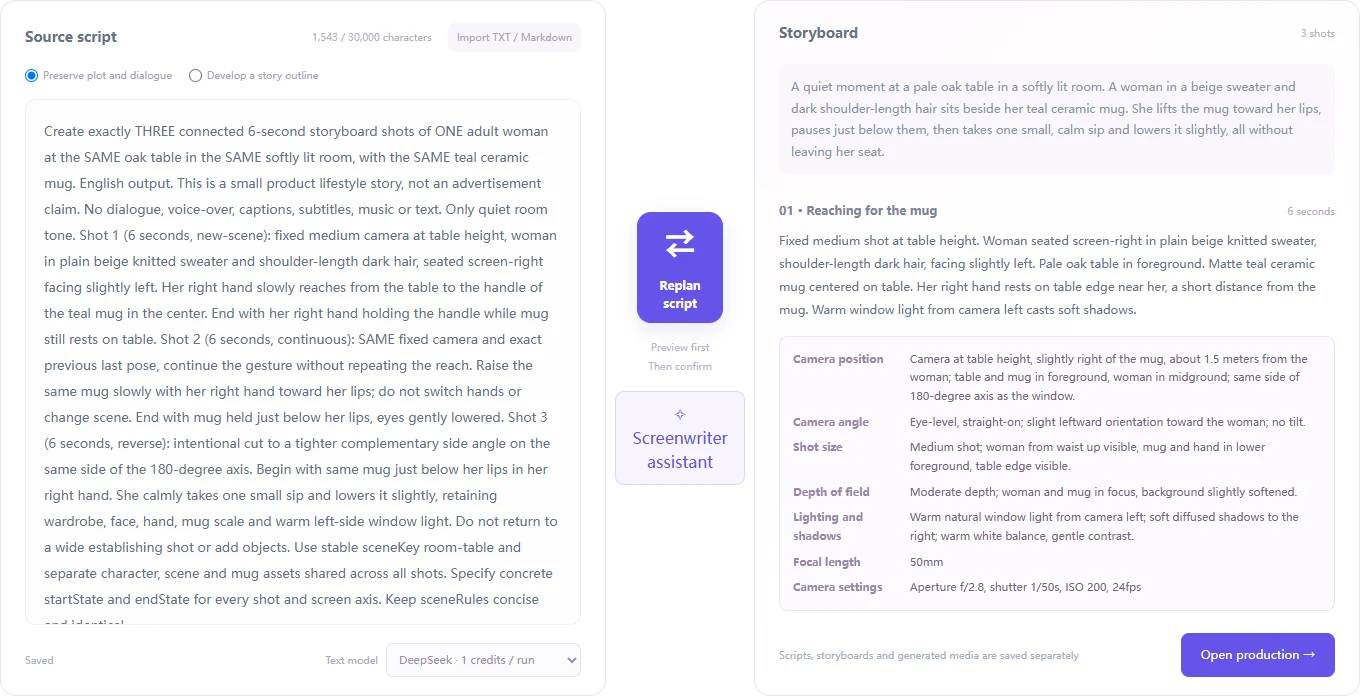
Build the shots and keep details consistent
Assign character, scene and prop references to each shot. Reuse approved images where they recur. If you use a keyframe, choose the image version that should drive the shot. Set the video mode and references, check the estimate, and generate the shots. Compare adjacent clips: the person, grip, product shape and direction of movement should carry across the cut.
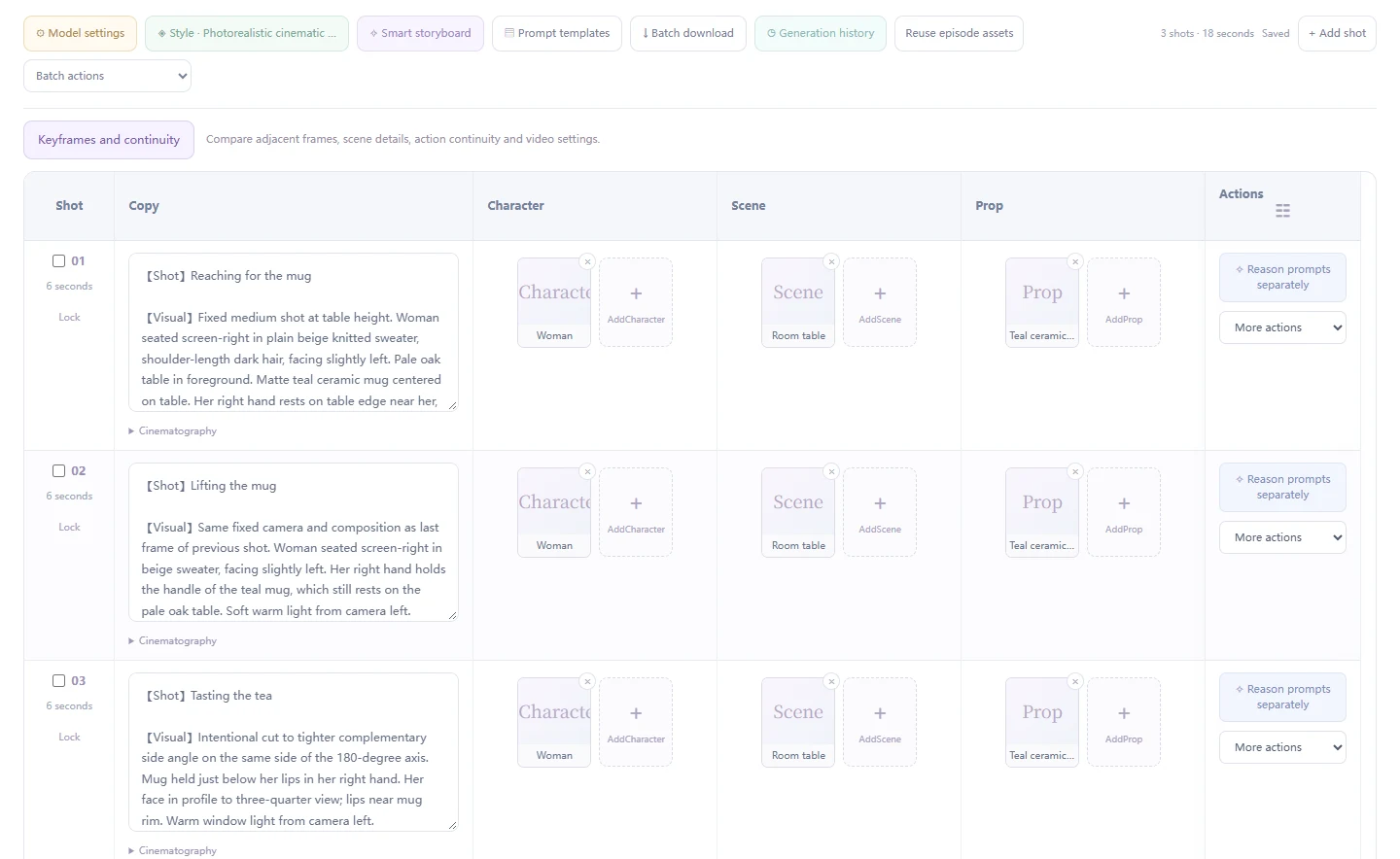
Review the sequence, compose and export
Open Final Preview, select the intended clip for each shot, and play the sequence in order. Check dialogue, captions, joins and how long the product stays visible. Trim or reorder clips if needed. Use Compose Full Video when the sequence is ready, then replay the resulting video before downloading it.
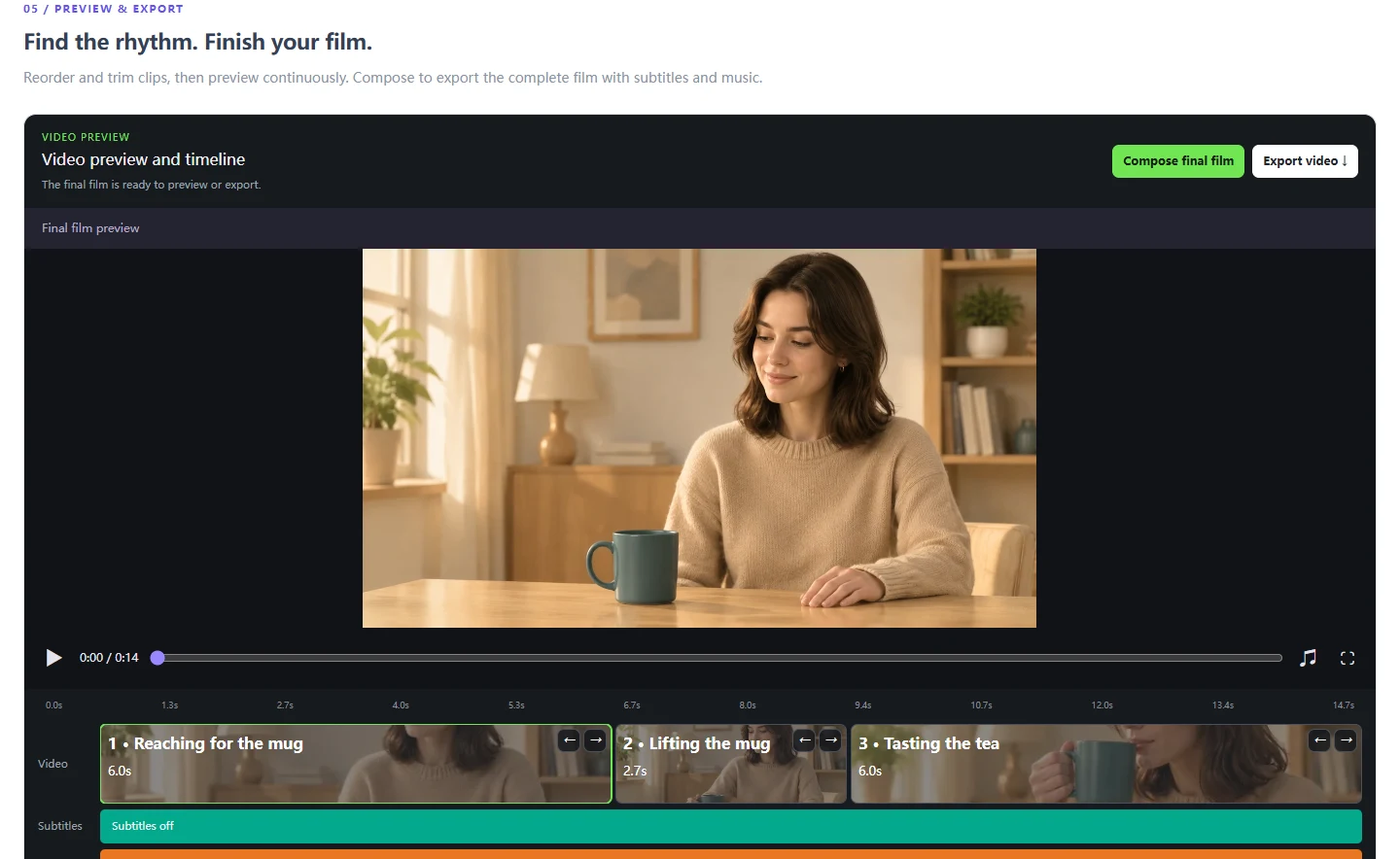
What makes a usable shoppable drama?
- Each shot has a job
- Give the hook, product demonstration and closing action different roles. If the story needs only one shot, use the video workspace instead.
- The product is still the same product
- Check the logo, packaging, color and how the product is handled at each cut. Confirm that dialogue and subtitles make no unsupported claim.
- The full episode plays cleanly
- After composing, play from start to finish and inspect picture, sound, captions and the final frame before publishing.
Common questions
Do I have to enter camera settings?
No. Add photography notes when they help communicate a decision, such as a close-up of a product label or a camera angle that preserves screen direction. Then verify that the storyboard reflects those notes.
Can I reuse the same assets in another episode?
Use Reuse Episode Assets in the production workspace. Match the existing character, scene and prop images to the new episode, and verify the references before generating.
Do I need to regenerate the whole episode if one shot is wrong?
Return to the affected shot and select a usable historical version or regenerate that shot. Check the two adjacent transitions before composing the episode again.
Follow the episode walkthrough →Learn to reuse episode assets →