AI product image sets
A featured image and a gallery sequence with a reason for every frame.

Turn a product launch into a storefront journey: consistent collection cards, an informative product gallery, accurate variant images and campaign assets that match the destination page.
Choose the asset your next project needs
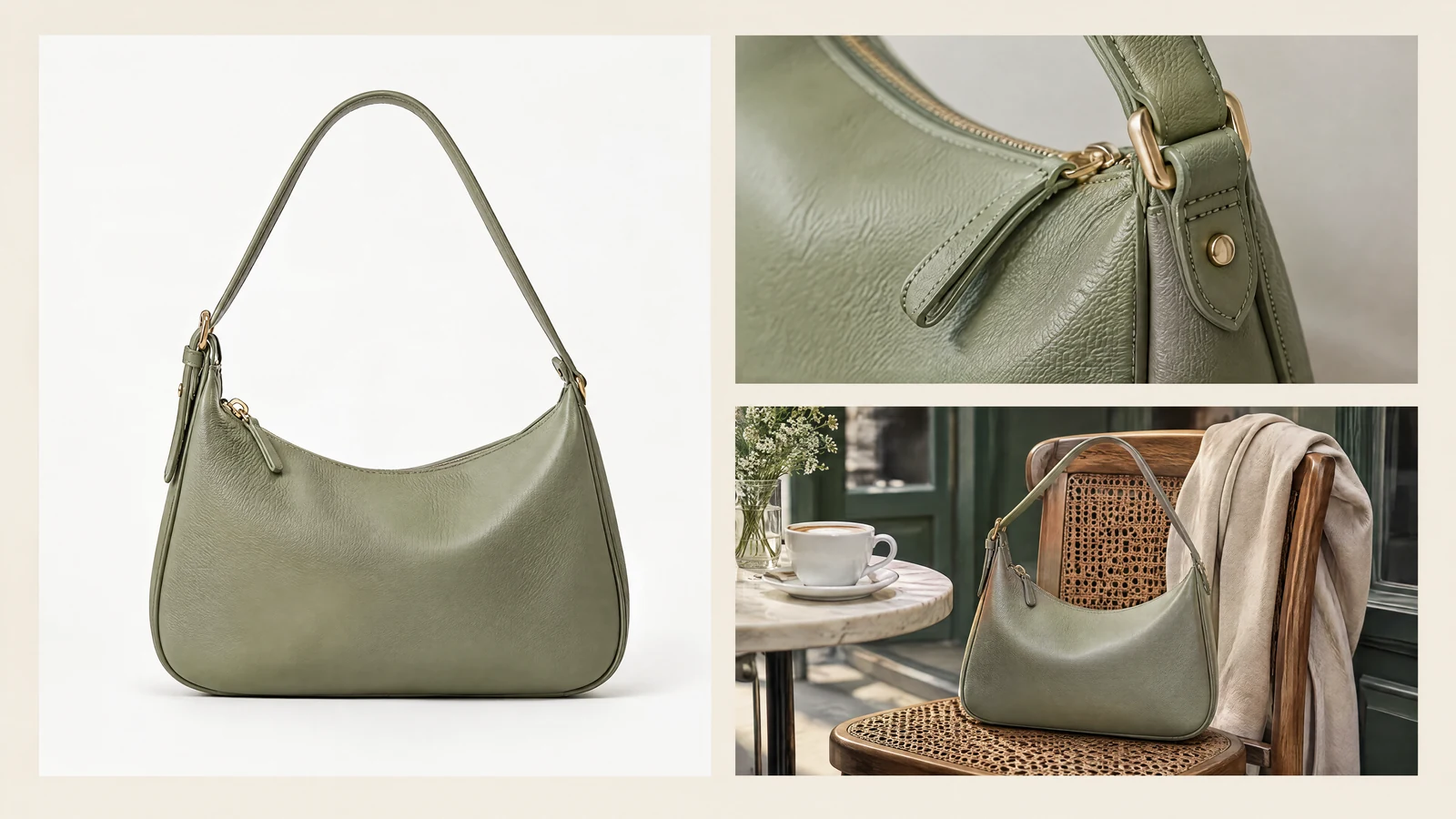
A featured image and a gallery sequence with a reason for every frame.
Collection-card compositions and a separate product-page lifestyle scene.
A checked color image named with its actual variant or SKU.
A reviewed product clip and a matching poster for the product gallery.
Product photographs, storefront palette, verified specifications, audience and the intended page sections.
In AI product image sets, give each planned image a different job: identify the SKU, explain a construction detail, establish scale or demonstrate use. Keep the featured-image brief compatible with the collection-card crop.
Open AI product image sets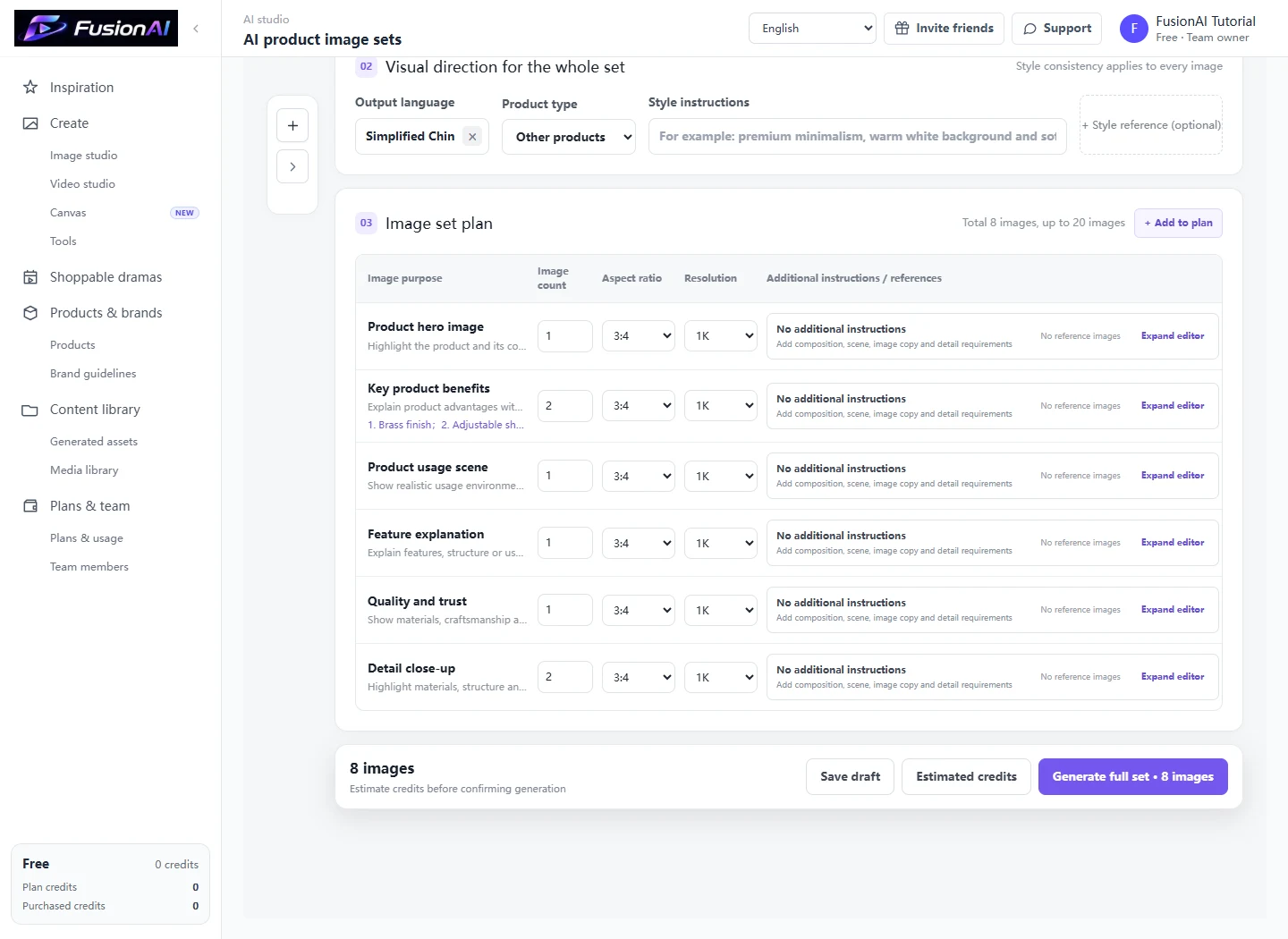
Use a background reference and brand palette to prepare a coherent collection. Leave crop room around the product; then preview the actual Shopify theme at desktop and mobile widths before choosing the final composition.
Open Product background replacement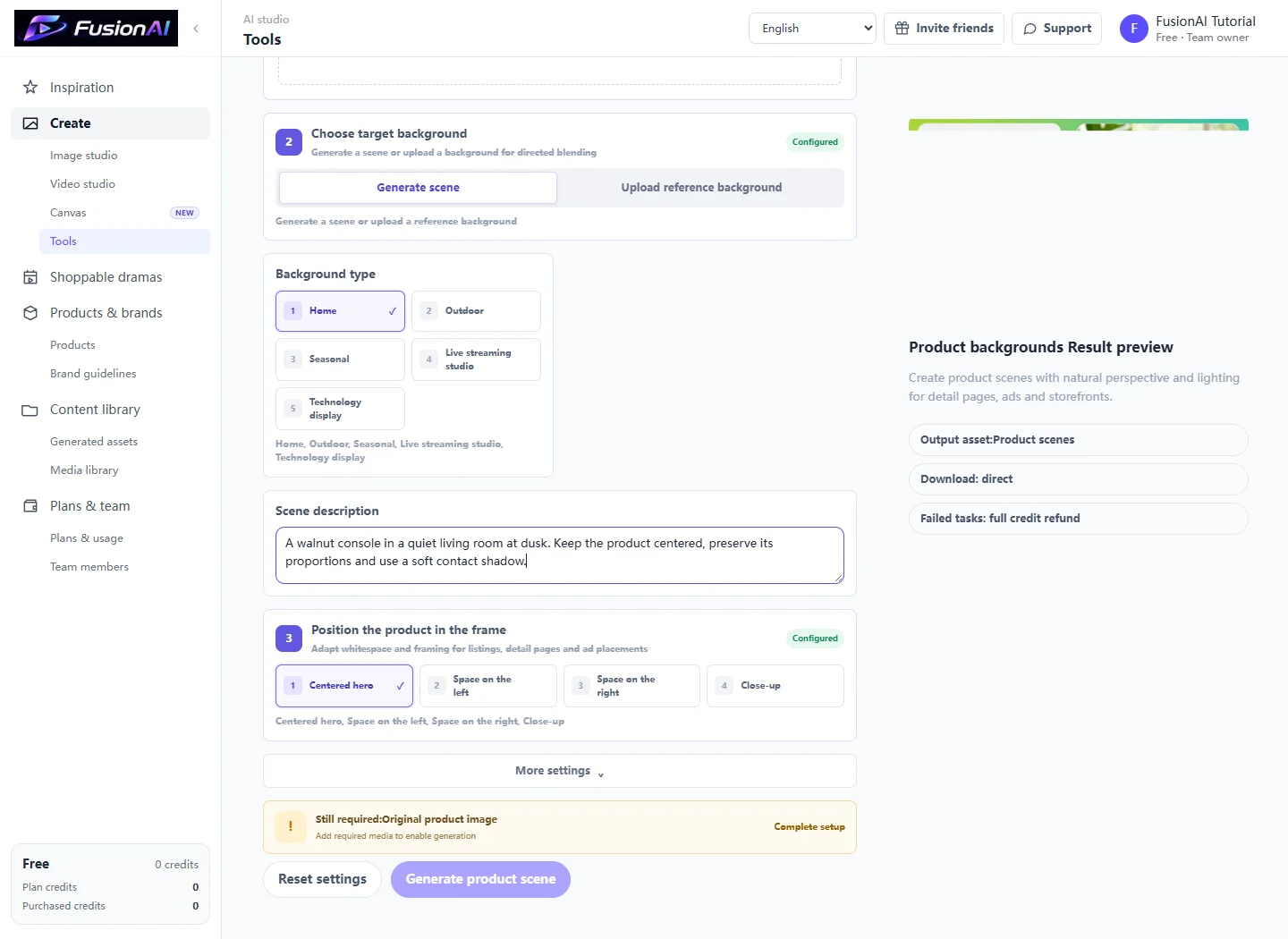
For color changes, mark only the editable material and retain hardware, labels and stitching. Compare the candidate with an approved sample. Assign the selected image to the correct Shopify variant after export.
Open AI image inpainting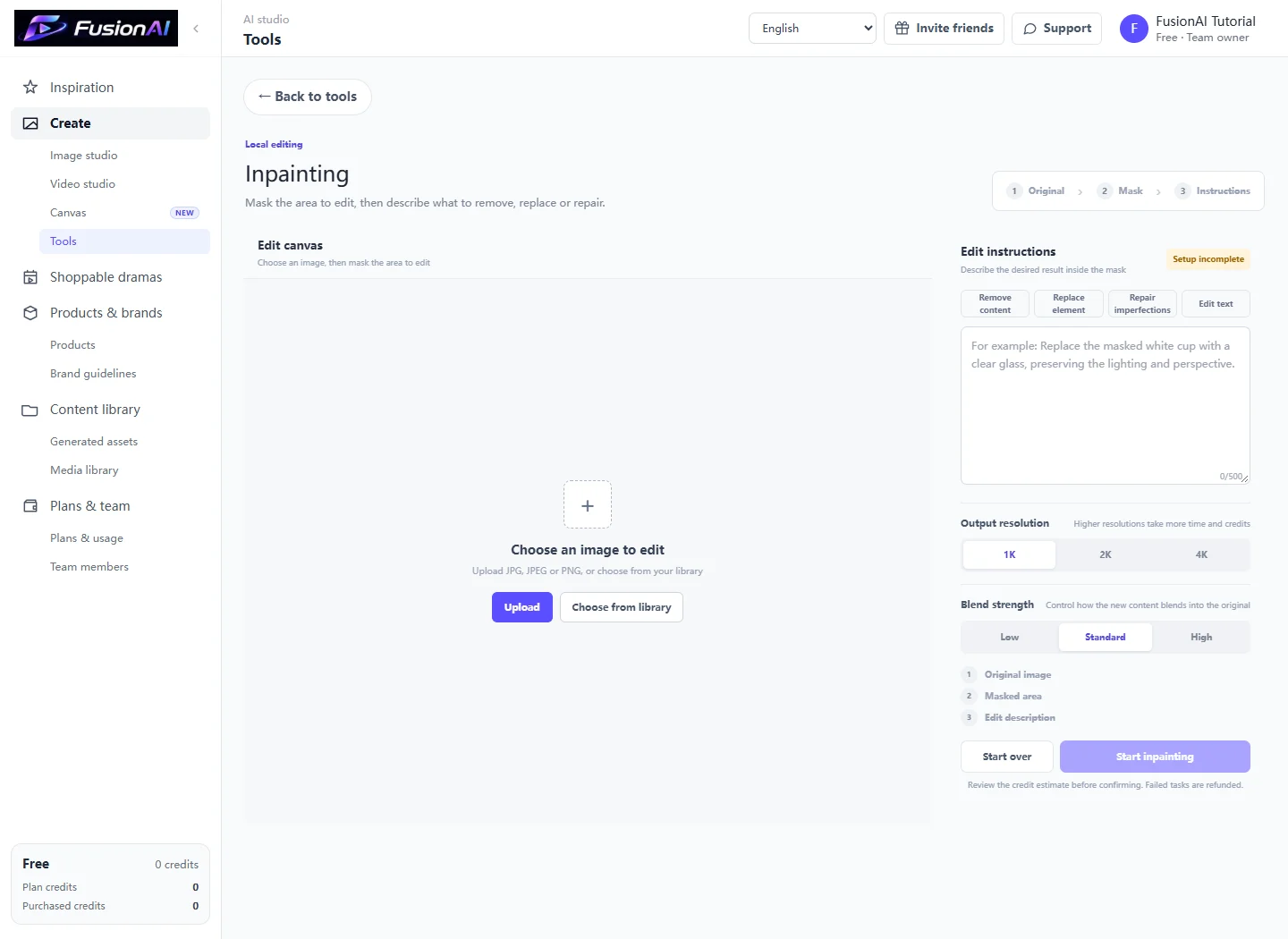
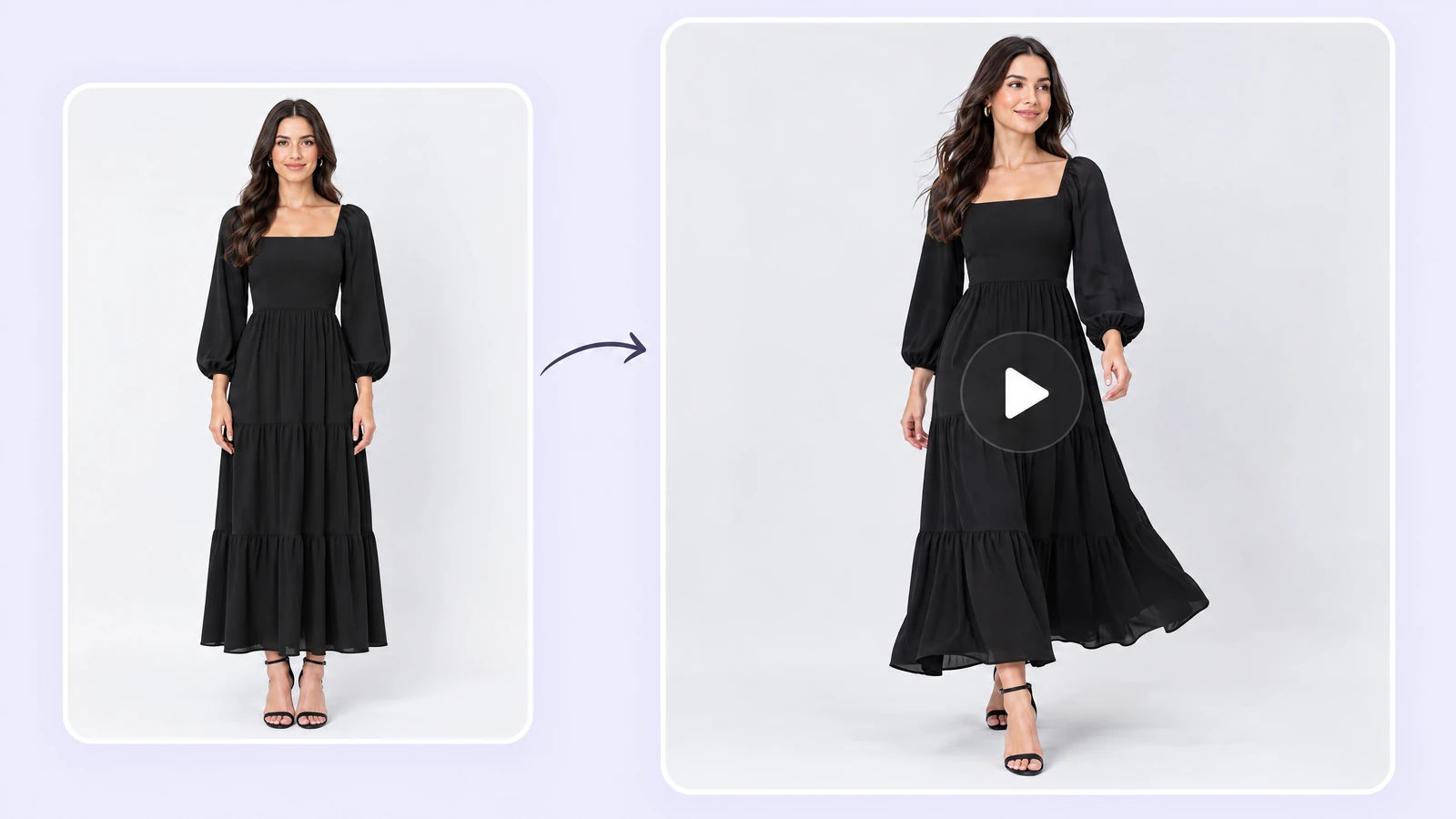
Animate an approved still when movement can explain a closure, silhouette or use action. Keep one clear action in the shot. Export the clip and test its poster, playback and position in a theme that supports product video.
Open AI video creation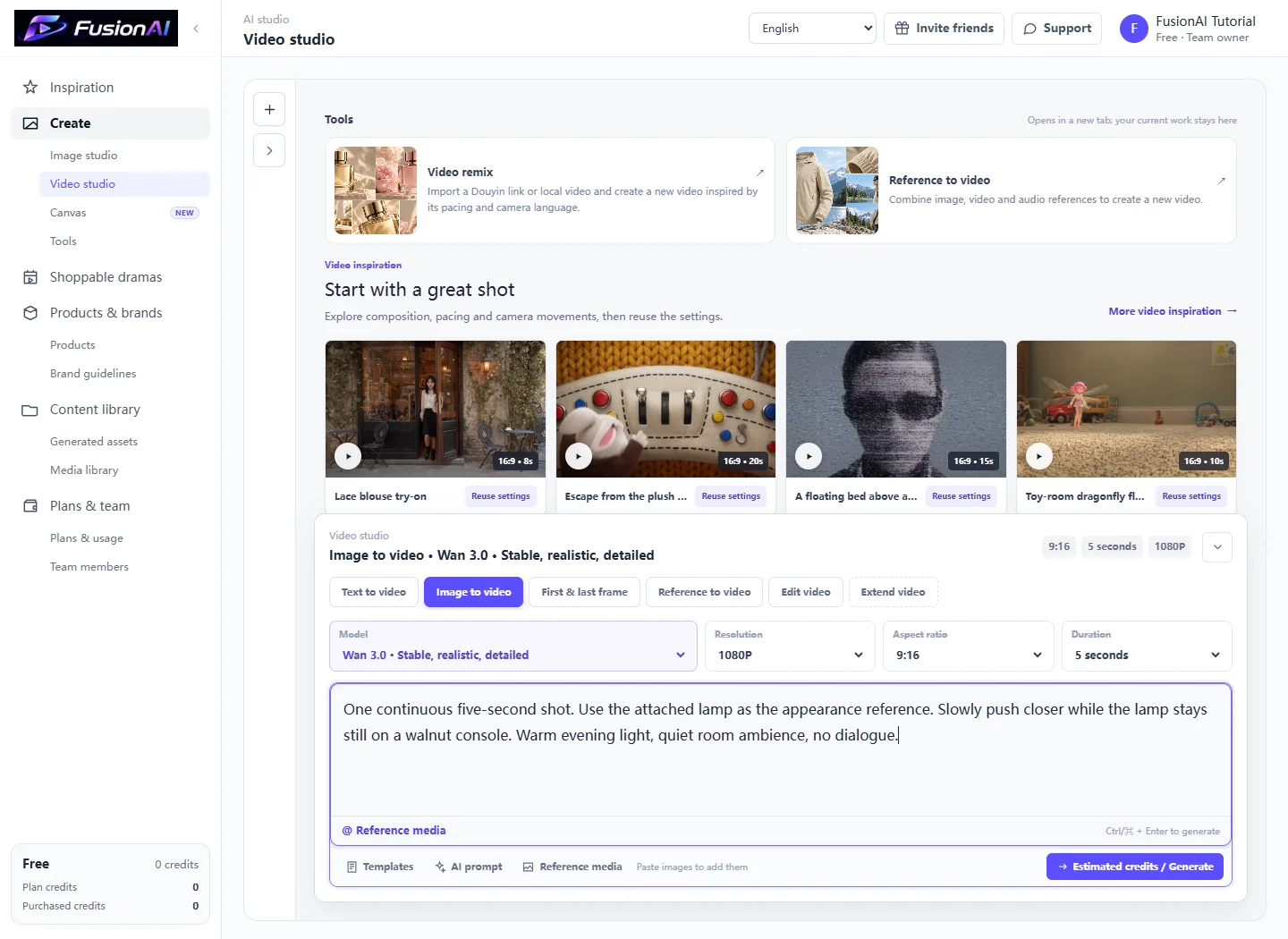
For a backpack listing, assign the exact in-stock color’s hero image to each variant. Keep the remaining angled, zipper-detail and capacity images in the gallery. Test variant selection on the live theme preview, then check thumbnails, zoom and mobile crops.
Explore: Make a variant-to-image checklistExample: launch a ribbed cardigan in oat and navy. Photograph both real colors, the six-button front and the knit close-up. Use one quiet studio direction for collection cards; add a wearing scene to explain styling. Keep the color references separate and export named files for each variant.
Open AI product image setsIllustrative handoff plan for a two-color cardigan. These filenames describe deliverables to prepare; this is not a Shopify theme screenshot or proof of a completed store launch.
| Placement | Example deliverable | What to check in the store |
|---|---|---|
| Collection grid | CARDIGAN-OAT-featured.webp / CARDIGAN-NAVY-featured.webp | Use the same crop policy; keep the garment recognizable on a narrow card. |
| Product gallery | Front → fastening → knit detail → wearing context | Each image answers a different buying question. Keep genuine construction details. |
| Variant image | One approved image assigned to the sold oat option; another to navy | Use real sold-color references. Test the live variant switch after assigning images. |
| Product video | A reviewed movement clip plus a product-readable poster | Put video in product media and check support in the active theme. |
| Handoff record | SKU, placement, selected version and factual alt text | Keep rejected generations separate from files selected for publication. |
Prepare assets in FusionAI, then upload, order and assign them in the merchant’s own Shopify workflow. Review the actual theme at desktop and mobile widths. A file named after a variant does not configure Shopify automatically.
Every image should answer a distinct buying question without inventing specifications or offer terms.
Check the featured image in the collection grid, product gallery and mobile crop; important garment edges must remain visible.
Switch each live variant and confirm that its assigned image shows the corresponding sold color, not a creative color experiment.
Add factual alt text and inspect the real theme. Generated text, promotion terms and product details need a separate proofread.
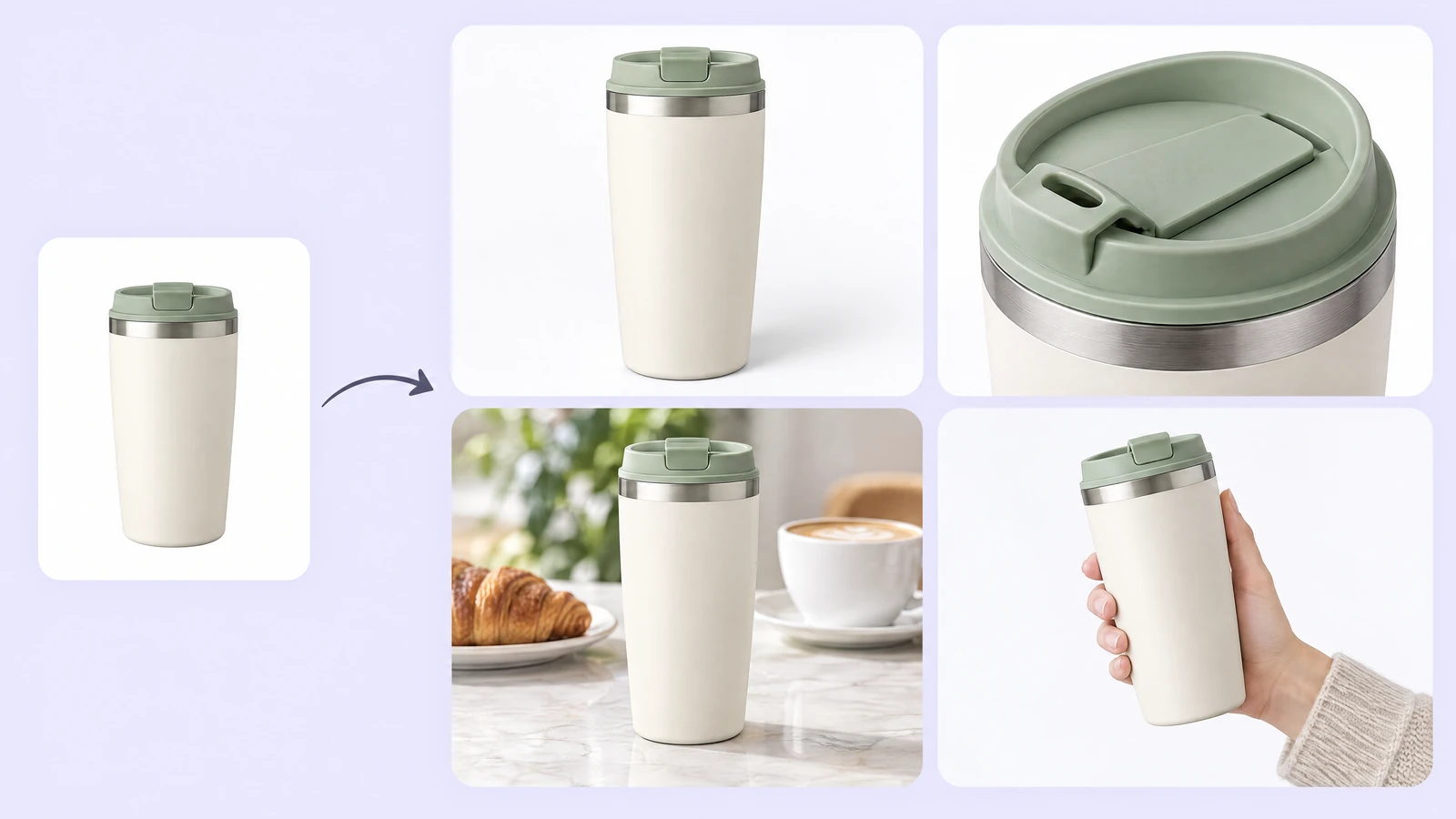
Plan hero, feature, lifestyle and detail images for one product. Adjust each image purpose, prompt, reference and output language.
 Explore product
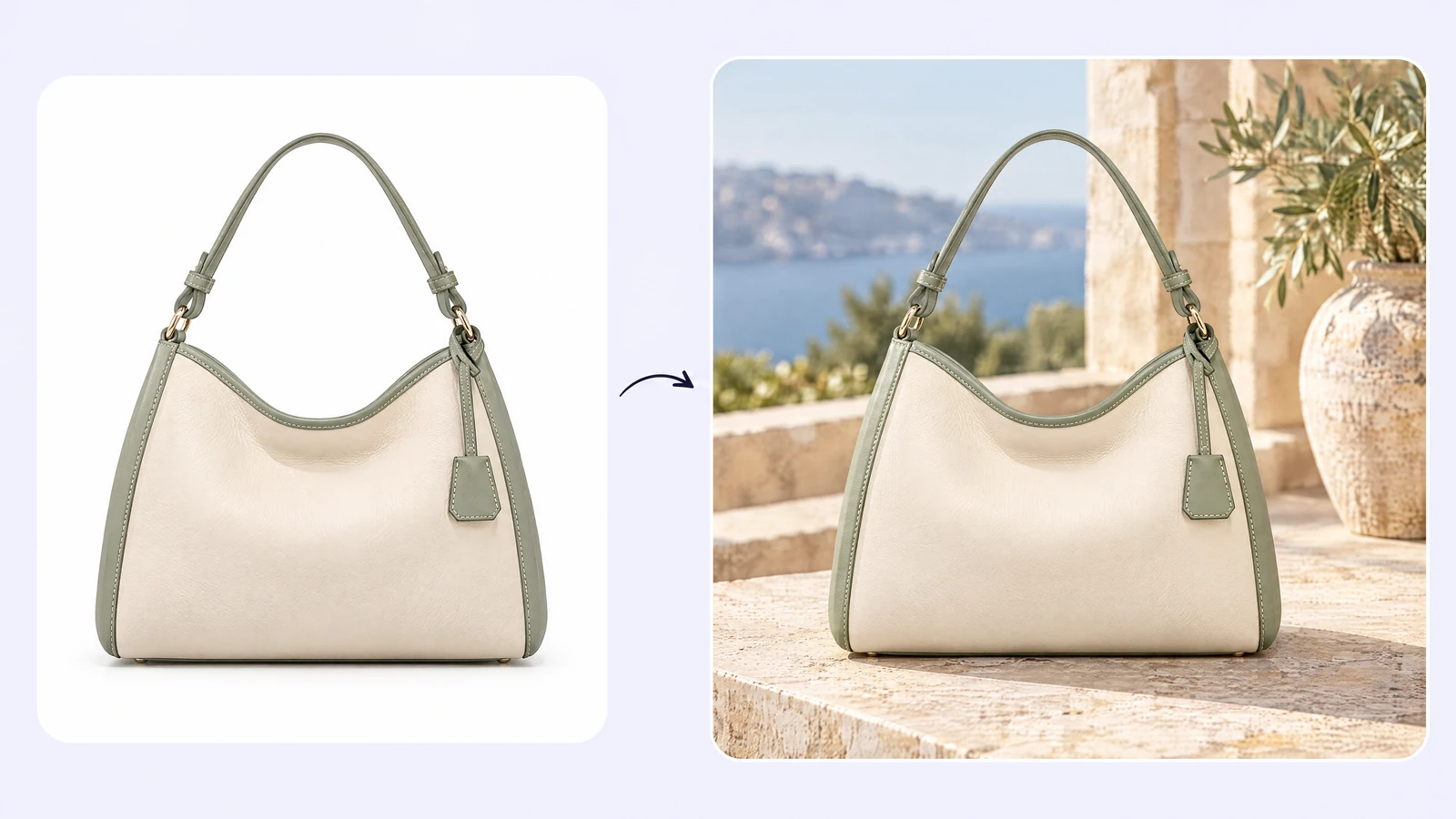
Place an existing product into a new setting, using a generated scene or reference background. Review scale, lighting, edges and contact shadows.
 Explore product
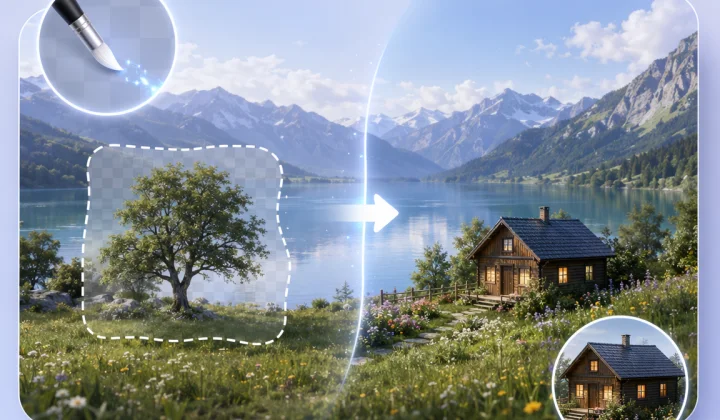
Mark a region and describe the local replacement, checking the boundary and its fit with the surrounding image.
 Explore product
Turn text, images and supported multimodal references into individual video shots.
 Explore product
| Storefront placement | Useful asset | Merchant check |
|---|---|---|
| Collection card | A recognizable product-first crop | Compare the grid at mobile width; keep product margins consistent. |
| Product gallery | Distinct product, construction and use views | Every image should add information that an adjacent image does not. |
| Variant selection | An image of the actual sold option | Assign the correct image in Shopify and test the customer selection. |
| Product video | A short action and a useful poster | Confirm theme support, gallery order and complete playback. |
| Campaign destination | A layout aligned with the landing page | Match the product, price and offer terms to the destination. |
A Shopify launch spans more than a product detail page. The same product may appear in a collection grid, a featured homepage section and a campaign landing page. Decide where each asset will be used before generating it. A quiet product-first composition may work well in a collection card, while the product gallery needs detail and use context that answer additional questions. These are different design jobs, even when they begin with the same photograph.
Collect the actual sold variants, original product photographs, measured facts, approved copy and a small visual direction reference. In FusionAI, keep the product record and brand direction available while planning the image set. Separate product information from styling choices: the label and garment construction are factual; the room, background palette and campaign mood are creative decisions. If a fact is missing, leave it out of the image brief until it is verified.
Open AI product image sets and choose an output language appropriate for the intended copy. Set each planned image’s purpose and edit the prompt for that image rather than sending the same broad instruction to every row. A cardigan launch might need a featured view, a knit detail, a fastening view and a styling image. Generate a representative candidate first, compare it with the actual product and revise the visual direction before committing to the rest of the gallery.
For an oat and a navy cardigan, keep separate approved color sources. A local color edit can be explored in the image tools, but it must be compared with the actual sold option before publication. After downloading the selected files, assign the correct variant image in Shopify and group additional related views in the product gallery. Test what a customer sees when selecting each option. A filename containing a color name does not configure Shopify’s variant behavior.
Upload the selected files through the merchant’s own Shopify process, arrange the gallery and add factual alt text. Check the collection card, product gallery, zoom experience and variant switch at desktop and mobile widths. A consistent featured-image ratio helps the collection grid; detail images can use a different composition when the theme handles it well. Review text-safe areas and product edges in the actual crop instead of judging only the exported file.
A short clip can show how a clasp opens or how a garment moves. Start from a reviewed still, describe one useful action and inspect the complete result. Then upload the selected video to product media and confirm the active theme displays it correctly. Select a poster that still identifies the item. FusionAI supplies the creative asset; gallery placement, theme settings and publication remain in the merchant’s store workflow.
Keep the earlier approved assets and note which image or gallery order changed. Use the store’s own analytics and customer questions to judge whether the new presentation answers a real uncertainty. Avoid attributing all sales changes to a visual when traffic, price or promotions changed at the same time. No conversion increase is promised by this illustrative workflow.
Prepare and download assets in FusionAI, then upload and assign them in Shopify. This solution does not provide a Shopify app, catalog synchronization, theme installation or automatic publication.
Shopify currently assigns one image to a variant. Put additional views in the product media gallery and organize related views together. Theme behavior or eligible listing features determine how a group is displayed; FusionAI does not configure that behavior.
Use a consistent featured-image ratio across a collection so the grid reads cleanly. Detail and lifestyle images can serve different purposes. Review the chosen images in your own theme rather than assuming one universal crop works everywhere.
Shopify variant media assignments currently support an image, not a video or 3D model. Place the reviewed clip in product media and confirm that your active theme supports video display.
Source guidance checked on 11 November 2026. Recheck the destination platform before publishing.
A reusable storefront pack: hero, feature, context, detail and campaign crop.
Start with AI product image sets