
Keep episode assets consistent
FusionAI Content Team · Updated 2026-11-10 · 3 min read
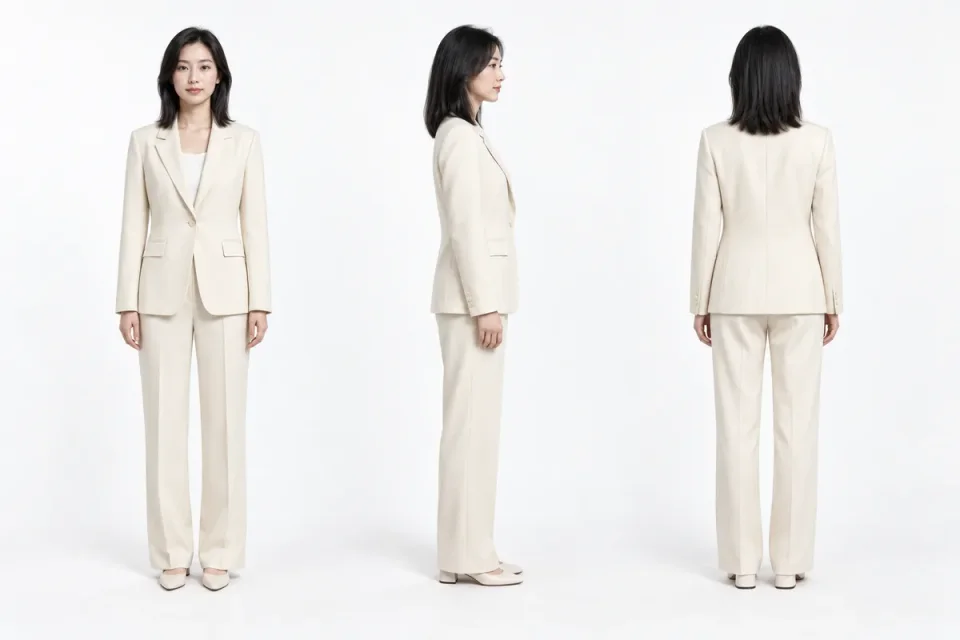
Illustrative planning example. This page explains a review workflow; it does not report a customer result or a measured performance improvement.
The task and intended output
Reuse characters, scenes and props while writing shot-specific direction for each episode.
A repeatable episode asset baseline and shot-specific variations.
Prepare the source material
Approved character, prop and scene assets, episode notes and a record of selected versions.
Create a small approved reference pack before generation. Name files by product or subject and view, keep the source alongside the candidate, and decide which details are factual and which are creative choices. That makes an unsuccessful result easier to diagnose.
Build the workflow in FusionAI
1. Shoppable drama studio
Create a series and episode. Import or write the script, then use script arrangement to review the original text and proposed storyboard.
Check each shot’s action, dialogue and camera guidance. Camera information is optional; add angle, shot size, light or lens direction when it helps communicate the intended frame.
See the capabilities and steps · Open this workspace
2. Multi-view subject references
Select the matching template and upload the main reference.
Describe the details that must remain consistent across front, side and rear or other requested views.
See the capabilities and steps · Open this workspace
3. AI video creation
Open Video studio, choose a model, then choose an available operation. Text to video, Image to video, First & last frame, Reference to video, Edit video and Extend video are model-dependent.
Add the required references. Use @ Reference media to connect selected media to the prompt; identify appearance, motion, setting and audio roles.
See the capabilities and steps · Open this workspace
An example creative brief
Reuse the adult creator, walnut desk and brass lamp from the approved episode assets. Change only the action and camera angle for the next scene.
This is a planning example, not a measured customer result. Replace its product and creative direction with your own approved facts. Begin with one representative asset, compare it with the reference and revise the responsible stage before expanding the set.
Acceptance checklist
Check face, hair, clothing, prop placement, room orientation and changed assets across episodes.
- Compare the selected candidate with the source at the full intended display size and in a detail crop.
- Check the role of every image or shot. Remove repeated assets that add no useful information to the buying or viewing task.
- Proofread generated labels and copy, then record the approved source and selected output version.
Handoff and reuse
Record which asset versions belong to each episode and review the new keyframes before generating motion.
Keep the product facts and visual direction available in the product library and brand guidelines where appropriate. Store approved outputs with useful names so that a later campaign or episode can reuse the right asset rather than an unreviewed candidate.
Frequently asked questions
Will this automatically publish to a sales channel?
No. The workflow prepares creative assets. Review the output and use your own store, ad or content publishing process. External channel requirements remain your responsibility.
How should I control generation cost?
Start with one representative image or short shot. Check the estimate before confirmation, assess the result and change one variable at a time. Do not generate a full collection before approving the visual direction.
Which model should I choose?
Choose a currently available model that accepts the required input mode. An image-edit task needs an eligible reference-capable entry; a video reference, edit or extension needs a video model exposing that operation. Check the model pages and actual workspace controls.
Next step
Explore the first product in this workflow · Read an illustrated tutorial · Compare model guides