
GPT Image 2 Tutorial: Edit a Product Photo in FusionAI
1. Sign in and prepare one product
Use email to sign in. Choose one sharp photo of the exact item and keep its original file for comparison. For this exercise, move an amber bottle to a plaster shelf while keeping the original bottle and label.
2. Choose an available model and edit mode
Open the image workspace, select an available GPT Image variant, and confirm that its mode accepts a reference image. Check the current size and aspect-ratio options for the selected variant.
3. Attach the reference and constrain the edit
Wait for the thumbnail. Ask for one change: “Keep the amber bottle, cap and label layout from the reference. Place it on a matte plaster shelf with soft side light.” Match the crop to the intended placement.
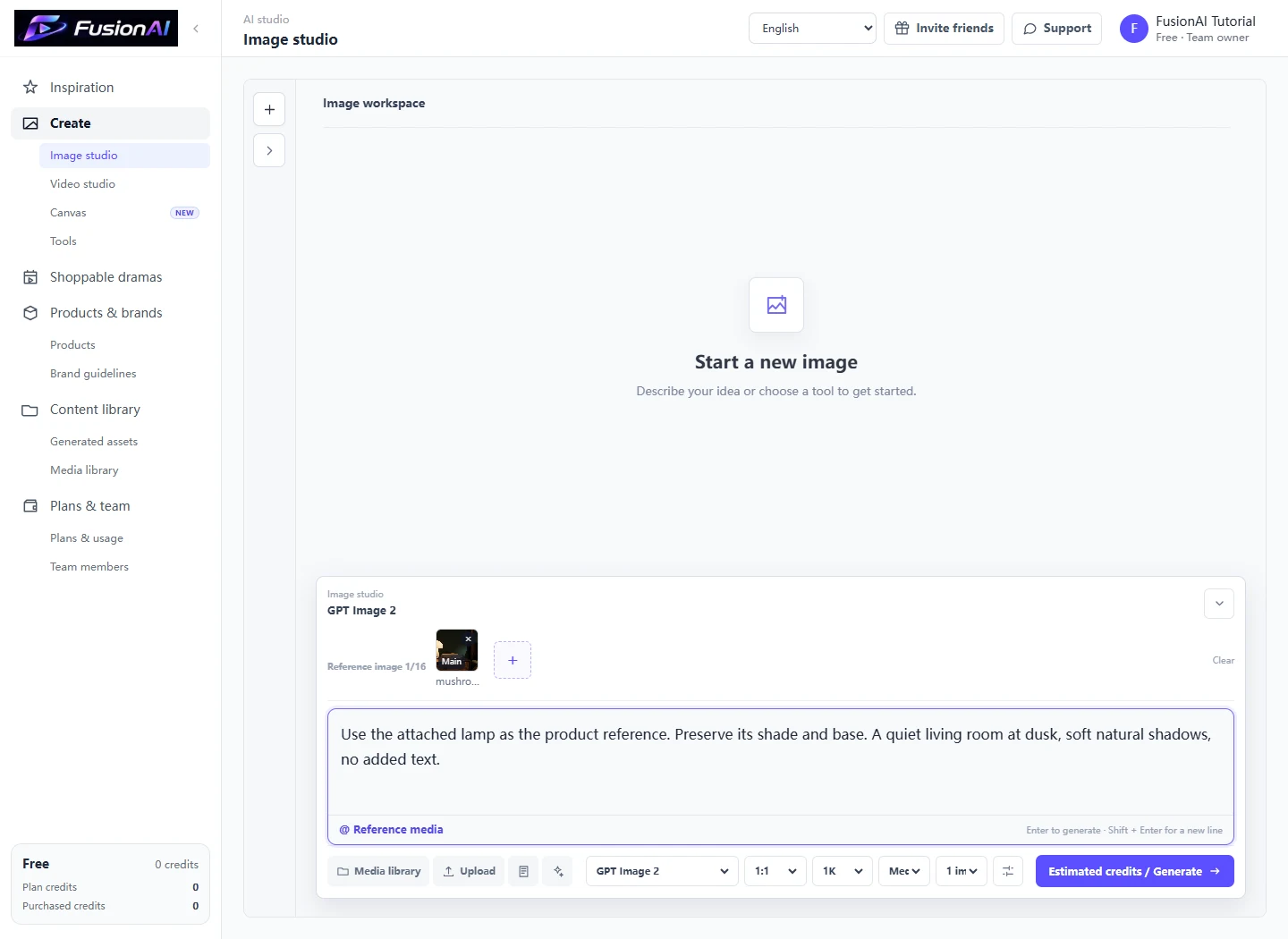
4. Check the estimate and inspect the output
Check the current estimate before submitting. When the task finishes, compare the label text, bottle outline and color at full size. If the product changes, retry one instruction at a time or use a suitable local edit. Use the original label artwork where exact text matters.
What should you check before using the result?
A completed task means a file was returned. Review rights to the references, text in the image and product claims. A paid plan does not grant rights to third-party assets. Check the checkout quote for price and currency, and the workspace for current output options and task status.