The logo stayed the logo. The headlines came out spelled right. … It also made things up.
Ahad Shams@spect3ral
Read the original on X

FusionAI Content Team · Updated 2026-11-21 · 5 min read
GPT Image 2.6 accepts text and image inputs. In FusionAI, start with Flare for a first composition or a small set of directions. Try Sunburst for an edit where several conditions must hold at once, such as changing clothes while preserving a model’s face, pose and lighting. Compare with the same input and settings when choosing between them.
| Model | Try it for | Output settings | Image reference limit |
|---|---|---|---|
| GPT Image 2.6 Flare | Text-led concepts and alternatives | 1K / 2K / 4K | 16 |
| GPT Image 2.6 Sunburst | Edits with detailed preservation requirements | 1K / 2K / 4K | 16 |
Select the model first, then choose the ratio, clarity and quality available in the composer. Check the live credit estimate before submitting. For a two-image brief, start with exactly two references and give them separate roles.
OpenAI’s clothing example uses one person image and several garment references. The same approach works as a two-input brief for a single item. Make the model photograph the base image, and let the flat lay define only the garment.
Open Sunburst in Image Studio · View the related OpenAI example
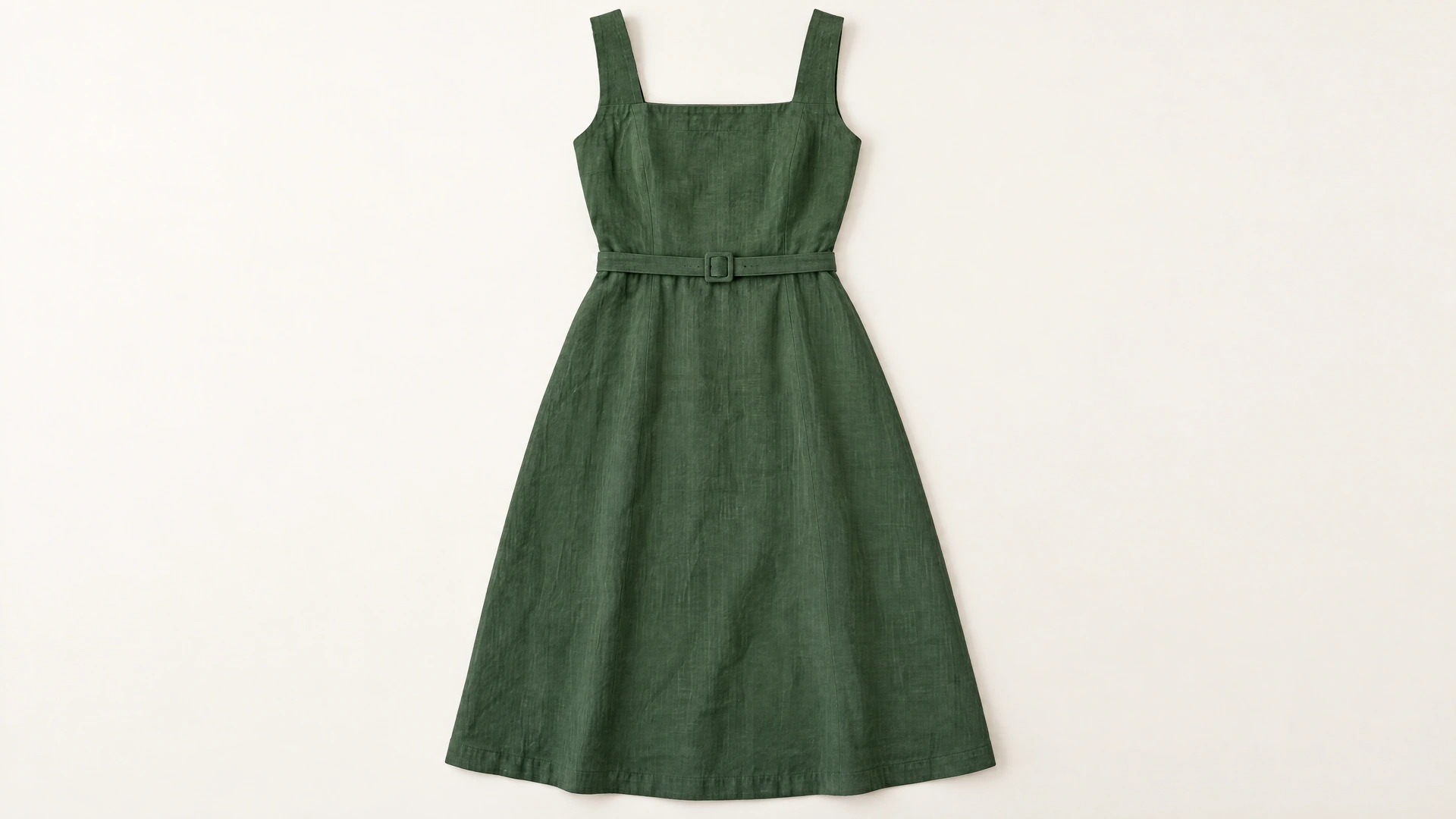
Use reference 1 as the person and base photo. Keep her face, hair, stance, camera angle, framing, shoes and studio lighting. Use reference 2 only for the forest-green linen dress. Replace her outfit with this dress, preserving its square neckline, wide straps, narrow matching belt, rectangular buckle and flared hem. Let fabric and shadows follow the original pose. Show the complete garment. No added jewelry, branding or text.
Zoom in to compare face and hair with reference 1, then compare the neckline, straps, buckle, seams and hem with reference 2. If a strap or seam changes, use a sharper garment photo and list the affected detail explicitly. A styling image cannot establish physical sizing or drape.
The official ad example puts its tagline in quotation marks and asks for a single readable occurrence. For a product campaign, decide what the viewer should read first, where the product goes and which areas need empty space.
Open Flare in Image Studio · View the related OpenAI example
Create a portrait campaign poster for an unbranded canvas tote. Place one ivory tote on a cobalt studio plinth, lit from camera left. Leave clear space above the bag. Write “PACK FOR THE DAY” exactly once, in large dark navy uppercase lettering above the bag. No additional text, logo or watermark.
Correct final brand or legal copy in a layout editor if a letter is missing or a line break changes.
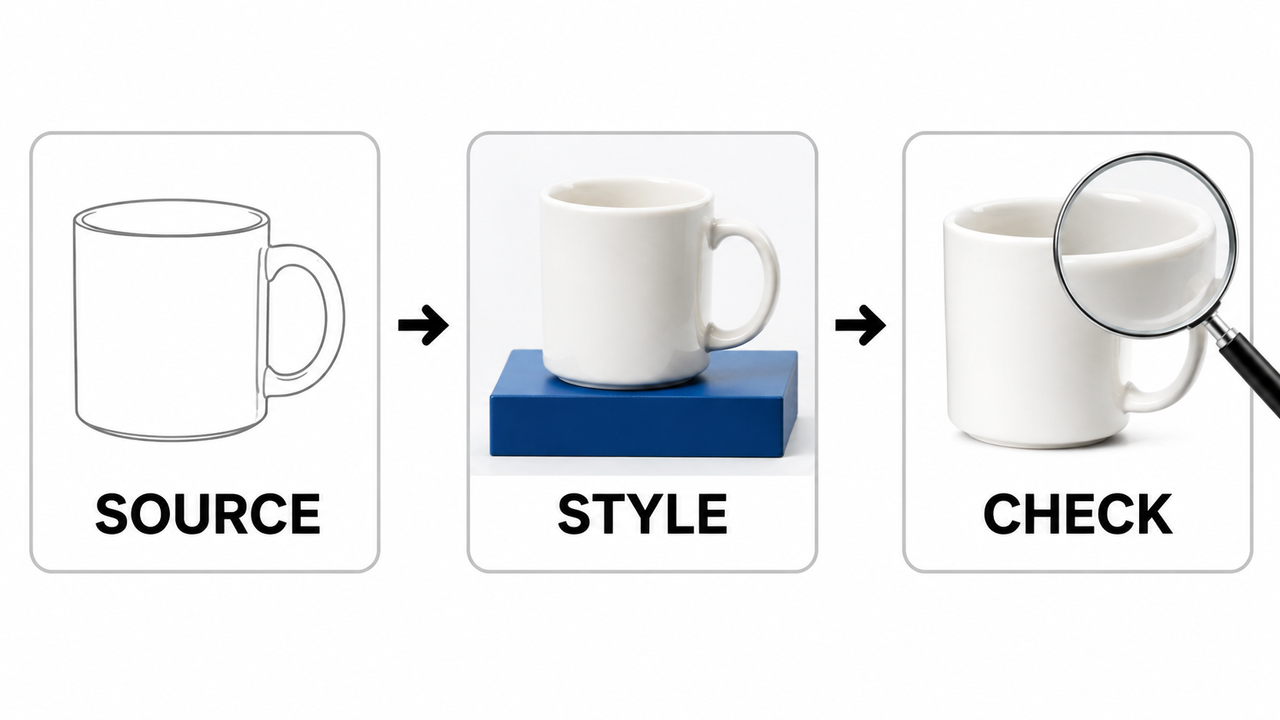
The official coffee-machine diagram example translates labels while retaining the visual organization. Use the accepted diagram as your only reference and map every original label to a replacement. This keeps terminology consistent across the image.
Open Sunburst in Image Studio · View the related OpenAI example
Download the sample diagram as a reference
Change only the labels in the uploaded diagram. Replace “SOURCE” with “ORIGEN”, “STYLE” with “ESTILO” and “CHECK” with “REVISIÓN”. Each word appears once in its original position. Keep the three icons, their colors, the boxes, arrow directions, spacing and white background.
For a published process, have a reviewer verify both the target-language wording and the accuracy of the underlying workflow.
OpenAI documents adjustable complexity, markup-guided edits, native SVG and animated GIF through its Image API. The FusionAI Image Studio controls covered here are for creating and editing still images. Use the output and edit options shown for your selected entry. The native SVG and GIF examples require their own OpenAI API parameters.
For the two-input workflow, prepare a garment flat lay and a separate adult model image with usable lighting and framing. Compare the result with both originals before listing the item.
View the two-reference garment compositing case FusionAI ran the garment edit using Sunburst at 1K and high quality. The other two workflows above provide prompts to try.
Excerpts from public posts on X, translated where needed. GIF comments refer to the model’s animation capabilities.
The logo stayed the logo. The headlines came out spelled right. … It also made things up.
You can generate an animated sticker from a single sentence.
I asked GPT Image 2.6 for an ASCII version of my logo. Then turned the frames into a GIF!
I built a simple photo app with Sites to try the new GPT Image 2.6 API on a couple of my photos.
GPT Image 2.6 GIFs have real potential. They could be a great way to prototype animated scenes and quickly try different ideas.
Four poses in one image. GPT Image 2.6 was faster than 2.5, with finer portrait detail in this test.