
How to Replace a Person or Face in a Video
Prepare the materials
Practice on a permitted one-person clip: the presenter looks at the camera, raises their eyebrows, smiles and turns slightly toward a product. Compare those beats with the original. Use a consenting performer or an original synthetic portrait.
- Source video: pick one person with a clear face, even light and no major occlusion. Keep the first test short enough to inspect every expression change.
- Target portrait: use a clear unfiltered image from a compatible angle. If you use a side view, confirm it shows the same person.
- Release scope: confirm the footage, likeness and voice can be used for your intended channel. A portrait is not a voice reference.
Follow the workspace steps
1. Add and check the source clip
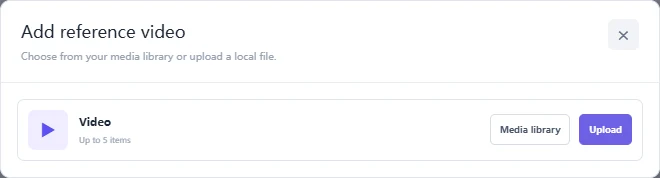
In Video Remix, click Select Video and choose a local file or one from the Media Library. For a supported Douyin share link, confirm usage rights before using Parse and Preview. Play the preview and wait for the source duration and aspect ratio to appear.
Source: FusionAI English workspace screenshot. 2. Replace character
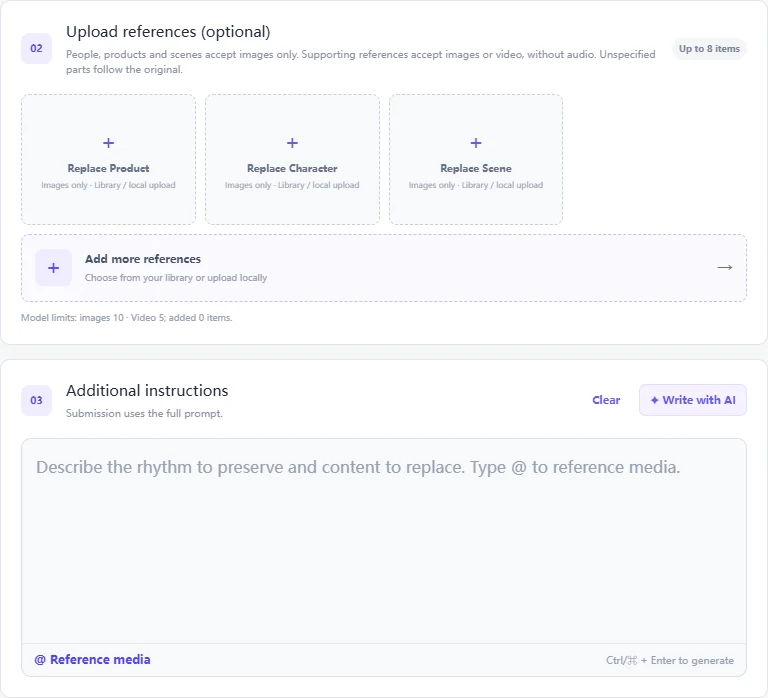
Choose Replace Character and upload the portrait. Leave product and scene empty. For appearance-only editing, specify whether hair, wardrobe and accessories should remain. The tool is a generated character replacement, so face-only edits are not precise masks.
3. Confirm the editing instructions
Use @ to attach the target portrait in Additional Instructions. Locate the person by their position if the clip has another person. Preserve the original timing of blinks, smiles, gaze shifts and head turns.
Source: FusionAI English workspace screenshot. 4. Choose sound and an available model
Select Preserve Original Sound only if you may retain that audio. If generating new sound, check model support and write the intended line and delivery. Listen for rhythm and tone, and review mouth movements against the chosen track. In Advanced Settings, choose a model and resolution compatible with the source duration and aspect ratio. If no model matches, trim or re-export the source yourself; the tool does not automatically shorten it.
5. Confirm the estimate and submit
Check the complete prompt and estimated credits, then select Remix Now. Find the result in Generated Assets. Check task status before retrying; save the source, references and prompt for repeatable comparisons.
Adapt the prompt
Replace bracketed instructions with the actual attached reference. The example is a practice brief, not a recorded generation.
Change only the presenter’s face using [select the target portrait with @]. Preserve hair, jacket, accessories, posture, gestures and background. Match the reference’s gaze toward camera, eyebrow lift, smile and head turn at the same beats. Keep identity stable when the person turns; do not change the product or add anyone.
Review before export
Play the full output with the original beside it. Pause at the following checkpoints before downloading the approved version.
- Front, profile and partially covered face should read as the same person. Inspect glasses, hairline and facial boundaries.
- Compare expression timing and gaze. Check that the jacket, gestures and product have not changed unexpectedly.
- Review voice, words and lip sync together. Do not imply a real person said or endorsed something they did not.
Troubleshoot failures
The profile looks like another person
Add an authorized profile of the same person if supported. For the first run, select a shot with a smaller head turn.
Hair or clothes change too
State those as fixed and remove the competing reference. If exact edges are required, use a precision editor for the final correction.
Voice and mouth disagree
Check the chosen sound mode. Try a short phrase or use the authorized original track if it fits; otherwise adjust timing in post.