
How to Replace a Product in a Video
Prepare the materials
Practice on a short tabletop demo: a host picks up a bottle, rotates the label toward camera, and sets it down. Replace it with a bottle of similar size and shape. Use a frame from each of those three moments as a review checkpoint.
- Source video: choose one continuous shot. The product should be large enough to identify and visible before and after any hand occlusion.
- Target product image: show the entire item, cap and label. Use the exact SKU and colorway in good light. Crop out unrelated products.
- Optional detail: add a side or label image of that same SKU only if needed. Tell the model it is a detail reference, not a second product.
Follow the workspace steps
1. Add and check the source clip
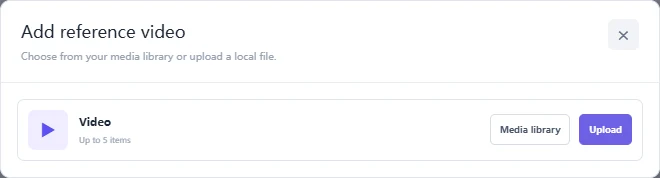
In Video Remix, click Select Video and choose a local file or one from the Media Library. For a supported Douyin share link, confirm usage rights before using Parse and Preview. Play the preview and wait for the source duration and aspect ratio to appear.
Source: FusionAI English workspace screenshot. 2. Replace product
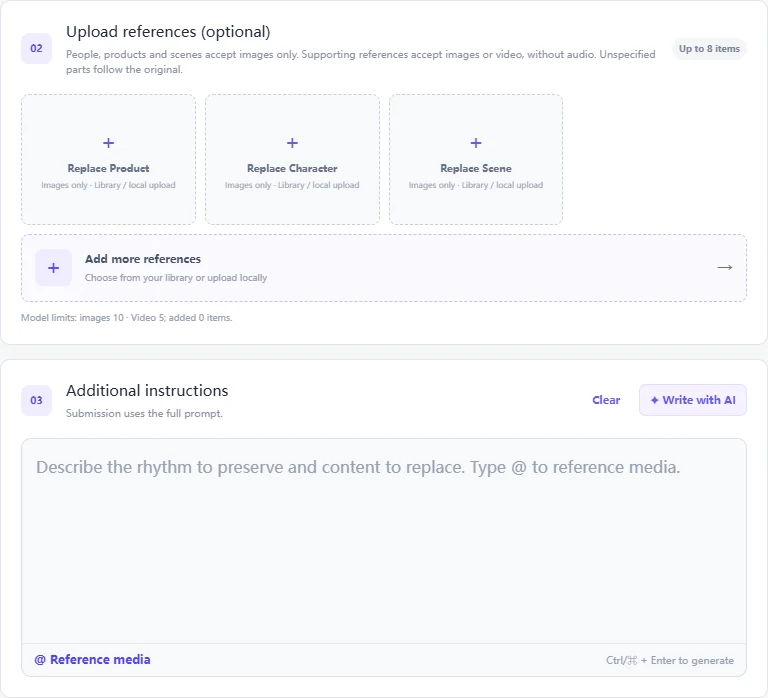
Upload the target image in Replace Product. Leave Replace Character and Replace Scene empty so the first run tests only one change.
3. Confirm the editing instructions
In Additional Instructions, identify the old item by position and time. Type @ and select the attached target image. Specify the grip, scale and contact shadow to preserve.
Source: FusionAI English workspace screenshot. 4. Choose sound and an available model
If the original voice names a different brand, do not retain it for the final deliverable. Choose Mute or use supported sound generation, then verify the new wording or add approved audio in post. In Advanced Settings, choose a model and resolution compatible with the source duration and aspect ratio. If no model matches, trim or re-export the source yourself; the tool does not automatically shorten it.
5. Confirm the estimate and submit
Check the complete prompt and estimated credits, then select Remix Now. Find the result in Generated Assets. Check task status before retrying; save the source, references and prompt for repeatable comparisons.
Adapt the prompt
Replace bracketed instructions with the actual attached reference. The example is a practice brief, not a recorded generation.
Replace only the bottle in the presenter’s right hand with [select the target product with @]. Preserve the presenter, background, timing and camera move. Match the original hand grip, scale and occlusion. Show the new label when the bottle faces the camera. Keep one bottle throughout; do not add brand text beyond the reference.
Review before export
Play the full output with the original beside it. Pause at the following checkpoints before downloading the approved version.
- Pickup: fingers touch the item naturally and do not pass through it.
- Rotation: the cap, proportions and label match the SKU. No old package flashes back.
- Set-down: scale, perspective and contact shadow still make sense. Review dialogue for any old brand or claim.
Troubleshoot failures
The old package reappears
Start with a closer shot or shorten the test to the turn that fails. Use one sharp SKU image before adding another reference.
The grip looks wrong
Choose a target of similar shape and weight. A wide box can’t reuse a narrow bottle grip cleanly.
The label is unreadable
Use a clear label reference and review at full size. For exact spelling or legal text, composite the approved label artwork before publishing.