
Implement GIF Generation Using GPT Image 2.6 on the FusionAI System
FusionAI Content Team · Updated 2026-11-25 · 13 min read
The practical answer
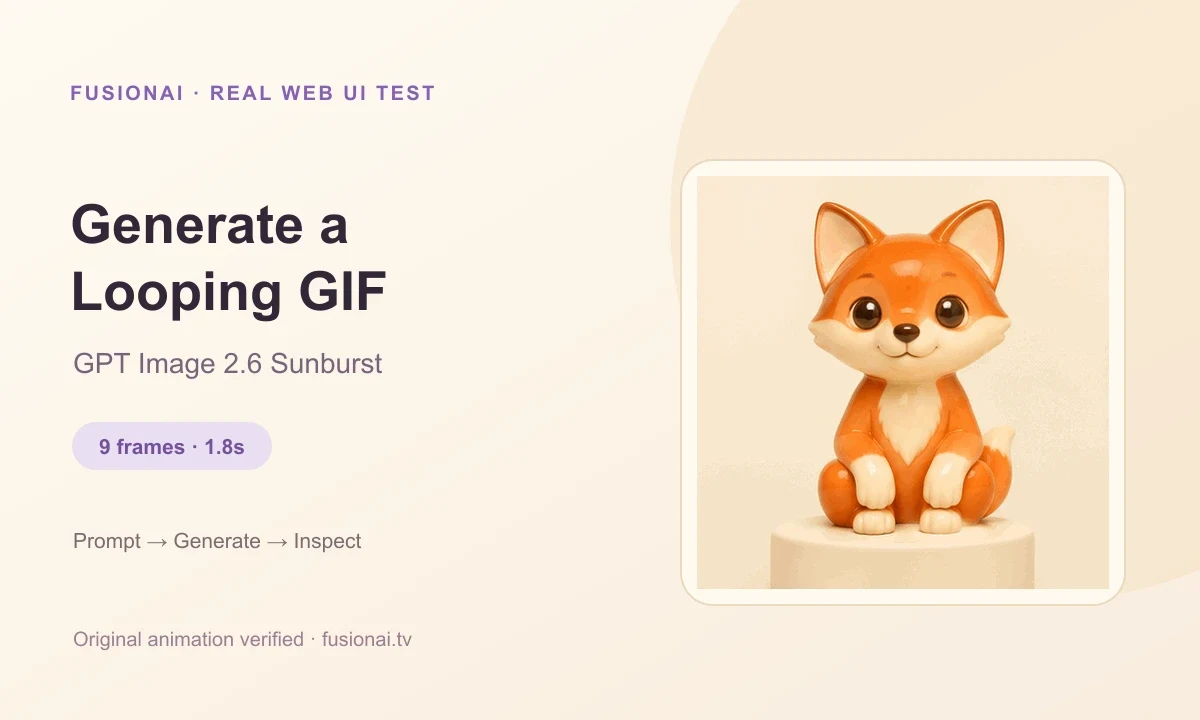
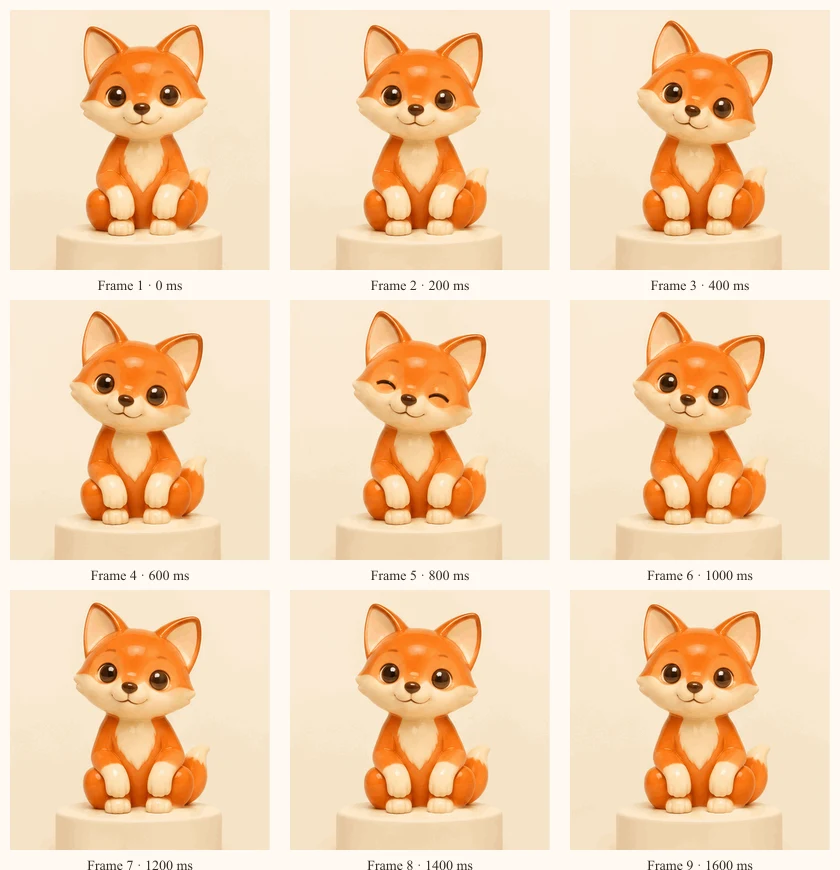
You can generate an animated GIF in FusionAI without writing API code. In our test, we opened Image Studio, used GPT-Image-2.6 Sunburst, selected GIF, entered a short looping-motion prompt and submitted the task through the credit confirmation dialog. The downloaded result was a real nine-frame GIF, not a static image renamed with a GIF extension.
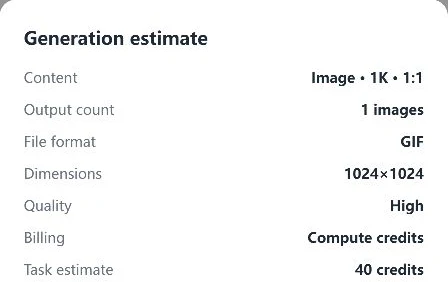
It was also a useful reminder to verify the output: the estimate displayed 1024×1024, while the downloaded animation measured 412×413 pixels per frame. Its nine 200-millisecond frames produced a 1.8-second loop. The task displayed 40 credits.
What native GIF output changes
A static image prompt describes one visual state. An animation prompt must also describe how that state changes and how it comes back. A beautiful starting image does not, by itself, specify a usable loop.
OpenAI’s current image-generation documentation describes native animated GIF output for GPT Image 2.6. The model returns the finished animation; creating separate stills and stitching them together is not required for that documented workflow. The guide covers both image generation and image editing with still references. Source: OpenAI’s animated-GIF output guide.
Our hands-on test used FusionAI’s website rather than a direct developer request. We selected a model and file format in the composer, reviewed a credit estimate, and downloaded the result from the task card. That proves this particular UI workflow worked. It does not verify every API field, every provider route, or every model available on the platform.
A short loop is a good fit when a single visual idea carries the message: a mascot acknowledging the viewer, a subtle product reveal, or a simple instructional cue. If the idea depends on several cuts, dialogue or a long sequence, plan it as a video project instead of forcing it into a tiny repeating animation.
How to generate a GIF in FusionAI: the workflow we actually tested
1. Open Image Studio and start with an empty creation
Open FusionAI Image Studio while signed in. Start a new creation so an earlier task’s references do not unintentionally influence the result. For this example we used text only: no uploaded photograph, product image or reference character.
Before writing the prompt, decide what one motion should communicate. We chose an orange ceramic fox performing a small head tilt and a blink. Its simple silhouette makes identity changes and unwanted camera movement easy to notice.
2. Select the model and the output format
The tested composer showed GPT-Image-2.6 Sunburst, High quality, one output and GIF format. It also showed Animated GIF · Auto size. We used those settings. We did not run a Flare comparison and cannot rank the two variants from this single sample.
Choosing GIF in the format control matters. Merely writing “make a GIF” in a prompt while exporting a static format is not the same workflow. Also check the output count: one animation is enough to validate the process before requesting alternatives.
3. Enter a motion prompt with a return state
Paste the complete prompt below into the image description field. Read it once for contradictions: a fixed camera should not also orbit, and a brief loop should not ask for an entire story. Keep appearance constraints separate from motion so the intended action is easy to follow.
4. Review the estimate before submitting
Click Estimated credits / Generate. In our confirmation dialog, the task was listed as one GIF, High quality, an estimated 1024×1024 size and 40 credits. We then clicked Generate once. The interface reserved 40 credits while the task ran.
5. Wait for the result, then download the original
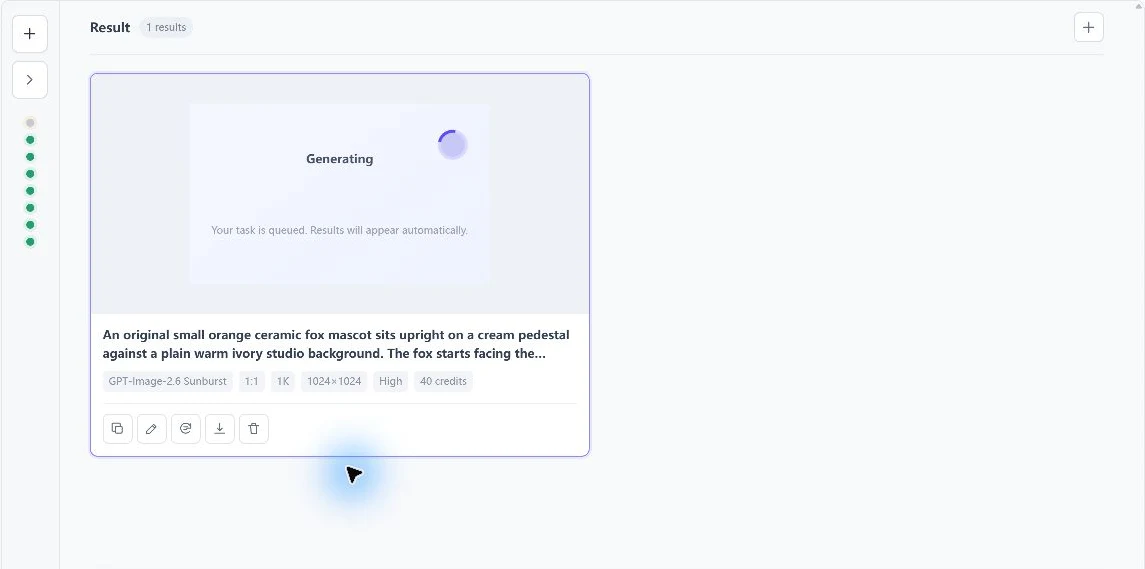
The result card initially displayed a generating state and said results would appear automatically. We waited for that task rather than submitting a duplicate. After completion, the card provided a larger preview and a download control.
Use Download to save the original file. A screenshot captures only one moment and cannot establish that a file is animated. We inspected the downloaded bytes and decoded every frame before treating the result as a successful GIF.
Write a prompt for a loop, not a sequence of unrelated pictures
OpenAI’s looping-GIF prompting example emphasizes a starting pose the subject can return to and an explicit decision about camera movement. Source: OpenAI’s looping-GIF prompting guide. Our example uses an original fox concept rather than reproducing the subject in that guide.
The exact prompt used in this test
An original small orange ceramic fox mascot sits upright on a cream pedestal against a plain warm ivory studio background. The fox starts facing the camera with both paws resting on its knees. It slowly tilts its head slightly to the left, blinks once, then returns exactly to the same upright starting pose. Keep its orange glaze, cream muzzle, ears, paws and proportions consistent throughout. Fixed camera, steady soft studio lighting, no zoom, no cuts, no text, no logo, no extra objects. Make the movement a smooth continuous loop with a seamless transition from the last frame back to the first.
The prompt has four jobs. First, it defines a recognizable subject: orange glazed ceramic, a cream muzzle and fixed proportions. Second, it anchors the composition to a pedestal and a plain background. Third, it specifies a small temporal sequence—tilt, blink, return. Finally, it removes distractions such as cuts, zooms, text and extra objects.
The most useful constraint is the return state. “A fox tilts its head” describes an action with an endpoint; it does not describe what should happen when playback repeats. “Returns to the same upright starting pose” asks for a closed action. Even that wording is a request, not a guarantee of mathematically identical boundary frames.
How to adapt the prompt without making it harder
Change one axis at a time. To test a different material, keep the action and camera unchanged. To test a wave, keep the character and background unchanged. If you change subject, lighting, camera and action together, it becomes difficult to identify which instruction caused an improvement or a failure.
For a real product, describe only a credible movement. A rigid bottle should not bend while turning, a printed label should not change between frames, and a piece of jewelry should retain its stone count. Those are acceptance criteria to inspect, not details to assume the model preserved.
Measured results: what the original GIF actually contained
| Check | Observed result |
|---|---|
| Submission method | FusionAI web interface; one confirmed generation |
| Selected model | GPT-Image-2.6 Sunburst |
| Selected quality / count | High / one output |
| Confirmed file format | GIF; nine decoded frames |
| Actual frame dimensions | 412×413 pixels |
| Frame delay | 200 ms for each frame |
| One cycle | 1,800 ms (1.8 seconds), equivalent to 5 frames per second |
| Loop metadata | Infinite repeat |
| Original file size | 385,790 bytes; approximately 377 KiB |
| Displayed task cost | 40 credits; balance fell by 40 and reservation cleared |
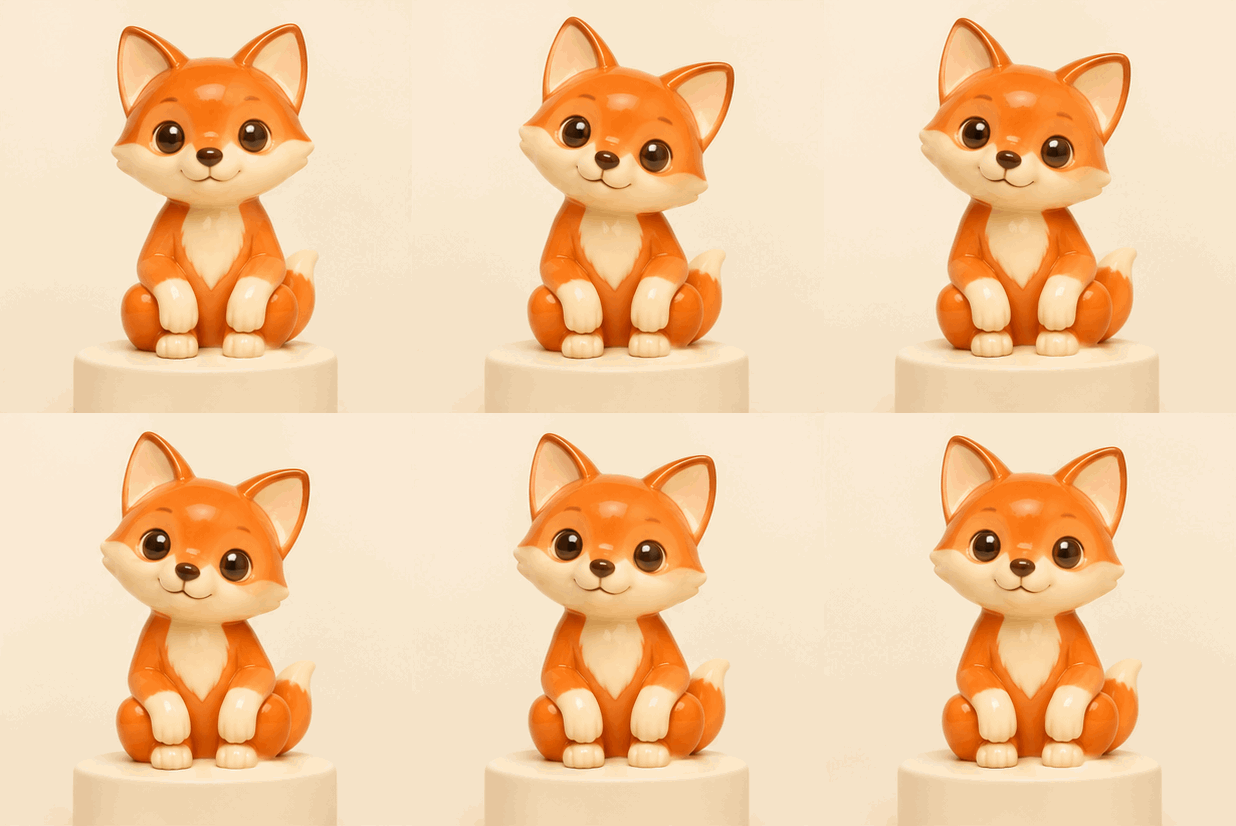
The GIF was decoded with Sharp for metadata and frame inspection. The original download was not edited. Diagnostic PNGs and the contact sheet below were extracted separately, so they do not alter the animation shown above.
What worked
The output visibly contains a head tilt, a blink near the middle and a return toward an upright pose. The orange-and-cream character remains recognizable, and the pedestal and plain background retain the same basic composition. There are no added captions or obvious scene cuts. The animation can therefore communicate the intended small gesture without a separate frame-assembly step.
What still needs judgment
The loop is not perfectly seamless. The first and last poses are close but differ in alignment and framing; repeating the sequence can reveal a small reset. Across the frames, the camera composition is broadly stable, but not every contour or subject position is pixel-locked. At five frames per second, motion is visibly stepped rather than fluid video motion.
That may be acceptable for a playful sticker or a small illustration. It is a weaker fit for a large product hero, a precision demonstration or a scene whose selling point is exact geometric consistency. “Successful generation” and “approved for a particular placement” are different decisions.
The size discrepancy is a delivery limitation
The estimate showed 1024×1024, but the result card and downloaded file both measured 412×413. The composer also showed Auto size. These observations establish a mismatch in the information presented to the user; they do not establish whether it originated in UI estimation, request normalization or the upstream response.
For this workflow, do not describe the result as a delivered 1K GIF. Measure the original file and use its real aspect ratio. If a brief requires an exact pixel size, validate that requirement separately before committing to delivery. Upscaling can change dimensions, but it does not prove that the model generated more detail.
Understand frames, timing and the limits of the UI test
OpenAI documents frame_count values of 2–16 and frame_duration_ms values of 20–2000 milliseconds, rounded to 10 ms. Defaults are nine frames and 200 ms. Frame size, frame count and output count share a total pixel budget; requesting more of everything may exceed the allowed combination. GIF output does not support streaming, partial images or custom output compression. Source: OpenAI’s GIF settings and limits.
Those are documented developer parameters. We did not see dedicated frame-count or timing controls in the tested FusionAI composer, and did not send a separate API request. The downloaded animation happened to contain nine 200-ms frames, matching the documented defaults. That measurement does not prove that an arbitrary timing field is exposed through this website.
The basic relationship is simple: cycle duration = frame count × per-frame delay. For our file, 9 × 200 ms = 1,800 ms. Reducing the delay makes the same frames play faster; it does not add intermediate poses. Adding frames can support more motion detail, but it can also increase generation work and file weight. Decide whether you need a slower gesture or a smoother gesture before changing the settings.
For a first test, a small closed motion is more informative than a fast jump with several object interactions. It is easier to see whether identity holds, whether the camera drifts and whether the final pose can reconnect to the first.
Prepare the GIF for a real website or campaign
Review the animation at its intended display size. Our file is nearly square, but it is not exactly 1:1. Reserving a square box and forcing both dimensions can subtly distort the fox. Preserve the measured aspect ratio or use a deliberate crop that you inspect again.
Keep a static poster frame beside the animation. Readers who prefer reduced motion should still be able to understand the image without playing it. For optional motion, a production page can show a static poster first and use a custom player or video derivative when play/pause controls are needed. A GIF displayed as an image does not have native playback controls.
Use alt text to describe the visible action, not to list keywords or narrate the testing process. For this result: “Orange ceramic fox tilting its head and blinking in a GPT Image 2.6 GIF generated through FusionAI.” Put the source and test conditions in a caption, where sighted readers can see them too.
A short editorial acceptance check is more useful than assuming every output is publishable:
- Confirm the file has multiple changing frames and the expected repeat behavior.
- Inspect identity, geometry, labels and product details frame by frame.
- Watch the last-to-first transition separately.
- Check actual dimensions and file weight against the placement.
- Preview on the target page and offer a static alternative when motion is optional.
If a task remains pending, inspect that task before submitting another one. If it fails, read the failure message and credit status. Repeatedly pressing Generate can create separate paid tasks; it does not diagnose why the earlier one failed.
Questions from this GIF test
Can I generate a GIF in FusionAI without writing API code?
Yes. This test used the FusionAI Image Studio website: GPT-Image-2.6 Sunburst, High quality, one output and GIF format. The request was submitted through the generation confirmation dialog, then downloaded using the result card.
Why did the confirmation dialog say 1024×1024 while the GIF was 412×413?
The interface showed Animated GIF · Auto size, but the estimate also displayed a 1K size. The downloaded file measured 412×413 per frame. This test establishes the discrepancy, not its underlying cause. Use the downloaded dimensions when planning placement; do not promise a fixed 1K GIF from this workflow.
Does a looping GIF guarantee a seamless animation?
No. The file can repeat indefinitely while still showing a jump at the loop boundary. Our fox returned close to its original pose, but the first and last frames were not identical. Inspect the last-to-first transition separately from the file’s loop setting.
Can I turn an existing product image into a GIF?
OpenAI documents GIF output with still reference images through its image-edit endpoint. This particular FusionAI test was text-only. It does not establish reference fidelity, supported reference formats or the result quality of a product-image animation in FusionAI.
How much does generating a GIF cost?
The FusionAI confirmation dialog estimated 40 credits for this Sunburst / High / one-GIF task. The result card displayed 40 credits, the available balance decreased by 40, and the temporary reservation cleared. This is one observed task, not a universal price or a dollar conversion. Check the current estimate before each submission.
Should I request a sprite sheet to make a native GIF?
No. For this native-GIF workflow, select GIF and describe a sequence over time. Asking for a tiled sheet introduces a different deliverable and can cause a collage rather than a single animated scene. A sprite-sheet pipeline is a separate workflow.
What if the GIF looks static or judders?
First download the original and confirm that it contains multiple changing frames. Then check frame delays and preview it in an application that plays animation. If the movement itself is weak, simplify the action and make the start, change and return explicit. Submit a new generation only after confirming the previous task’s status.
Test scope and sources
This article reports one text-to-GIF generation submitted through FusionAI’s English web interface on November 24, 2026. It includes the actual prompt, screenshots, unmodified GIF, decoded frame properties and a visual review. It is not a benchmark of model variants, a reference-image animation test or a direct FusionAI/OpenAI API integration test. Generation latency was not instrumented, so no speed claim is made.
Official references: OpenAI: Generate a looping GIF; OpenAI: Animated GIF output settings and limits. Platform evidence comes from the screenshots and original download in this article. Model availability, controls and credit estimates can change; verify them in the current composer.