
Create Your First Product Scene with the GPT Image Family
FusionAI Content Team · Updated 2026-11-12 · 2 min read
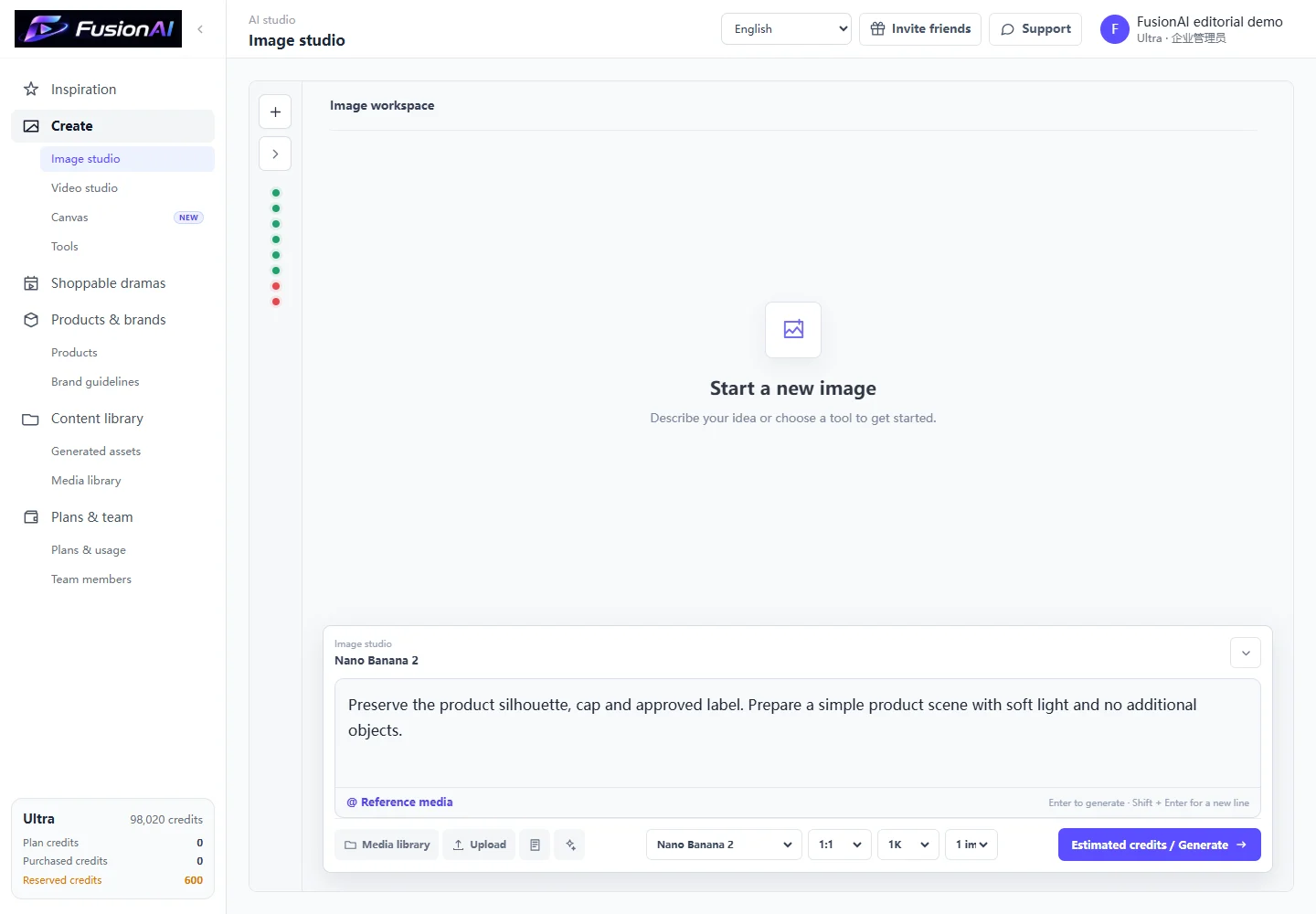
Follow the current FusionAI workspace. Check the selected model, settings and credit estimate before confirming a generation.
1. Start with a useful image task
Decide whether you need a new concept or an edit of an existing SKU. For an edit, prepare the source photograph and list the product details that cannot change before describing a new surface or room.
2. Choose the precise model entry
Open image studio and inspect the GPT Image entries currently published in the selector. Keep the selected entry, ratio and resolution in your task record. The linked packaging example was generated with Sunburst and does not compare every entry in the family.
3. Attach the reference and give the edit boundaries
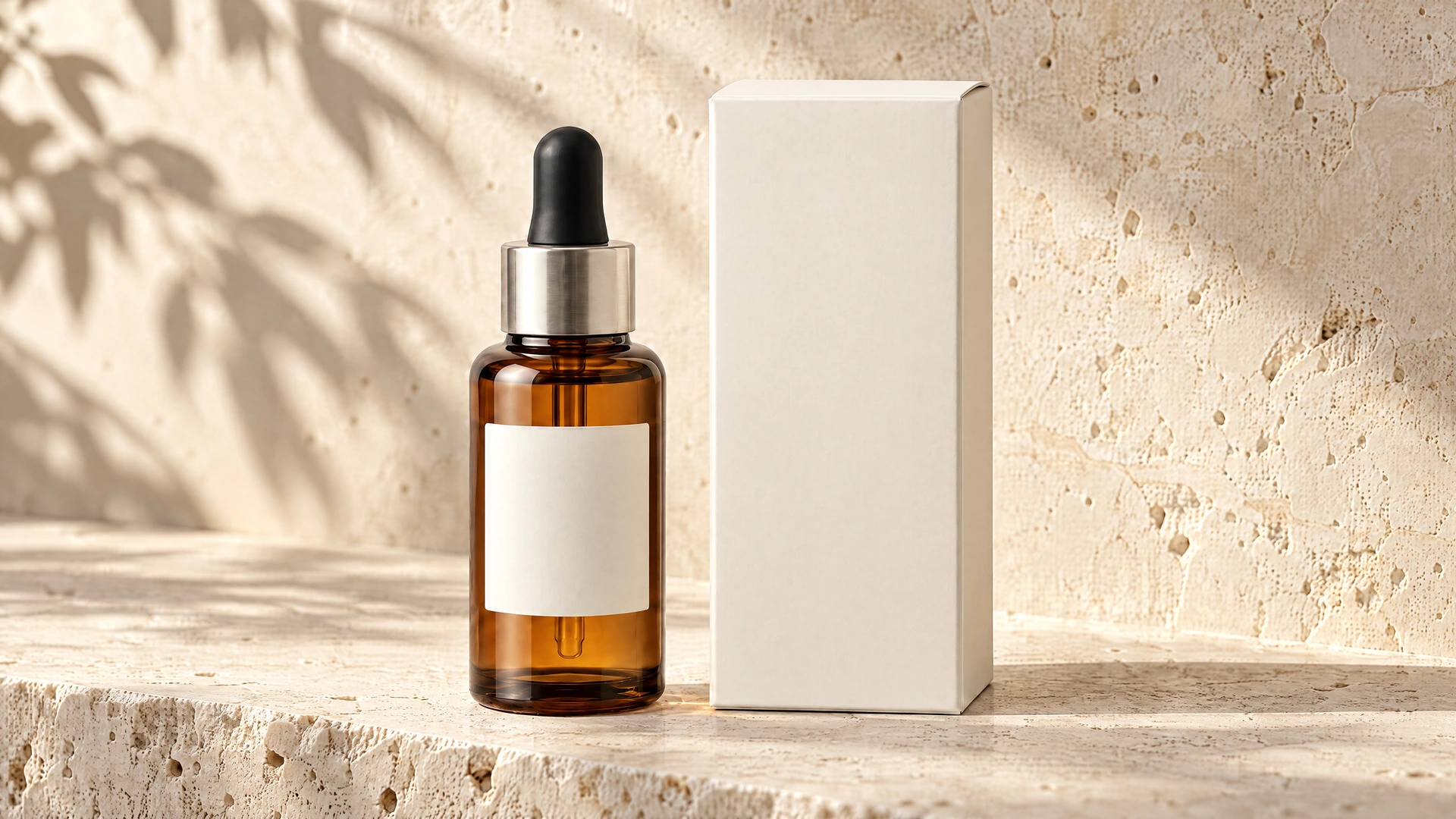
Wait for the thumbnail, then write the fixed product facts, requested change, composition, light and exclusions. In the packaging example the amber bottle and blank box remain the reference while only the setting changes.
4. Review the completed file
Read the estimate before confirming. After completion, inspect the full-size file and compare the bottle silhouette, collar, carton construction and shadows. A visually attractive image can still change a factual product detail.
5. Move to a set only when the direction works
Keep the usable candidate and its original source. If you need hero, feature, context and detail images, open AI product image sets and give each image a separate purpose rather than requesting one crowded composition.
Inspect the actual task
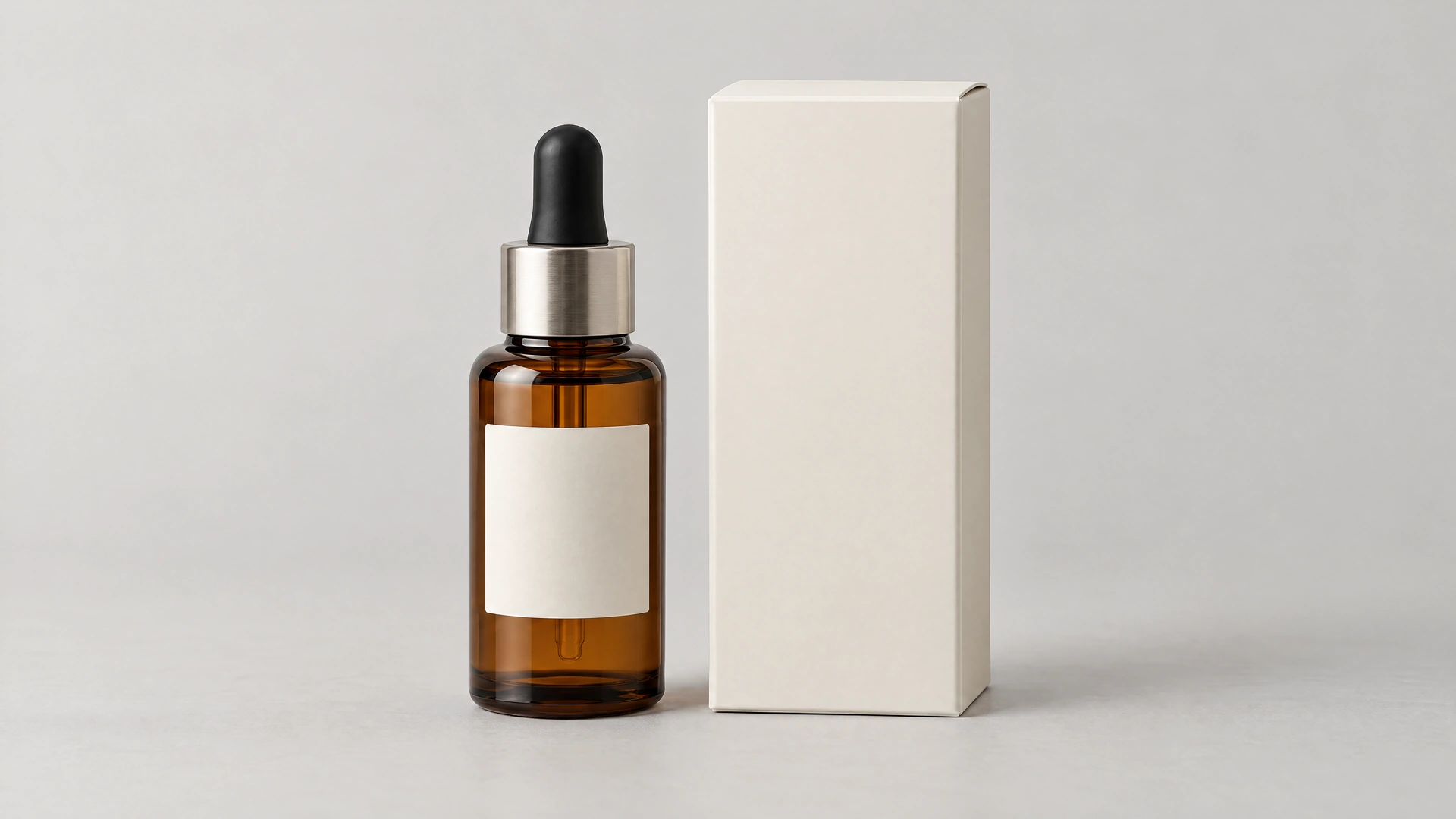
The image keeps the amber bottle, black dropper, silver collar and ivory carton while placing them on a stone ledge. The labels remain blank, so no ingredient or benefit claims are introduced.
This synthetic unbranded example does not test text fidelity or prove skincare performance. Add only verified brand copy through your normal publishing process and inspect the final packaging details.
View model, prompt, parameters and task record